Key Takeaways: Unity MCP Setup: Install and Verify MCP for Unity v10.1.0
- ## Quick answer
- CoplayDev/unity-mcp is a community-maintained MIT project, not an official Unity package. This guide pins release
v10.1.0at commitc14de1e6dc01ab42d2bb358730cff954bce0ce6b. In dated disposable projects, the package imported and compiled with exit code 0 in Unity2022.3.62f3and6000.0.49f1. A follow-up loopback HTTP E2E run registered the disposable Unity 6000.0.49f1 instance, readmcpforunity://project/info, created and deleted one test script throughmanage_script, and restored baseline commit9519f24with an empty final Git status.
# Unity MCP Setup: Install and Verify MCP for Unity v10.1.0
Direct answer: This guide uses CoplayDev/unity-mcp, a community-maintained MIT-licensed project; it is not an official Unity Technologies package. For a reproducible install, pin the Unity package to release v10.1.0 instead of following a moving branch. The package declares Unity 2021.3 as its floor, and its upstream documentation describes support through Unity 6.x. In our dated local check, the pinned package resolved to commit c14de1e6dc01ab42d2bb358730cff954bce0ce6b and imported with exit code 0 in disposable projects created by Unity 2022.3.62f3 and 6000.0.49f1. The Python server also started locally and completed an MCP initialize handshake. A follow-up E2E run completed a temporary HTTP client → server → Unity bridge against the disposable Unity 6000.0.49f1 project. /api/instances returned that exact project, mcpforunity://project/info returned its project root and version, and manage_script created then deleted one test script before Git restored baseline commit 9519f24 with a clean final status.
What this Unity MCP setup actually installs
MCP for Unity has three parts. First, the Unity package runs inside the Editor and exposes Unity-side operations. Second, a Python MCP server handles the protocol-facing side. Third, an MCP client connects to that server. A package import alone proves only that Unity resolved and compiled the package; it does not prove that the server is running, that a Unity instance registered with it, or that your client can call a tool.
This guide deliberately separates those checkpoints. The selected upstream is https://github.com/CoplayDev/unity-mcp. GitHub identified release v10.1.0 as a non-draft, non-prerelease release published on 2026-07-13, and the release tag resolves to commit c14de1e6dc01ab42d2bb358730cff954bce0ce6b. The package metadata at that revision reports package name com.coplaydev.unity-mcp, version 10.1.0, and a Unity floor of 2021.3. Its repository and LICENSE file identify the license as MIT.
That evidence supports using this specific release for the procedure below. It does not make the project official Unity software, certify every MCP client, or guarantee compatibility with every package combination. If you are comparing engine-side MCP patterns rather than installing Unity, use the Unreal Engine MCP and AI assistant workflow guide as a separate, engine-specific reference.
Prerequisites
Collect these before changing a real project:
- Unity
2021.3 LTSor newer, according to the upstream install guide. - Python
3.10+anduv, according to the same guide. - A compatible MCP client that supports either HTTP or stdio.
- A disposable Unity project, a clean branch, or a complete recoverable copy of the target project.
- The exact pinned source URL, release, commit, and retrieval date recorded with your test notes.
For this verification run, both local Unity executables returned the expected versions:
/Applications/Unity/Hub/Editor/2022.3.62f3/Unity.app/Contents/MacOS/Unity→2022.3.62f3/Applications/Unity/Hub/Editor/6000.0.49f1/Unity.app/Contents/MacOS/Unity→6000.0.49f1
Do not infer that every editor in the upstream range was tested here. Our evidence covers only those two installed versions, on this macOS host, in newly created temporary projects.
Install the pinned Unity package
In Unity, open Window → Package Manager, select Add package from git URL…, and use the release-pinned URL:
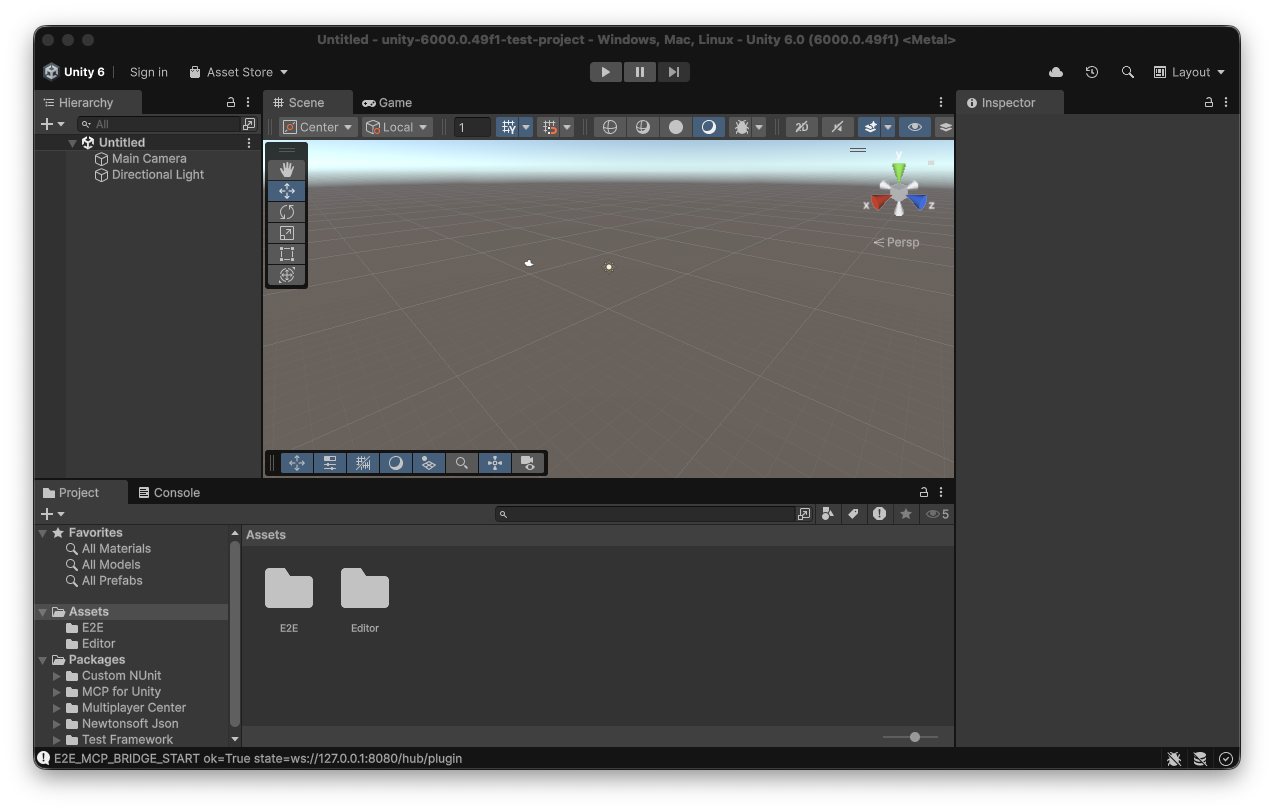
https://github.com/CoplayDev/unity-mcp.git?path=/MCPForUnity#v10.1.0The upstream quickstart shows the same repository and package path, while its generic instructions use a moving branch. Pinning v10.1.0 makes the result reproducible and matched our evidence bundle. After Unity finishes resolving packages and compiling scripts, inspect Packages/manifest.json and Packages/packages-lock.json.
A successful lock entry should identify com.coplaydev.unity-mcp as a Git dependency. In our two temporary projects, Unity recorded the requested v10.1.0 URL and resolved hash c14de1e6dc01ab42d2bb358730cff954bce0ce6b. Both batch imports exited with code 0. The logs did contain host licensing warnings and a shutdown-time Curl error 42, so an exit code should not be your only signal: also confirm that no package compile error remains in the Unity Console.
Stop here if: Unity resolves a different commit, Package Manager reports an error, scripts fail to compile, or the package unexpectedly changes files outside Packages/ and Unity's generated project state.
Start the server and choose a transport
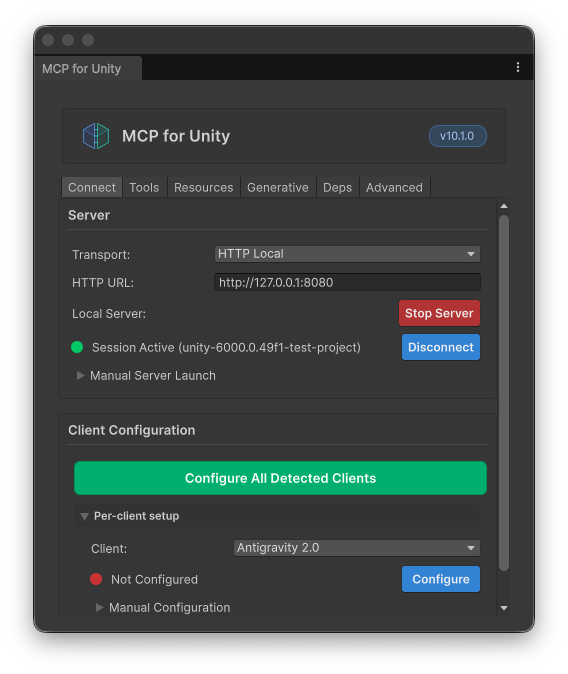
After import, the upstream install guide says the setup wizard should open automatically. It checks Python and uv, then detects supported clients. You can return to the package UI through Window → MCP for Unity. Use that UI to start or stop the server, choose a transport, and configure a detected client.
The project documents two transport modes:
- HTTP is the default. The documented local endpoint is
http://localhost:8080/mcp. It supports multiple MCP clients against one Python server and keeps per-session routing state. - stdio lets the client spawn a dedicated Python process over stdin/stdout. It avoids an HTTP listener but is described as a single-agent path without HTTP session isolation.
For a generic HTTP-capable client, the upstream manual configuration shape is:
{
  "mcpServers": {
    "unityMCP": {
      "url": "http://localhost:8080/mcp"
    }
  }
}
Not every client uses the same top-level key or transport. Use the exact client section in the upstream install guide instead of forcing this JSON into a different schema. This run used only an evidence-directory temporary client config pointing at http://127.0.0.1:8080/mcp; it did not modify global client configuration and did not exercise prohibited coding-agent CLIs. For broader model-selection context, the Kimi K3 vs DeepSeek V4 Unreal Engine comparison is an independently scoped workflow reference, not evidence that either model or client is compatible with this Unity MCP setup.
For local HTTP, keep the server bound to loopback. The upstream transport documentation says LAN binding requires explicit opt-in and remote endpoints require additional security decisions. Do not expose an unauthenticated development bridge to a shared network just to make setup easier.
Verify the server before connecting Unity
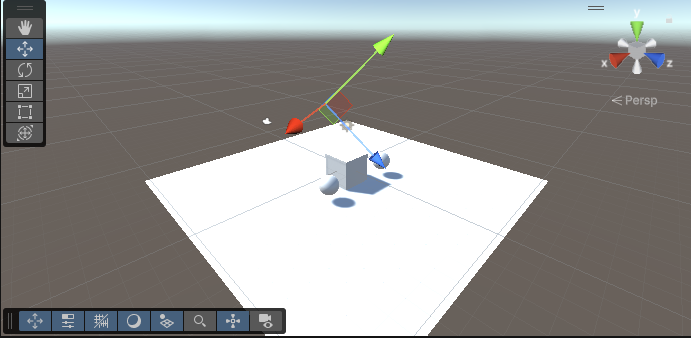
A server process should prove more than “the command stayed open.” In our isolated probe, the server was launched from the exact v10.1.0 Git tag on 127.0.0.1:18081, with telemetry disabled and logs redirected into the evidence directory. A standards-shaped MCP initialize request returned HTTP 200 and negotiated protocol version 2025-06-18. The response identified the server as mcp-for-unity-server version 3.4.4 and advertised tool, resource, prompt, and logging capabilities.
A separate request to the instance endpoint returned:
{"success":true,"instances":[]}That first empty list correctly showed that the initial server-only probe had no Editor registered. In the follow-up E2E run, /api/instances returned unity-6000.0.49f1-test-project with Unity 6000.0.49f1, so the bridge boundary is now runtime-verified for that disposable project and run.
Complete the Unity bridge and client check
The follow-up E2E run verified this sequence with a temporary HTTP client and disposable project. To reproduce it safely in another project:
- Open Window → MCP for Unity.
- Confirm the dependencies shown by the wizard are healthy.
- Select HTTP or stdio based on your client.
- Start the server and configure only the intended client.
- Confirm the package status panel reads
Connected. - In the client, list MCP resources and read the exact URI for the Unity instances resource; the upstream troubleshooting guide refers to
mcpforunity://instances. - Verify that the result contains the disposable project instance rather than an empty list.
- Read project or editor state before calling any mutating tool.
If more than one Unity Editor is open, select the exact Name@hash instance before any action. Do not rely on “the first Editor” or a guessed project name.
Minimal safe test
Start with a read-only operation. Record the returned project name, Unity version, active scene, and instance identifier. Compare those values with the disposable project you opened. This catches accidental routing to another Editor without changing anything.
Only after the read-only result is correct should you try one reversible write. Create one clearly named object in an unsaved test scene, inspect the Hierarchy and Console, then undo or delete it. Capture:
- the exact client and version;
- selected transport and endpoint;
- Unity status-panel state;
- instance resource response;
- tool name and parameters;
- before/after project diff;
- Console errors and warnings;
- rollback result.
The E2E evidence includes a read-only mcpforunity://project/info result and a successful manage_script create/delete cycle for Assets/E2E/McpE2EReversibleWrite.cs. The write diff was preserved, the file was removed through MCP, and Git was reset/cleaned back to baseline commit 9519f24; final git status --porcelain was empty.
Permissions, secrets, and project safety
Treat every Unity MCP write as a code or asset change requiring review. Start from recoverable state, keep the test scope narrow, and inspect the diff before saving or committing. Script edits can trigger compilation and domain reloads; package and asset operations can have a wider blast radius than a single GameObject change.
Use the smallest visible tool surface needed for the task. The v10 documentation describes grouped tools and notes that non-core groups are opt-in. Do not enable asset generation, package management, profiling, build, or arbitrary scripting capabilities merely because they are available.
Keep API keys out of prompts, MCP client JSON, project assets, screenshots, and terminal logs. The upstream v10 notes say provider keys for optional asset-generation features are entered in Unity and stored through the operating system's secure store. That feature is unrelated to basic connection verification; leave it disabled unless you explicitly need it and understand provider cost and data handling.
For HTTP, prefer loopback. If remote access is required, apply the upstream security controls and an organization-approved network design; do not reinterpret a local setup guide as authorization to bind publicly.
Troubleshoot by layer
Diagnose one boundary at a time:
- Package layer: Is
com.coplaydev.unity-mcppresent in the manifest and lock file? Does the resolved hash match the pinned tag? Are there compile errors? - Dependency layer: Does
uv --versionwork in the environment Unity can see? GUI applications may not inherit your shell PATH. - Server layer: Is the expected process listening on the configured endpoint? Does an MCP initialize request succeed?
- Bridge layer: Does
mcpforunity://instancesreturn the disposable project? An empty list means the Python server is alive but Unity is not registered. - Client layer: Does the client use the transport and configuration schema documented for that client? Restart it after changing transport or configuration.
- Routing layer: If multiple Editors are open, is the active instance explicitly selected?
- Tool layer: Are only the required tool groups visible, and does a read-only call return the expected project?
Change one variable, rerun the closest checkpoint, and preserve the log. Reinstalling everything at once destroys evidence about which boundary failed.
Remove MCP for Unity and restore a clean project
Rollback should be tested, not assumed.
- Stop the server from Window → MCP for Unity and close the disposable Editor.
- Remove only the
unityMCPentry created for this server from the client's MCP configuration, or use the package's client configurator to unregister it where supported. - In Unity Package Manager, select MCP for Unity and choose Remove. The repository's migration documentation shows Package Manager removal as the uninstall path for an installed package.
- Confirm
com.coplaydev.unity-mcpis no longer present inPackages/manifest.json; after Unity resolves dependencies, confirm its lock entry is gone. - Delete only test assets you created, review the diff, and restart the client.
- Verify the server no longer appears in the client and no process is still listening on the configured port.
Do not delete Unity's entire Library folder as a first response. It is generated state and can be rebuilt, but deleting it is slow and hides the narrower cause. Preserve the package URL, resolved commit, logs, and client config diff until the rollback is confirmed.
Evidence status and limits
The primary-source evidence is sufficient to identify a real maintained community repository, MIT license, published release v10.1.0, package metadata, documented prerequisites, package URL, transports, endpoint, setup UI, and troubleshooting model. Local evidence confirms both requested Unity executables, clean temporary-project creation, pinned package resolution and compilation in both versions, Python server startup, and MCP protocol initialization.
The live Unity bridge and client-mediated read/write/rollback sequence are now proven for the disposable Unity 6000.0.49f1 project. Three real-product Unity captures were uploaded and bound as the cover, first inline image, and second inline image. For each asset, the upload receipt records local and remote byte counts and SHA-256 values, and an independent HEAD request returned HTTP 200 with image/png; this verifies the prepared media binding, not a live page publication.
Primary sources used
- CoplayDev/unity-mcp repository
- Release v10.1.0
- Pinned package metadata
- Installation guide
- Transport architecture
- Troubleshooting guide
- MIT license
Frequently Asked Questions
Is CoplayDev/unity-mcp an official Unity package?
No. It is a community project published by CoplayDev. Its name and Unity integration do not imply endorsement, ownership, or support by Unity Technologies.
Which version does this Unity MCP setup guide pin?
Release v10.1.0, resolving to commit c14de1e6dc01ab42d2bb358730cff954bce0ce6b. Pinning avoids an unreviewed moving branch.
Which Unity versions were actually checked?
This evidence run imported and compiled the package in temporary projects using Unity 2022.3.62f3 and 6000.0.49f1. The broader Unity 2021.3 through 6.x range is an upstream compatibility statement, not a local exhaustive test.
Does a successful MCP initialize response prove Unity is connected?
No. The first server-only probe initialized successfully while instances was empty. The follow-up E2E run required a non-empty disposable Unity instance plus a matching read-only project-info response before the reversible write.
What is the safest first Unity MCP tool check?
Use a read-only resource request that identifies the disposable project, Unity version, scene, and instance. Do not start with scene, asset, script, package, build, or provider-backed mutations.
When is the Unity MCP setup complete?
Only when the pinned package compiles, the server initializes, the Unity instance registers, the client reaches the correct instance, a read-only check matches the test project, one reversible write succeeds, and rollback leaves a reviewed clean diff.