
Free game asset · Weapons & Equipment · 3D model
Axe 3D game asset
Need a weapon 3D model for a game? The Axe is listed as a weapon game asset based on its supplied name and preview record. Review ZIP, FBX, GLB formats, then use the Seele AI 3D Workspace to edit, optimize, and prepare it for a game scene. Verify technical fit and reuse rights before shipping.
12 preview images ZIP, FBX, GLB
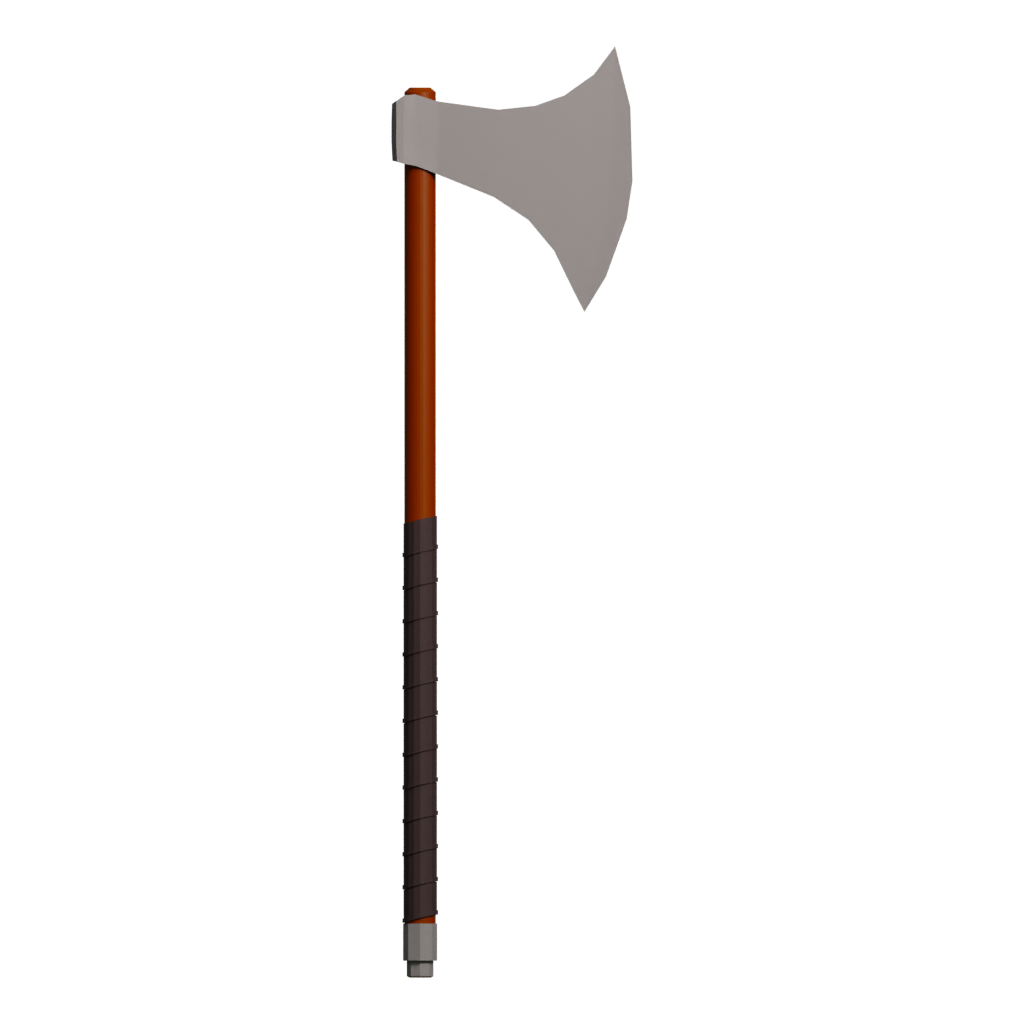
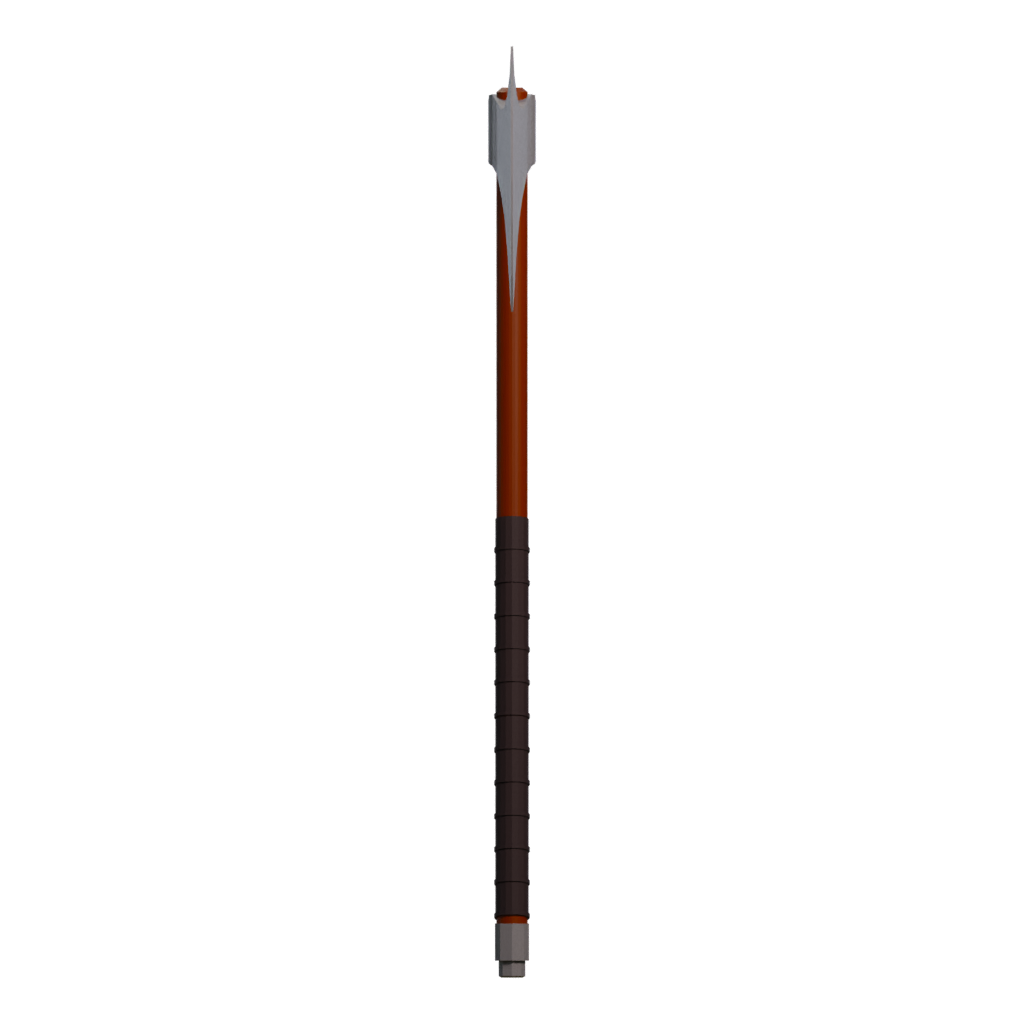
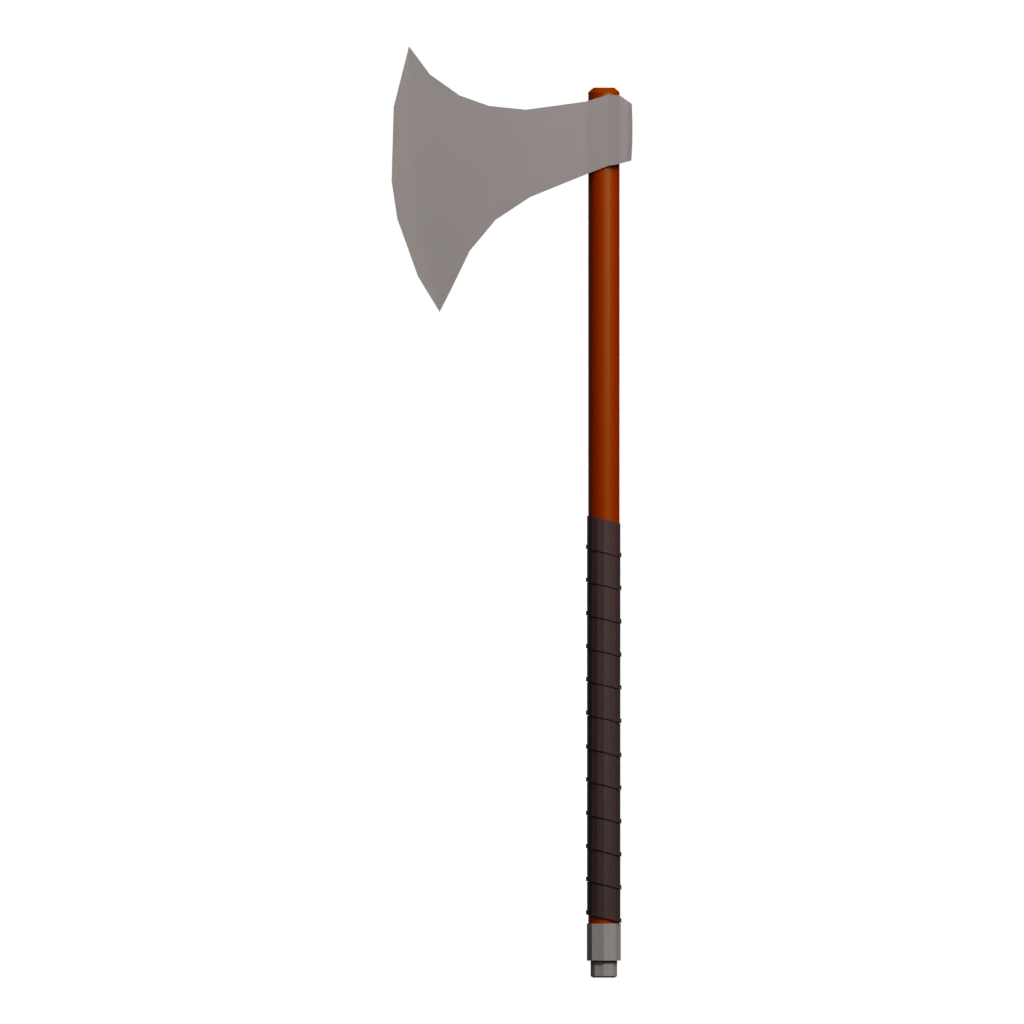
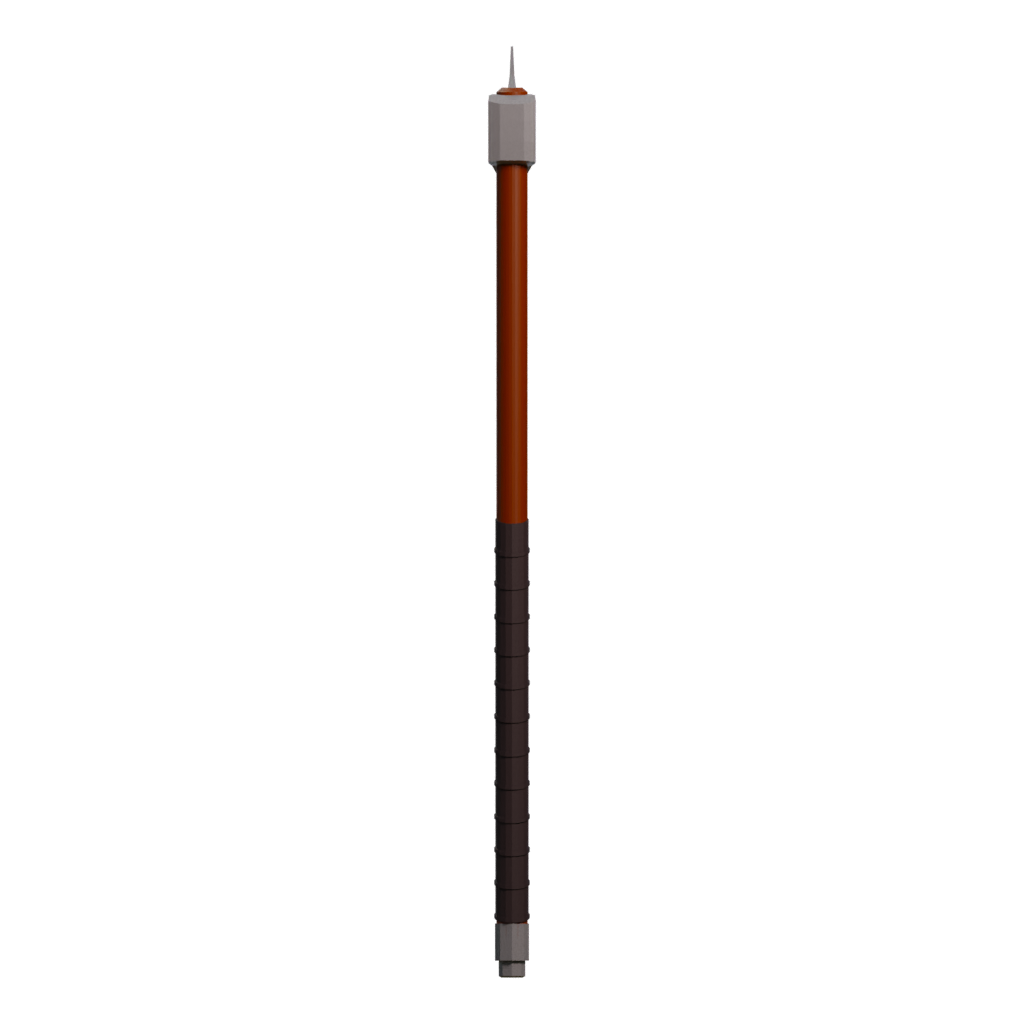
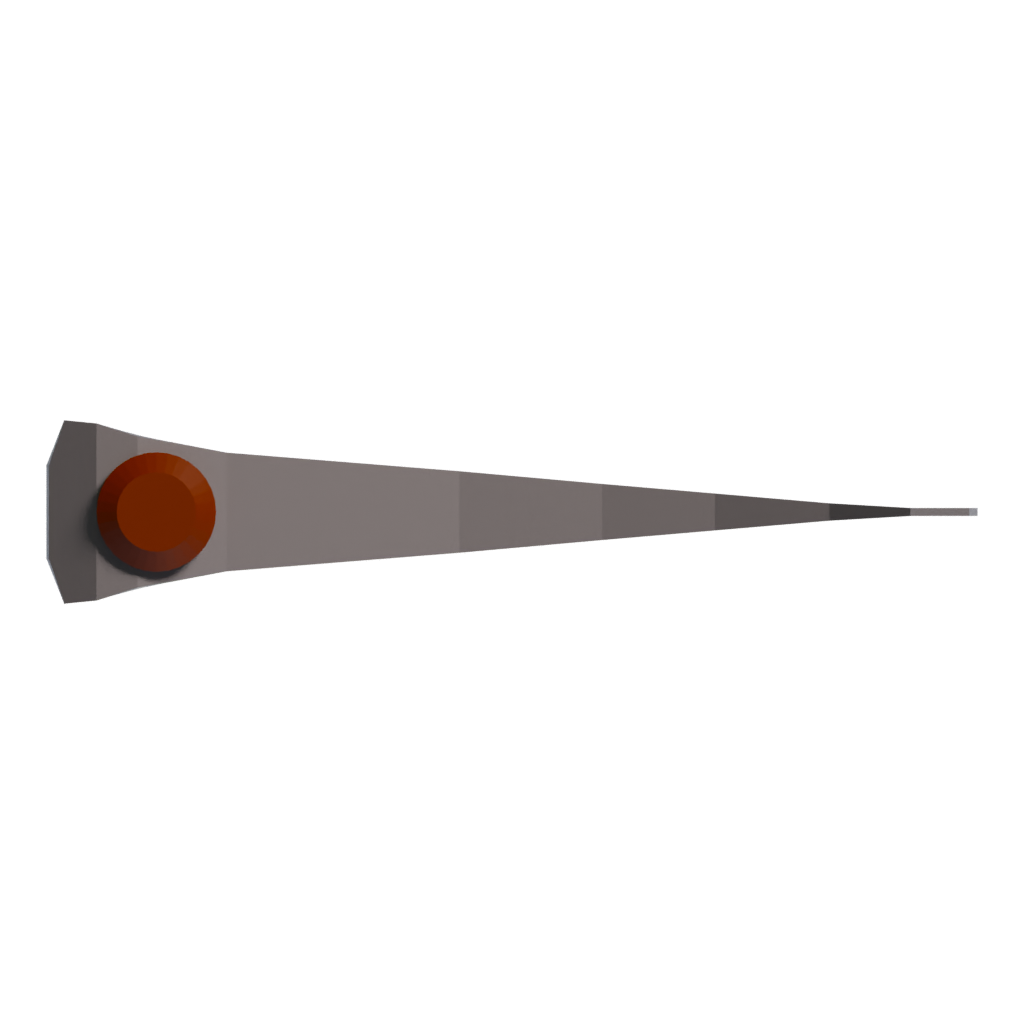
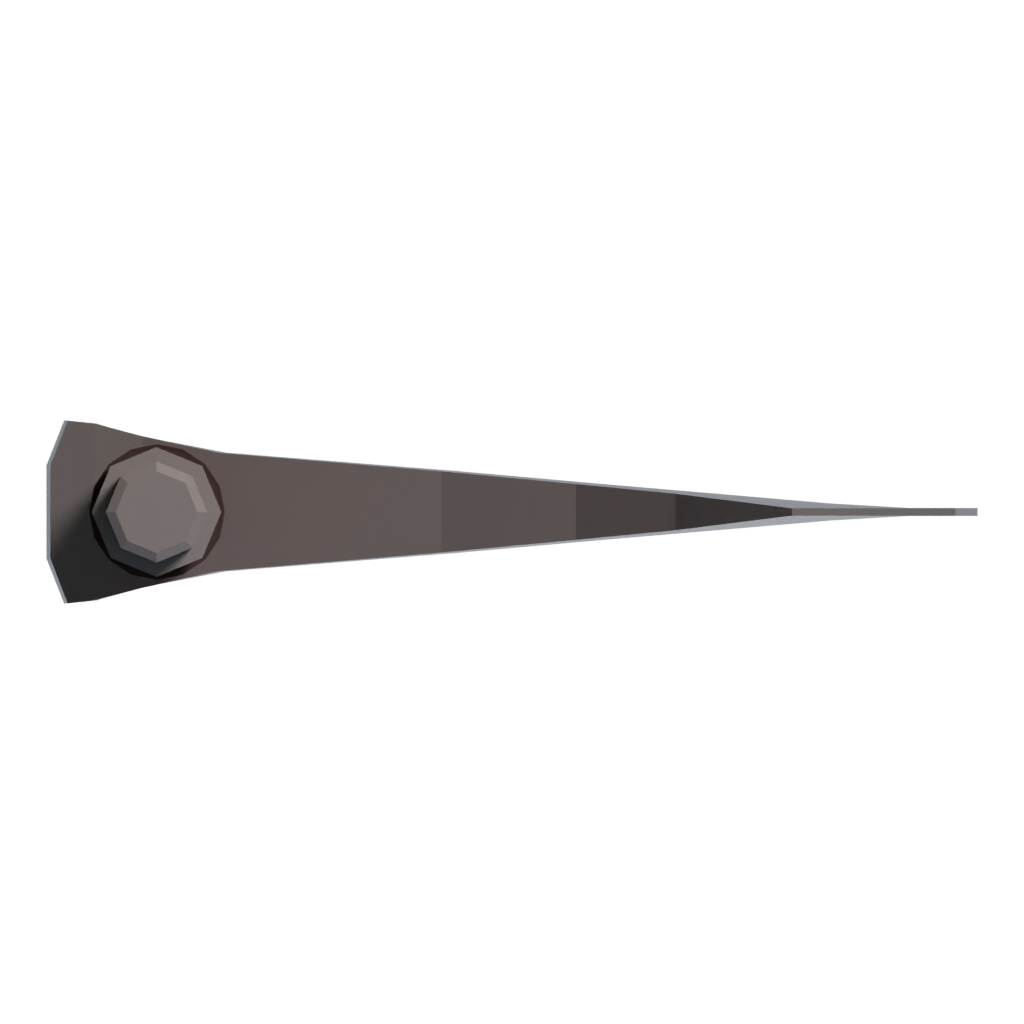
01Front view
Use the front preview to compare the model silhouette, visible materials, and surface detail with the other views.Seele AI · game asset workflow
Import → Edit → Optimize → Export
Bring a model into the Seele AI 3D Workspace, shape the next version, and prepare a game asset for your project.
- 01ImportBring in a model
- 02EditShape the next version
- 03ExportPrepare the asset
Trusted by leaders in
AI, gaming & entertainment




Game asset editing workflow
Edit this game asset
Use the model preview as a starting point, then continue in the Seele AI 3D Workspace to edit, optimize, and prepare a version for your game project.
- 01
Evaluate the Axe as a game asset
Start with the preview angles and ZIP, FBX, GLB formats. Check silhouette, scale, materials, and visible parts before treating this weapon model as a candidate for a game asset workflow.
- 02
Read the Axe silhouette and usable scale
Use the multi-view preview to check the profile, edge shapes, grip, attachment points, and visible moving parts before placing the asset in a scene.
- 03
Set the origin for a believable interaction
Align the origin and forward axis with the hand, mount, or display position expected by the target scene. Do not assume a correct pivot from the preview.
- 04
Refine hard-surface materials
Review available maps and tune metal, painted, leather, wood, or emissive surfaces for the final renderer without inventing texture data that is not in the package.
- 05
Create a clear prop or gameplay presentation
Use the Seele AI 3D Workspace to test a display, inventory, or gameplay camera and keep any damage, recoil, attachment, or animation behavior as explicit project work.
- 06
Optimize and export the Axe for a game project
Review bevel density, texture size, material slots, LODs, and collision needs before the equipment is shown repeatedly or attached to a character. Verify scale, pivot, axis, material links, texture paths, and any supported animation data after export. Validate the final result in Blender, Unity, Unreal, or the actual toolchain used by your project.
Next step
Build your next game asset.
Open the Seele AI 3D Workspace to continue working with this model and prepare game materials for your project.
Before you use it in a game
Check this game asset first
What kind of weapon game asset is Axe?
Axe is grouped here as a weapon or equipment asset from its supplied name and preview record. This does not prove that it includes gameplay logic, attachments, animation, or a collision setup.
Can I use Axe in a game?
It can be a visual starting point for a prop, inventory item, display, or game prototype after you confirm technical fit and reuse rights. Treat the page as a discovery and editing starting point, then verify the actual package and reuse rights for your project.
Which file types are listed for Axe?
The record references ZIP, FBX, GLB. Confirm the actual package before importing or converting it.
Is Axe game-ready?
A preview record cannot confirm that Axe includes a rig, animation, collision, optimized topology, or engine-ready materials. Check those requirements in the downloaded package and target game pipeline.
How should I edit Axe for a game asset workflow?
Check grip or mount scale, origin, forward axis, material slots, collision, and the parts that need animation. Validate those assumptions in the target project. Keep the source preview and original package available while creating the game-specific version.
What should I check before using Axe in a game?
Verify the model and texture rights, safety of the intended context, engine performance, material compatibility, and any animation or attachment dependencies.