Here's the result of the canva-veo3-guide model generated using Meshy.
Canva Veo 3: Complete Guide to AI Video Generation in 2026
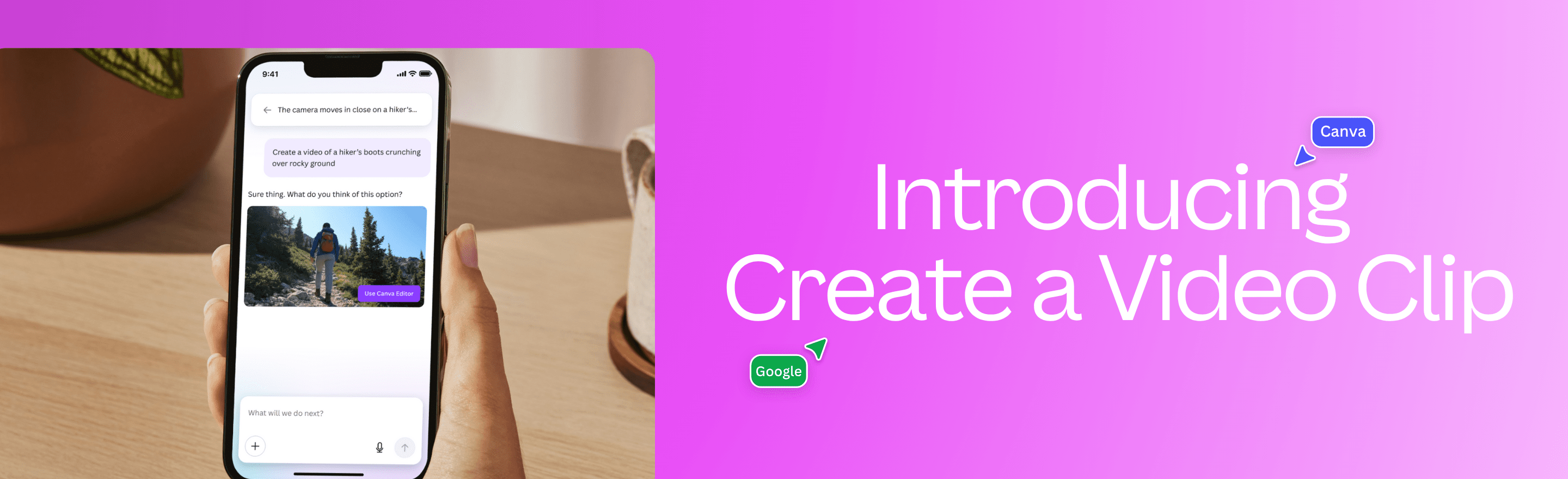
The integration of Canva Veo 3 marks a revolutionary moment in accessible video creation. Google's cutting-edge video generation AI, Veo 3, is now available directly within Canva's intuitive platform, enabling anyone to create professional-quality videos from simple text prompts. This comprehensive guide will walk you through everything you need to know about using Veo 3 in Canva .
What is Veo 3?
Veo 3 is Google DeepMind's latest state-of-the-art video generation model, representing a significant leap forward in AI-powered content creation. This advanced model can generate cinematic-quality videos with synchronized audio from text descriptions, making professional video production accessible to everyone.
Key Capabilities of Veo 3
- Cinematic Quality : Produces high-resolution videos up to 1080p and 4K quality
- Audio Generation : Creates native audio including sound effects, ambient noise, and dialogue
- Advanced Physics : Understands real-world physics for realistic motion and interactions
- Prompt Adherence : Follows complex instructions with unprecedented accuracy
- Extended Duration : Generates longer video sequences with consistent quality
The technology behind Veo 3 builds upon years of research in generative AI, offering creators a powerful tool for transforming ideas into visual stories.
Canva and Veo 3 Integration: A Game Changer
The partnership between Canva and Google Veo 3 brings enterprise-grade AI video generation to millions of users worldwide. This integration combines Canva's user-friendly design platform with Veo 3's advanced video generation capabilities.
Why This Integration Matters
Accessibility : No technical expertise required to create professional videos Seamless Workflow : Generate, edit, and export videos all within Canva Cost-Effective : Access cutting-edge AI technology through Canva's platform Creative Control : Fine-tune generated videos with Canva's extensive editing tools
This collaboration democratizes video creation, enabling businesses, content creators, educators, and marketers to produce high-quality video content at scale.

How to Use Veo 3 in Canva: Step-by-Step Guide
Getting started with Canva Veo 3 is remarkably straightforward. Follow these steps to create your first AI-generated video:
Step 1: Access Veo 3 in Canva
- Log in to your Canva account (Pro or Teams account recommended)
- Navigate to the "Video" section or search for "Veo 3" in the apps marketplace
- Click on "Apps" in the left sidebar
- Find and select "Veo 3 Video Generator"
Step 2: Craft Your Video Prompt
The quality of your output depends heavily on prompt engineering. Here's how to write effective prompts for Veo 3 in Canva :
Be Specific : Include details about scene, subjects, actions, and atmosphere
Example: "A medium shot of a professional chef flipping vegetables in a wok,
with steam rising and warm kitchen lighting in the background"
Specify Camera Work : Describe camera movements for cinematic effects
Example: "Camera slowly pushes forward through a ice cave,
revealing a sunlit valley beyond"
Include Audio Description : Describe desired sounds and music
Example: "Audio: sizzling sound, ambient kitchen noise,
upbeat acoustic background music"
Step 3: Generate Your Video
- Enter your detailed prompt in the text box
- Select video duration (typically 2-8 seconds)
- Choose quality settings (1080p recommended for most uses)
- Click "Generate Video"
- Wait for processing (usually 30-90 seconds)
Step 4: Refine and Edit
Once your video generates: - Preview the output - Use Canva's editing tools to trim, adjust, or add effects - Combine multiple Veo 3 clips to create longer sequences - Add text overlays, transitions, and additional elements - Export in your preferred format

Key Features of Veo 3 in Canva
1. Text-to-Video Generation
Transform written descriptions into fully realized video clips. The AI interprets your prompt to create scenes with appropriate: - Visual composition - Motion and animation - Lighting and atmosphere - Audio elements
2. Image-to-Video Animation
Upload reference images to guide video generation: - Character Consistency : Maintain character appearance across scenes - Scene Ingredients : Use reference images for specific objects or settings - Style Matching : Apply visual styles from reference images
3. Advanced Camera Controls
Precisely control cinematography: - Zoom : In and out movements - Pan : Horizontal camera motion - Tilt : Vertical camera adjustments - Dolly : Forward and backward tracking shots - Orbit : 360-degree rotation around subjects
4. Video Extension
Create longer narratives by extending existing clips: - Continue the story seamlessly - Maintain visual consistency - Preserve audio continuity - Build complex sequences
5. Video Editing Capabilities
Object Addition : Introduce new elements into existing videos Object Removal : Eliminate unwanted items Outpainting : Expand video frames beyond original boundaries Resolution Upscaling : Enhance video quality to 4K
Best Practices for Using Canva Veo 3
Optimize Your Prompts
✅ Do: - Use descriptive, specific language - Include camera movement descriptions - Specify lighting and atmosphere - Describe audio elements - Reference time of day and weather
❌ Don't: - Use vague or generic descriptions - Omit important scene details - Forget to specify audio needs - Neglect camera work instructions
Creative Techniques
Storyboard First : Plan your video sequence before generating Iterate Rapidly : Generate multiple variations to find the best result Combine with Canva Elements : Mix AI-generated content with Canva's library Layering : Stack multiple Veo 3 clips for complex compositions Color Grading : Apply Canva filters for consistent visual tone
Quality Considerations
- Generate at highest resolution available
- Use proper lighting descriptions for professional appearance
- Consider aspect ratio for your target platform
- Test audio levels before final export
- Preview on multiple devices

Use Cases and Applications
Content Marketing
- Social media video ads
- Product demonstrations
- Brand storytelling clips
- Explainer videos
- Testimonial backgrounds
Education
- Educational animations
- Concept visualizations
- Historical recreations
- Scientific demonstrations
- Tutorial content
Entertainment
- Short film sequences
- Music video elements
- Animation projects
- Storyboard visualization
- Creative experiments
Business Communication
- Corporate presentations
- Training materials
- Internal communications
- Event promotions
- Customer onboarding
Common Challenges and Solutions
Challenge 1: Inconsistent Results
Solution : Refine your prompts with more specific details. Include exact descriptions of subjects, actions, and environment.
Challenge 2: Audio Sync Issues
Solution : Describe audio explicitly in your prompt. Specify when sounds should occur relative to visual actions.
Challenge 3: Unwanted Elements
Solution : Use Veo 3's object removal feature, or regenerate with a more precise prompt excluding unwanted items.
Challenge 4: Short Clip Duration
Solution : Use the video extension feature to create longer sequences while maintaining consistency.
Veo 3 vs. Other AI Video Tools
| Feature | Veo 3 in Canva | Other AI Tools |
|---|---|---|
| Ease of Use | ⭐⭐⭐⭐⭐ | ⭐⭐⭐ |
| Video Quality | 4K Support | Varies |
| Native Audio | ✅ Yes | ❌ Limited |
| Editing Integration | Full Canva Suite | Separate Tools |
| Pricing | Canva Subscription | Separate Fees |
| Learning Curve | Minimal | Moderate to High |
The Canva Veo 3 integration offers unmatched convenience by combining generation and editing in one platform.

Tips for Professional Results
- Study Cinematography : Understanding film techniques improves prompt quality
- Reference Library : Build a collection of successful prompts for reuse
- A/B Testing : Generate multiple versions to select the best output
- Brand Consistency : Develop prompt templates for consistent brand visuals
- Audio Strategy : Plan soundscapes that enhance your visual storytelling
- Iteration : Don't settle for first generation—refine until perfect
- Community Learning : Join Canva communities to share techniques
Future of Veo 3 in Canva
The integration continues to evolve with new capabilities:
- Extended video duration for longer-form content
- Enhanced character consistency across multi-scene projects
- Improved style transfer for branded content
- Advanced physics simulation for realistic interactions
- Multi-language audio generation for global audiences
As AI video technology advances, Canva Veo 3 will remain at the forefront of accessible, high-quality video creation.
FAQs
Is Veo 3 available to all Canva users?
Veo 3 is typically available to Canva Pro and Canva Teams subscribers. Check your account type for access.
What video formats can I export?
You can export videos in MP4, MOV, and other standard formats compatible with all major platforms.
How long does video generation take?
Generation time varies by complexity and duration, typically ranging from 30 seconds to 2 minutes.
Can I use Veo 3 videos commercially?
Yes, videos generated through your Canva subscription can be used for commercial purposes. Review Canva's licensing terms for details.
What's the maximum video length?
Initial clips are typically 2-8 seconds, but you can extend them to create longer sequences.
Does Veo 3 work on mobile?
Veo 3 is optimized for desktop browsers. Mobile support may be limited depending on device capabilities.
Conclusion: Unlock Your Creative Potential with Canva Veo 3
The integration of Veo 3 in Canva represents a paradigm shift in video content creation. By combining Google's advanced AI technology with Canva's intuitive platform, creators of all skill levels can now produce professional-quality videos that would have required expensive equipment and specialized expertise just months ago.
Whether you're a marketer looking to create engaging social media content, an educator developing visual learning materials, or a creative professional exploring new storytelling methods, Canva Veo 3 provides the tools you need to bring your vision to life.
Start experimenting with Veo 3 in Canva today, and discover how AI-powered video generation can transform your creative workflow. The future of video creation is here—and it's more accessible than ever.
Ready to create stunning videos? Log in to your Canva account and explore Veo 3's powerful capabilities today.