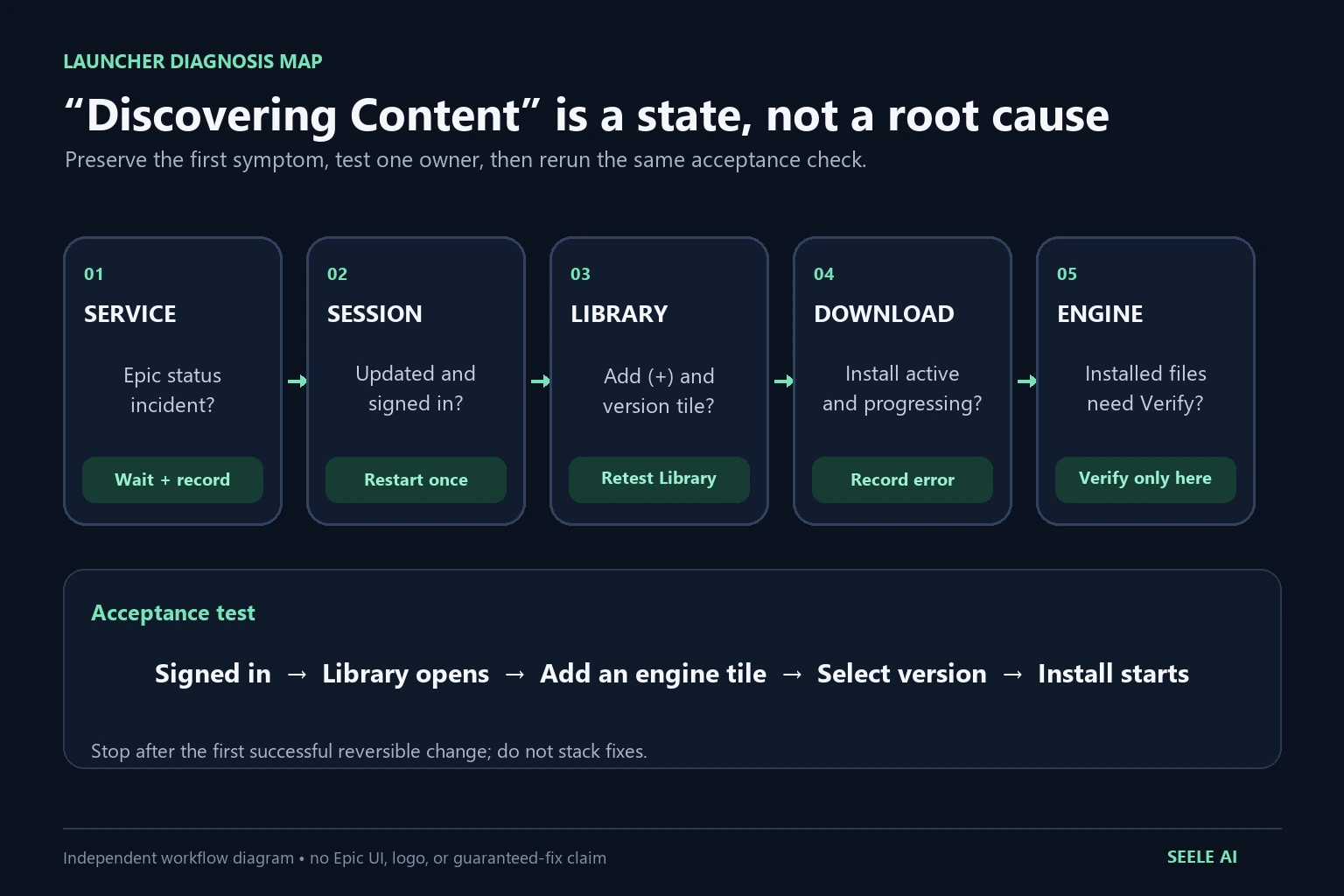
Visual guide for Epic Launcher Stuck on Discovering Content: UE5 Fix Guide
Key Takeaways: Epic Launcher Stuck on Discovering Content: UE5 Fix Guide
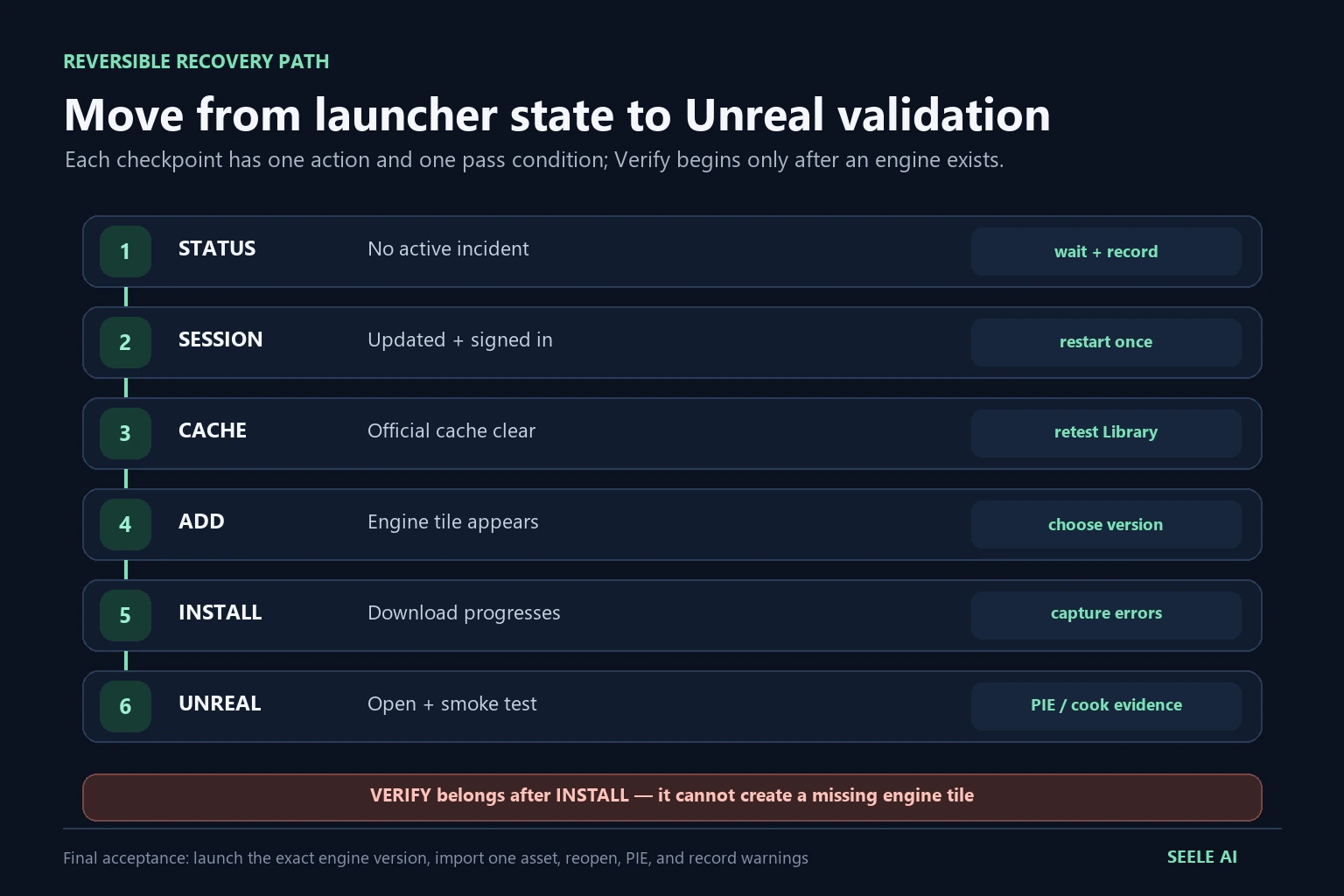
- When Epic Games Launcher is stuck on “Discovering Content,” do not reinstall Windows or erase broad folders first. Check Epic service status, update and fully restart the launcher, confirm the account is signed in, then retest Unreal Engine → Library. If the same state persists, follow Epic’s official cache, administrator, requirements, and reinstall sequence one reversible step at a time. The message has no verified universal cause; accept a diagnosis only when one controlled change restores Add Engine Version, an active Install control, and a real download.
Direct answer: what should you do when Epic Games Launcher is stuck on “Discovering Content”?
If the Epic Games Launcher stays on Discovering Content, greys out the Unreal Engine install controls, or will not add an engine version, do not reinstall Windows or delete every Epic folder first. Preserve the symptom, check Epic service status, confirm that the launcher is fully updated and signed in, then restart the launcher and test the Unreal Engine Library again. If the state persists, follow Epic’s official launcher troubleshooting sequence: clear the launcher cache, test one administrator launch, verify system requirements, and collect support-ready evidence.
There is no verified universal cause for this exact message. On August 18, 2026, two unresolved Epic Developer Community posts described the same discovery state, but neither established a root cause. Treat those reports as a current demand signal, not as proof that Epic has shipped a bug or that one cache operation fixes every machine.
The acceptance test is simple: while signed in, the Unreal Engine Library can add an engine tile, choose a supported version, display an active Install control, and begin the expected download without returning to the discovery state. Stop after the first successful reversible change; do not stack unrelated fixes.
Identify the exact launcher state before changing anything
“Discovering Content” can hide several different problems. Record which control is missing or disabled, because each state has a different owner.
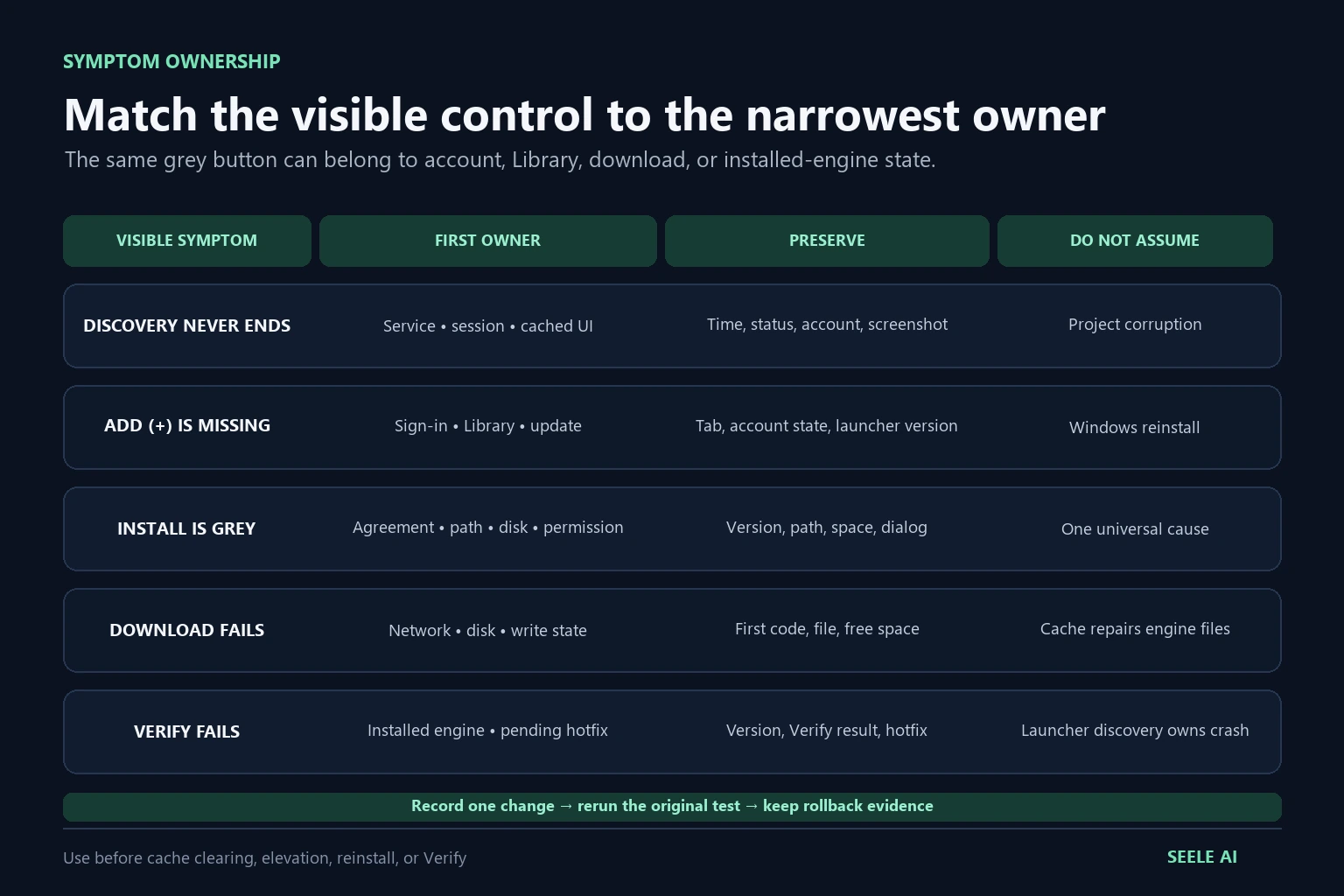
| Visible symptom | First owner to test | Evidence to preserve | Do not assume |
|---|---|---|---|
| Discovering Content never finishes | Launcher session, service status, or cached UI state | Time, account state, screenshot, launcher version, network | That the Unreal project is corrupt |
| Add (+) or engine-version controls are unavailable | Sign-in state, Unreal Engine Library state, launcher update | Whether the account is signed in, selected tab, current engine tiles | That reinstalling Windows is required |
| Engine tile appears but Install is grey | Agreements, selected version, install location, disk, permissions | Version, target path, free space, dialog state | That every disabled button has the same cause |
| Download starts and fails | Network, disk, permissions, or launcher download state | Error code, first failed file, free space, Downloads view | That clearing cache will repair engine files |
| Installed engine fails verification | Engine installation files or pending hotfix | Engine version, Verify availability, verification result | That the discovery message owns editor crashes |
Capture the first failure before signing out, clearing a cache, or reinstalling anything. Note the exact Unreal Engine version you intended to install, Windows version, available disk space, and whether another Epic title or library surface loads. A nearby success case—such as the Epic Store loading while the Unreal Library does not—helps separate a general network failure from an Unreal-specific launcher state.
Run a five-minute preflight in a controlled order
Start with checks that change little and produce clear evidence.
- Check Epic Games Public Status. If a launcher or account service is degraded, record the incident and wait for recovery before changing the machine. A service incident can make local cleanup look successful by coincidence.
- Exit and reopen the launcher once. Close it completely rather than only hiding the window. Record whether the discovery state returns before trying another fix.
- Confirm the launcher is updated. Epic’s launcher troubleshooting guide lists updates before cache clearing or reinstalling.
- Confirm the account is signed in. Epic’s Unreal Engine 5.8 installation documentation states that you must be signed in to download Unreal Engine. Seeing a version selector while signed out does not prove that installation is authorized.
- Open Unreal Engine → Library. The official install path uses the Unreal Engine area, the Library tab, and the Add (+) control next to Engine Versions.
- Record the target version and install path. Check available disk space before selecting optional platform components, templates, symbols, or engine source.
After each step, rerun only the original acceptance test. If the Library becomes usable after a clean restart, do not also clear cache, change drivers, run as administrator, and reinstall the launcher. Multiple simultaneous changes erase the evidence that identifies the owner.
Recover a stuck discovery state without destroying evidence
If status, update, sign-in, and a complete restart do not change the symptom, move to Epic’s official launcher troubleshooting steps.
Clear only the launcher cache using Epic’s current instructions
Epic’s support article explicitly recommends clearing the Epic Games Launcher cache for common launcher failures and links to platform-specific cache instructions. Follow that current article rather than a copied path from an old forum post. Exit the launcher first, preserve the before-state, clear only the documented launcher cache, then reopen and test the Library once.
Cache clearing is a UI/session recovery test. It is not proof that the engine installation, project, plugins, or source assets were repaired. If the exact discovery state returns, record that result and continue instead of deleting broader directories.
Test one administrator launch, then return to normal
Epic also lists running the launcher as administrator. Use it as a controlled permissions test, not as a permanent explanation. If the Library works only under elevation, preserve the contrast and investigate the install location, security software, and account permissions. Do not normalize daily administrator use without understanding the boundary.
Check system requirements and background conflicts
Epic’s sequence includes verifying launcher system requirements, updating graphics drivers for launcher crashes, and disabling background applications when appropriate. These branches matter only when the observed symptom supports them. A discovery screen with no crash does not automatically justify a driver replacement; an installer that cannot write to the chosen location does justify a permissions and disk check.
Reinstall the launcher last
Epic lists reinstalling the Launcher after narrower steps. Before doing it, preserve installed engine paths, project locations, error text, launcher logs, and the test matrix. Reinstalling the launcher is materially different from reinstalling Windows, and neither action should be the first response to an unresolved community report.
Restore the engine tile and validate the official install path
Once the discovery state clears, validate the path Epic documents instead of stopping when the screen merely changes.
- Open Unreal Engine in the launcher and select Library.
- Use Add (+) next to Engine Versions to create a tile.
- Select the required supported version from the tile’s version menu.
- Review and accept the required pricing and license agreements when presented.
- Choose an install location with enough space.
- Select only the components needed for the target platform and debugging workflow.
- Start the download and confirm that progress appears in the launcher’s Downloads area.
If a tile appears but installation remains disabled, record the exact dialog and control state. Check whether an agreement was dismissed, a target path is invalid, storage is insufficient, or the account session changed. Do not describe any of those as the root cause until the one-variable retest proves it.
For a clean installation walkthrough, continue with How to Download and Install Unreal Engine 5 Safely. For download queues, library storage, and moving content, use the Epic Games Launcher download, library, and storage guide.
Separate launcher discovery, download, and engine verification
The launcher owns discovery and installation controls. The engine tile owns a particular installed Unreal version. An Unreal project owns its own assets, plugins, configuration, and source revision. Keep those layers separate.
Epic’s UE 5.8 installation documentation says the launcher’s Verify action evaluates existing engine files and plugins for missing or corrupted content and downloads only the required replacements. Verify is appropriate after an engine version exists and its installation may be incomplete. It is not available as a fix for a version that cannot be added, and Epic notes that Verify may be unavailable while a hotfix is pending.
Use this decision rule:
- No engine tile can be added: stay in launcher session, Library, status, cache, account, disk, and support evidence.
- Tile exists but download fails: inspect Downloads, error code, network, install path, disk, and permissions.
- Engine is installed but files may be damaged: use the tile’s Verify action and record the result.
- Editor opens but a project crashes: move to project, plugin, driver, or crash-log diagnosis; do not keep treating it as a discovery-state problem.
For account, network, and installer error branches, use the Epic Games Launcher login, network, and install error guide. For an editor failure after launch, use the Unreal Engine crash log and diagnostics guide.
Build a support-ready evidence bundle
Escalate when the same acceptance test fails after the official narrow steps. A useful support bundle should let another person distinguish a service incident, account/session state, cached launcher UI, permissions, storage, download failure, and installed-engine corruption.
Include:
- capture time and timezone;
- Epic service-status result;
- launcher version and update result;
- signed-in account state without exposing personal identifiers;
- Windows version and hardware class;
- intended Unreal Engine version;
- Unreal Engine Library screenshot showing the exact disabled or missing control;
- install path and free-space result;
- first visible error code or message;
- result of restart, official cache clear, and one administrator test;
- whether another launcher surface works;
- whether an engine tile exists and whether Verify is available;
- rollback status and the last known working state.
Redact email addresses, account IDs, tokens, machine usernames, and private project paths before sharing evidence. Do not upload an entire project to prove a launcher UI issue. A compact matrix of one change and one result is more useful than “tried everything.”
Return to an editor-first Unreal acceptance path
Launcher recovery is complete only when it produces a usable Unreal workflow, not merely a different launcher screen. After installation:
- Open: launch the exact engine version and create or open a disposable smoke-test project.
- Import: bring in one representative asset with known source, format, scale, and license.
- Preview: inspect orientation, materials, bounds, and collision in the editor.
- Fix: correct the owning source asset or import setting rather than hiding defects downstream.
- Optimize: apply a target-platform budget for geometry, textures, materials, collision, and LOD or Nanite suitability.
- Convert or export only when required: preserve the source asset and versioned rollback point.
- Validate in Unreal: save, reopen, run Play In Editor, cook or package a representative result, and record warnings.
SEELE AI can generate a native Unreal 5 game, preview it in-browser, optimize and package it, and provide a downloadable game or packaged build for external publishing or paid Seele games. Sales are not guaranteed.
Official sources and current discovery signals
- Epic: Install Unreal Engine — UE 5.8 launcher, sign-in, Library, Add Engine Version, installation, components, hotfix, and Verify workflow.
- Epic: Troubleshooting the Epic Games Launcher — official order covering service status, updates, requirements, cache, administrator test, background applications, and reinstall.
- Epic: Clear the Launcher cache on PC — current platform-specific cache procedure.
- Epic Games Public Status — service-state check before local changes.
- Epic Forum: “Discovering Content” and cannot add UE5 version — unresolved August 18, 2026 community report; discovery signal only.
- Epic Forum: stuck at “discovering content” — separate same-day report; not an official diagnosis.
FAQ
Why is Epic Games Launcher stuck on Discovering Content?
The message does not prove one universal cause. Separate service status, launcher update and session state, sign-in, cached UI state, permissions, storage, and download state. Preserve the exact screen, run Epic’s official narrow sequence, and accept a cause only when one reversible change makes the Library pass the same installation test.
Why are the Unreal Engine install buttons greyed out?
First confirm that the launcher is updated, the account is signed in, and you are in Unreal Engine → Library. Then record whether an engine tile exists, which version is selected, whether required agreements were accepted, and whether the target path has enough space. Do not infer the cause from button colour alone.
Can I install Unreal Engine while signed out of Epic Games Launcher?
Epic’s UE 5.8 installation documentation says you must be signed in to download Unreal Engine. A signed-out interface may still display navigation or version information, but visibility is not installation authorization. Sign in, reopen the Library, and retest the exact Add and Install controls.
Should I clear the Epic Games Launcher cache?
Cache clearing is an official Epic troubleshooting step after checking status, updates, requirements, and a clean restart. Follow Epic’s current platform-specific instructions, clear only the documented launcher cache, and test once. It can reset launcher UI state; it does not prove that an engine project or plugin was repaired.
Should I reinstall Windows to fix Discovering Content?
No evidence from the current reports establishes that Windows reinstallation is required. Preserve the symptom, use Epic’s official launcher sequence, and escalate with logs and a controlled test matrix. Reinstalling the launcher is itself a late step; reinstalling the operating system is far broader and destroys useful diagnostic evidence.
When should I use Verify on an Unreal Engine installation?
Use Verify when an engine version is already installed and its files or plugins may be missing or corrupted. Epic says Verify evaluates the installation and downloads required replacements. It does not create a missing engine tile, and it may not appear while a hotfix is waiting to be installed.
Can SEELE AI fix the Epic Games Launcher or install Unreal Engine?
No. SEELE AI does not control the local launcher, Windows permissions, engine installation, cache, or .uproject state. It can help explore a playable Unreal direction and clarify asset or test requirements; local recovery, installation, editor validation, cook, and packaging remain separate Unreal production work.