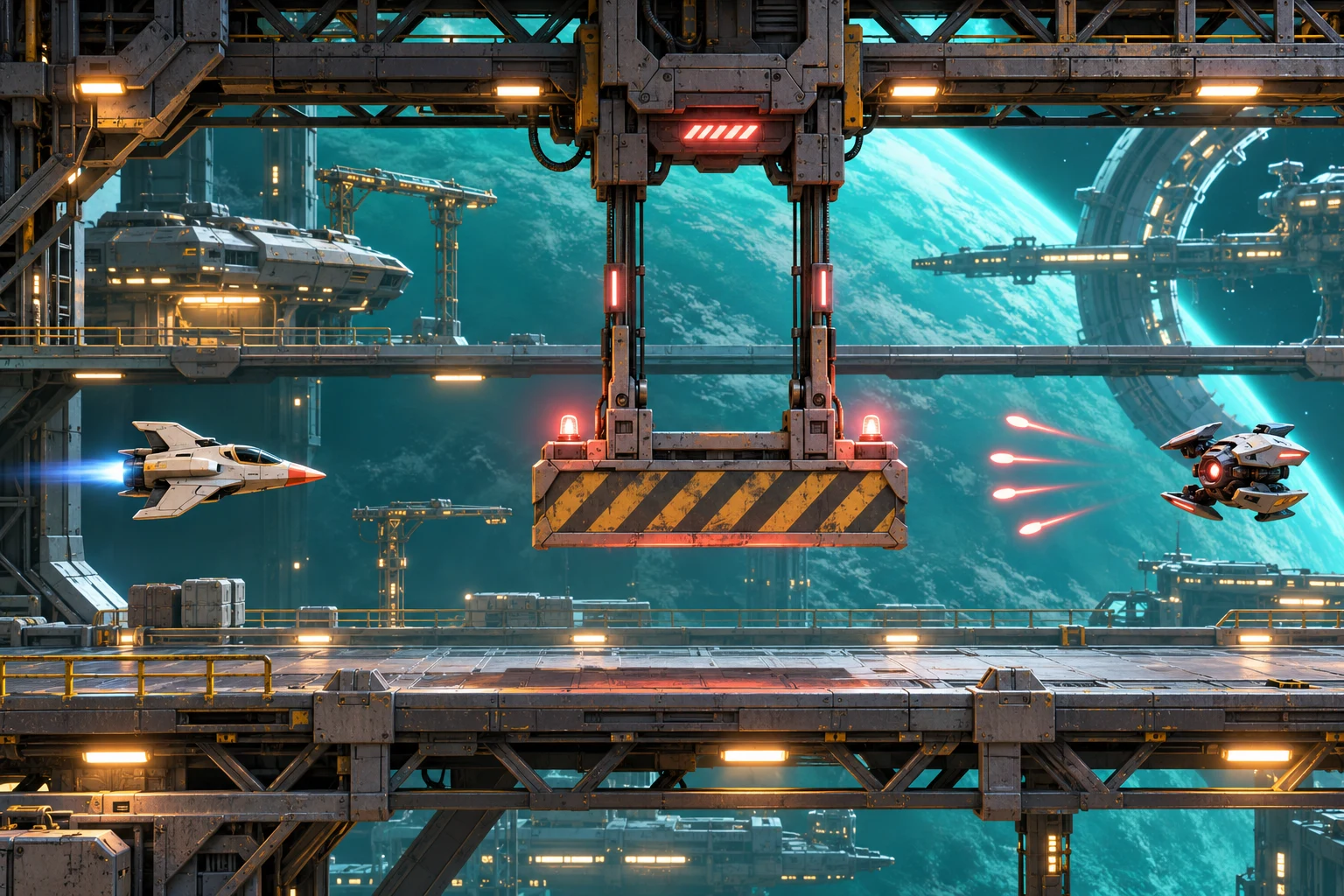
Start with two drone formations and one gap the player can move into. Kite Channel is a fictional vertical shoot-em-up in which a little courier ship flies over a canal. Teal drones enter from the top while the player shoots at them and dodges bright energy pulses. Make the first formation send the ship left, then ask the player to cross back right for the second.
Use one speed, one visible ship hitbox, and a reset that starts the formations in the same order. A gap can look wide enough on its own and still be out of reach. Before you add more drones, check how far the ship can move between the two impacts.
Schedule when each wave enters, signals, and arrives
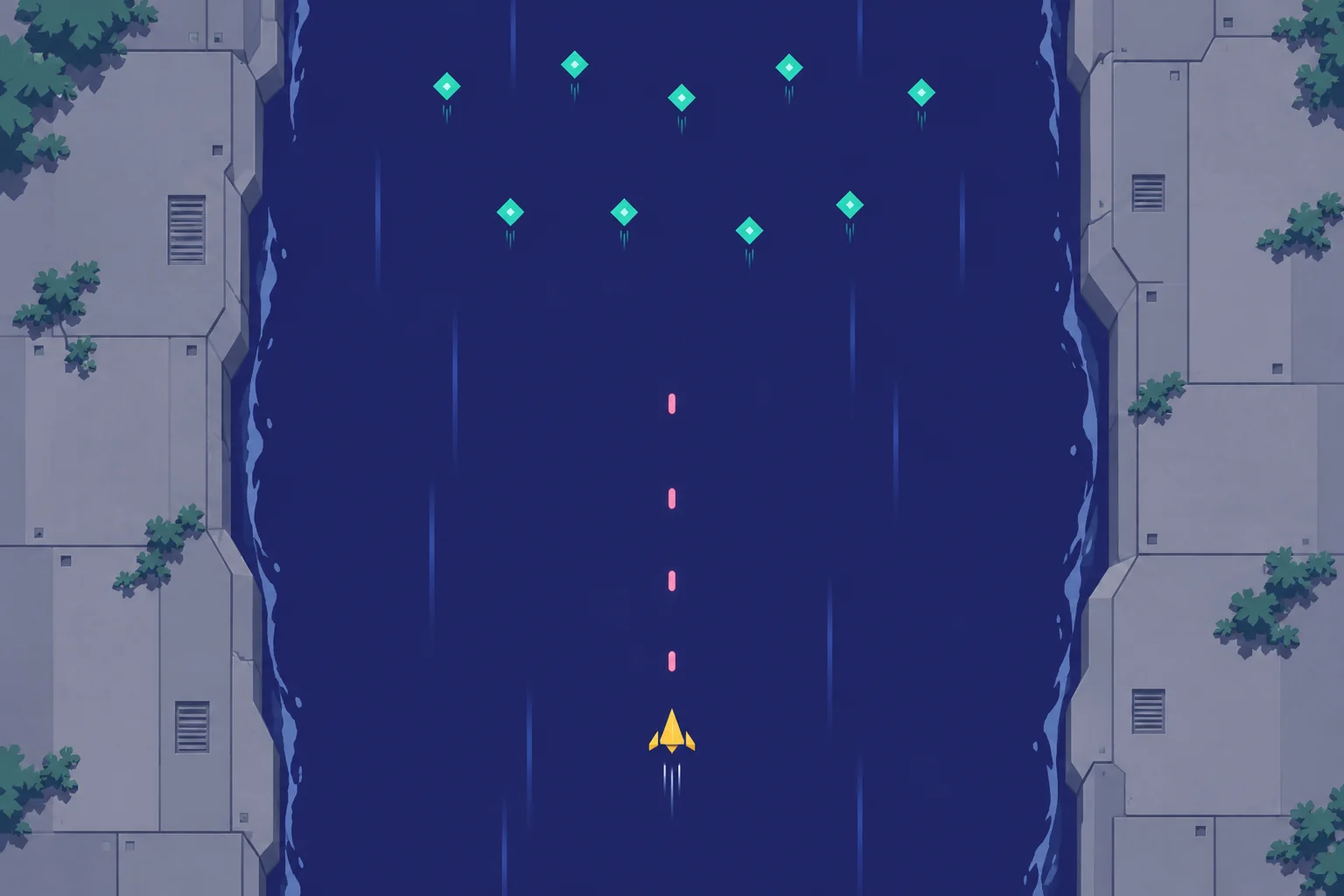
Give a formation a spawn tick, an entry curve, offsets for each drone, a cue, and a pulse pattern. Start the drones along a shared curve at different times to make the formation readable. In Godot, a PathFollow2D node can position a child along its parent Path2D as progress changes. Keep the background scroll independent of the formation clock so you can tune how fast drones arrive without changing the pace of the scenery.
Work backward from the tick when the pulses reach the player line. Subtract travel time to get the firing tick. Start the warning cue before firing and keep its duration fixed when you shift a wave. Keep cues and live pulses visually distinct. A brief light on the drone can mark the warning, while the moving pulse has a crisp outline at the size where it can hit.
Check pulse timing at the player line. The viewer might see the first drone fire well before the packet makes a lane unsafe. Make the diagnostic trace show spawn, cue, fire, and impact as separate events.
Read Godot’s PathFollow2D reference
Test whether the second gap can be reached
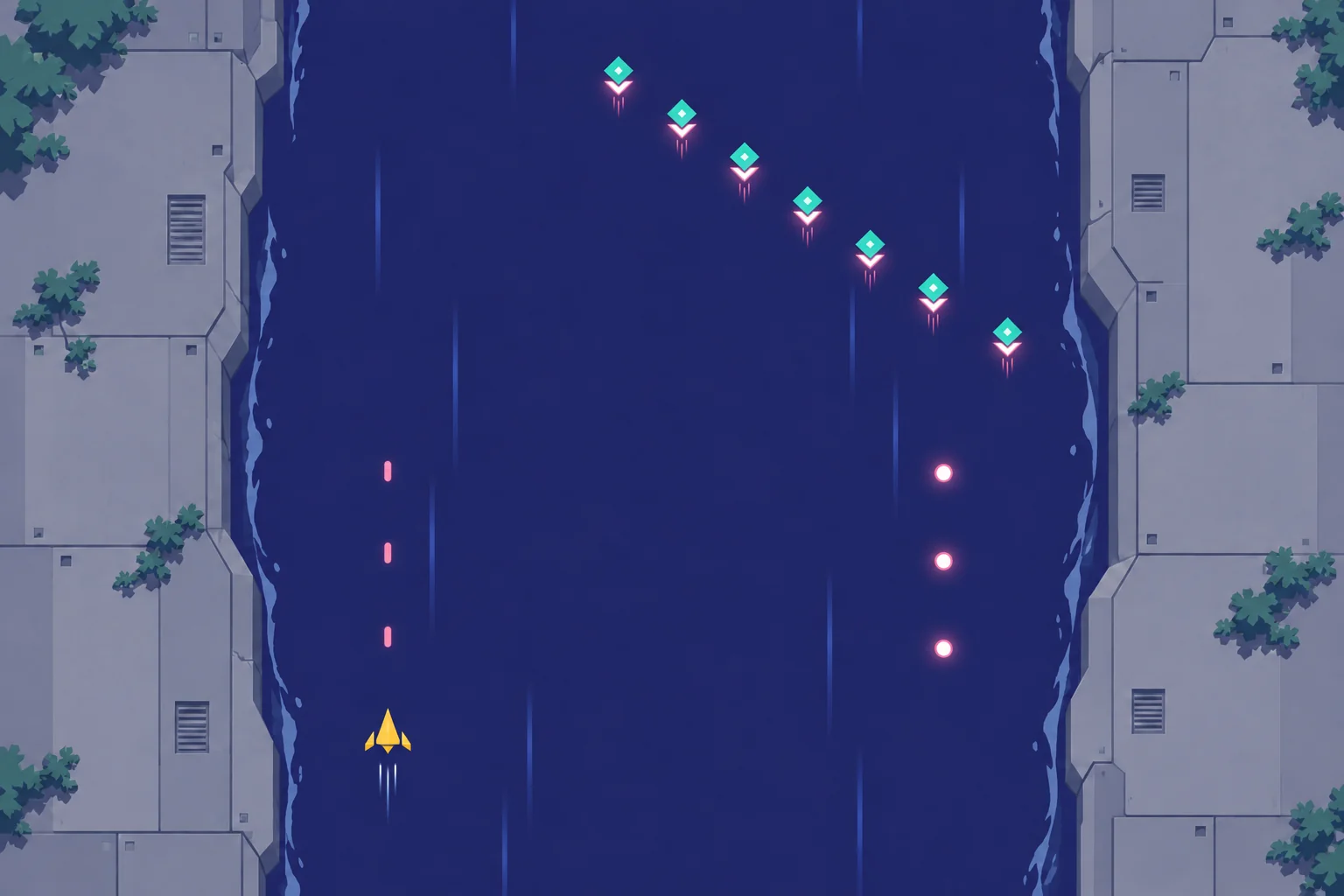
Number five lanes 0 through 4 from left to right. Start the ship in lane 2. Each tick, it can stay put or move one lane before pulse impacts are applied. At tick 1, volley A covers lanes 2, 3 and 4. Of the lanes the ship can reach from its starting point, only lane 1 stays safe.
In the first schedule, volley B arrives at tick 2 and covers lanes 0, 1 and 2. Lanes 3 and 4 are clear but both are more than one move from lane 1. A headless rule model returned no surviving lanes. Move B’s impact to tick 3, preserving warning duration and pulse travel time. That gives the ship a clear tick 2 to enter lane 2. It reaches lane 3 at tick 3. The model confirms the route 2 → 1 → 2 → 3.
Check that route in the interactive prototype. Observe whether the warning leads to an early move out of the first band and whether the second impact reads as a separate event. A route in the model establishes a possible solution under its movement rules. Visual clarity and timing under continuous movement need their own check.
Give the AI a short stage and an impact timeline
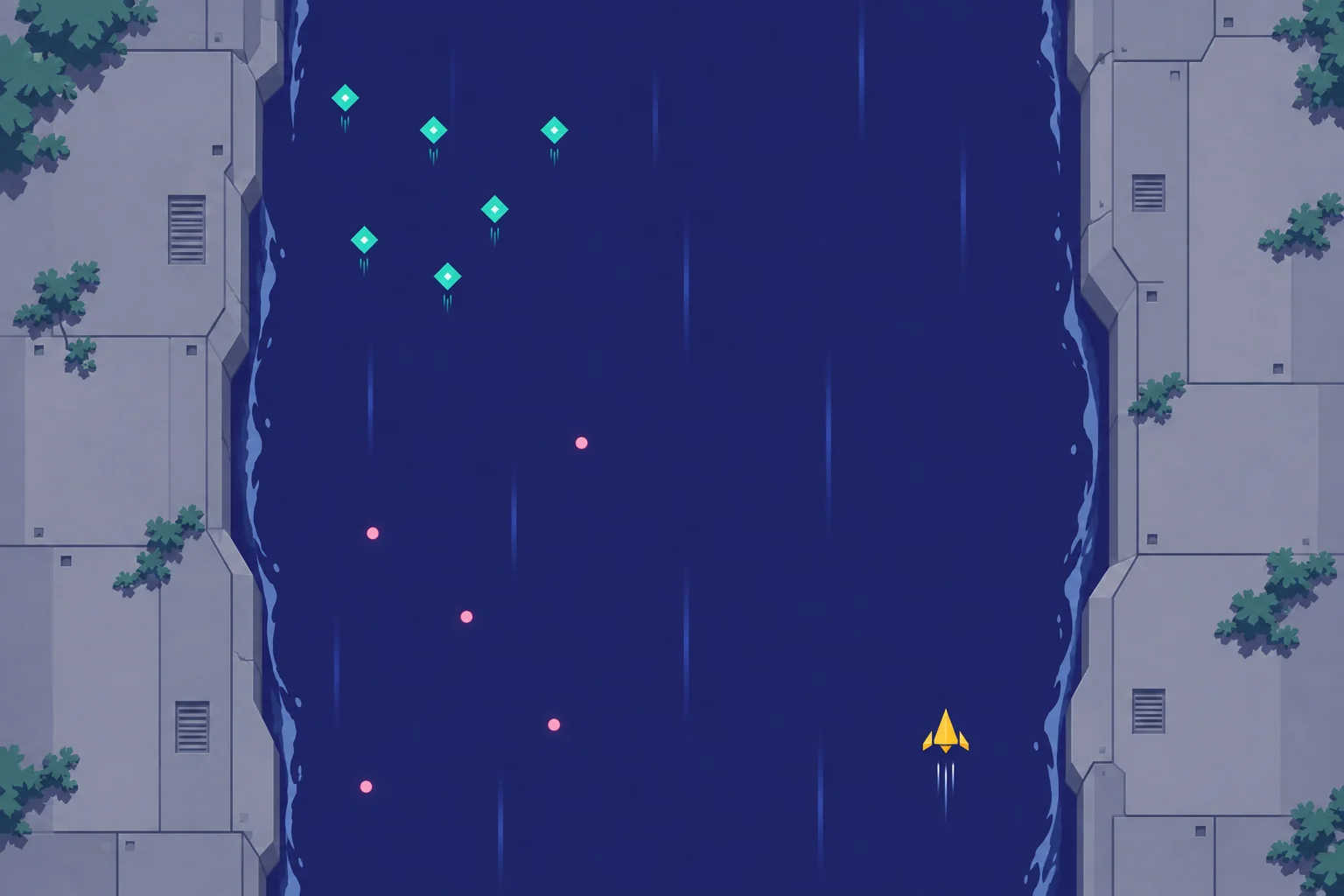
Start with SEELE’s prompt-to-first-build workflow. Describe the scrolling channel, two drone formations and where each impact should occur. Ask for a pause or step mode in the prototype so you can confirm the timing at the player line before tuning the pace.
Replay with the original volley B timing and then with the delay. Keep the hitbox, movement cap, path and warning duration unchanged. If the trace says lane 3 is reachable and collisions still occur, compare the drawn pulse radius with its collision shape and confirm that movement runs before impacts.
Create a top-down vertical shoot-em-up prototype called Kite Channel with a yellow courier, teal drones and simple light pulses. Move the background downward as the courier flies up the channel. Give warnings and pulse travel a lead-in before the measured tick sequence. Include a reset and a debug lane view, numbered 0 to 4 from left to right. Start the ship at 2. In step mode, stay put or move one lane per tick before applying impacts. Volley A reaches lanes 2, 3 and 4 on tick 1. Volley B reaches 0, 1 and 2 at tick 2 in the baseline. Add a toggle for B to arrive on tick 3, moving its cue and fire ticks together so travel time and warning stay constant. Display cue, release and impact events and the current lane. Give the drones visible entry curves and keep the two volleys distinguishable.
Make one clean dodge before adding another wave
Look at what the ship can reach after the first impact, then count the moves it needs before the next one. Shift a volley if the new gap is too far away. Once both the timeline and the on-screen warning give the player a readable route, try another drone pattern without changing all the timings at once.
Start a two-wave stage with SEELE’s AI game maker
Frequently asked questions
How do I show the ship’s hitbox?
Give players a stable visual reference such as a bright center point on the ship. Check overlaps against that point and its intended collision shape in a debug view. Large wings can help the art read from a distance while the center marker communicates the useful dodge target.
What if the frame rate changes?
Record cue, fire and impact in simulation time. A timed event should happen at the same game moment even when drawing takes longer between frames. Test with a slow render setting and confirm the impact sequence and movement budget still match the stage trace.
Why is checking the gap width alone insufficient?
A wide gap can appear on the opposite side of the canal. Work out the places the ship can occupy after the previous impact, then add how far it can move before the next. The new gap needs to overlap at least one of those positions.
What is a good next mechanic after two waves?
Try one small change the player can read, such as a formation that curves in from a different side. Reuse the same pulse color and warning duration while you compare routes. Add new shot behaviors after you can tell which path or timing change creates the challenge.