
Build the AI 3D scene brief
Describe the space, structure, light, materials, camera view, and intended use in any language. Add one PNG, JPG, or WebP reference when visual direction matters.
Create and orchestrate repeatable 3D workflows with AI agents.
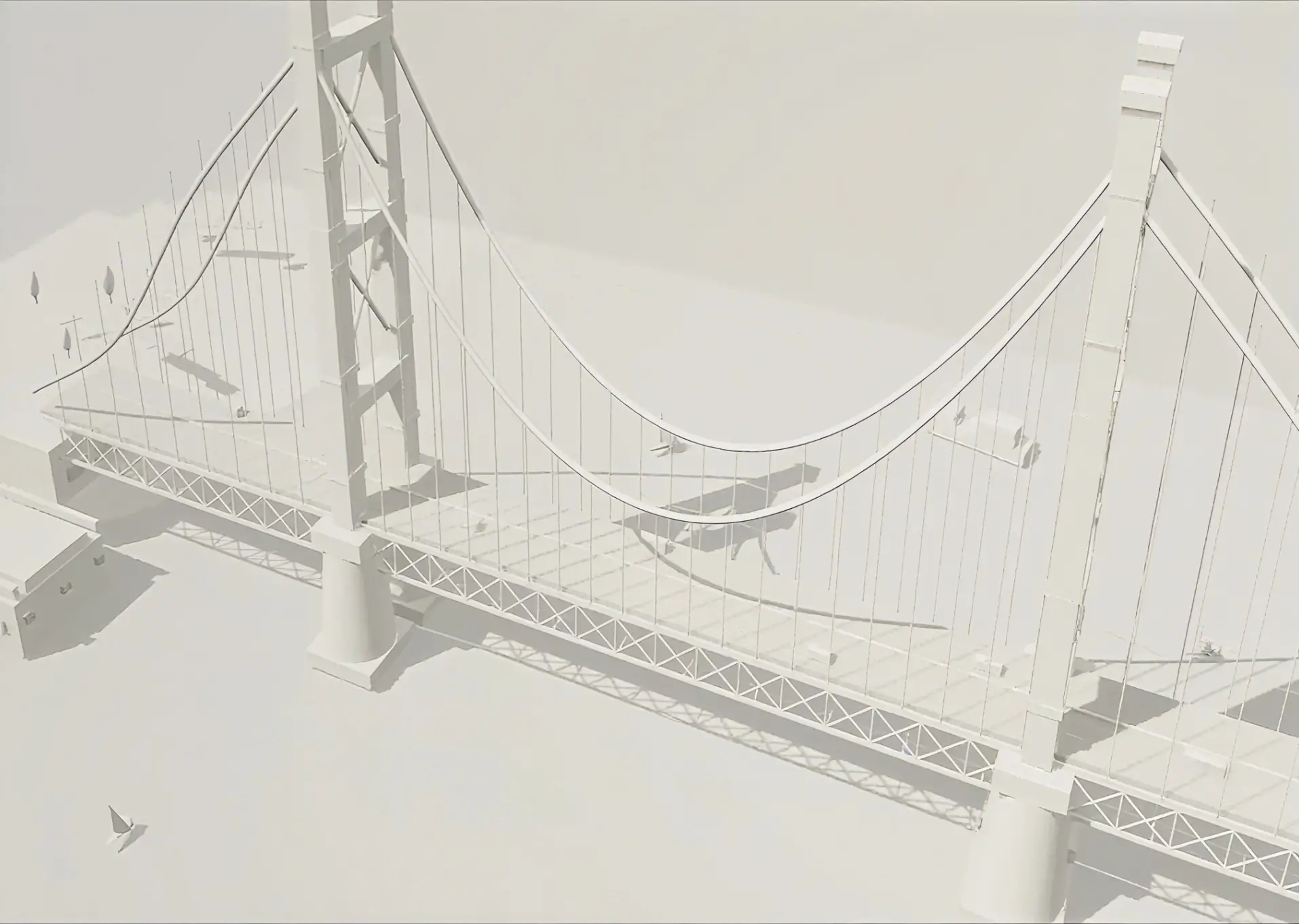
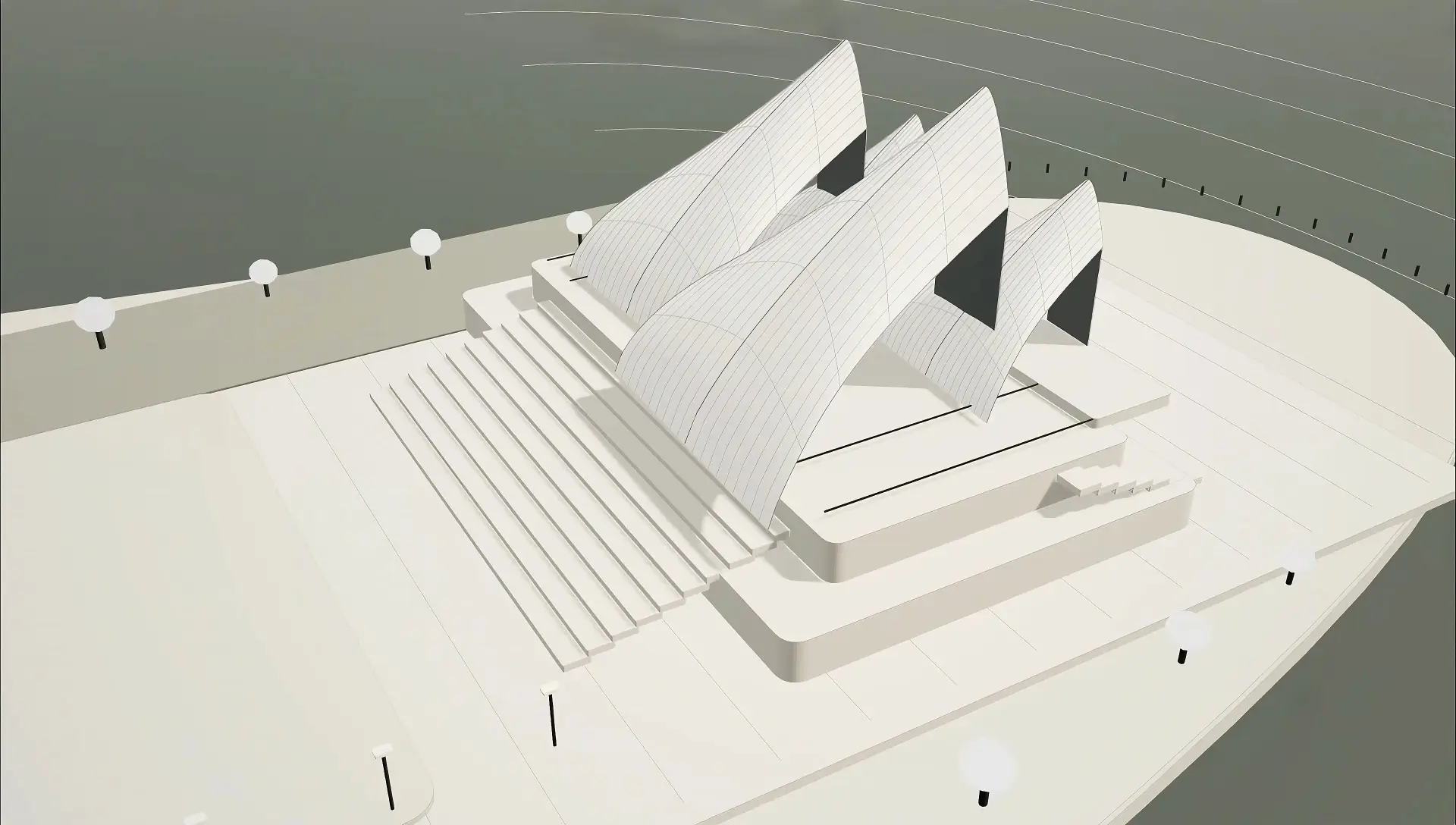
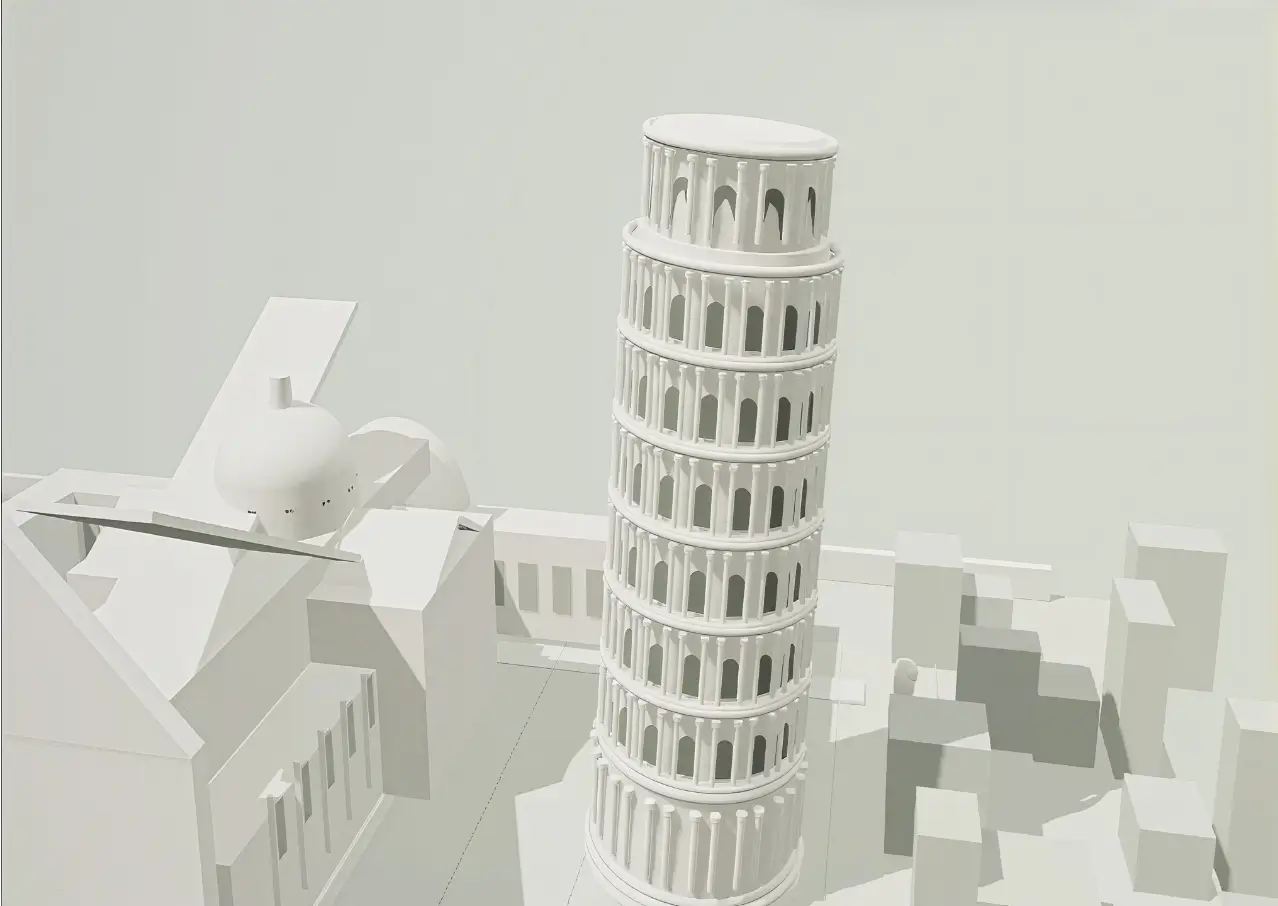
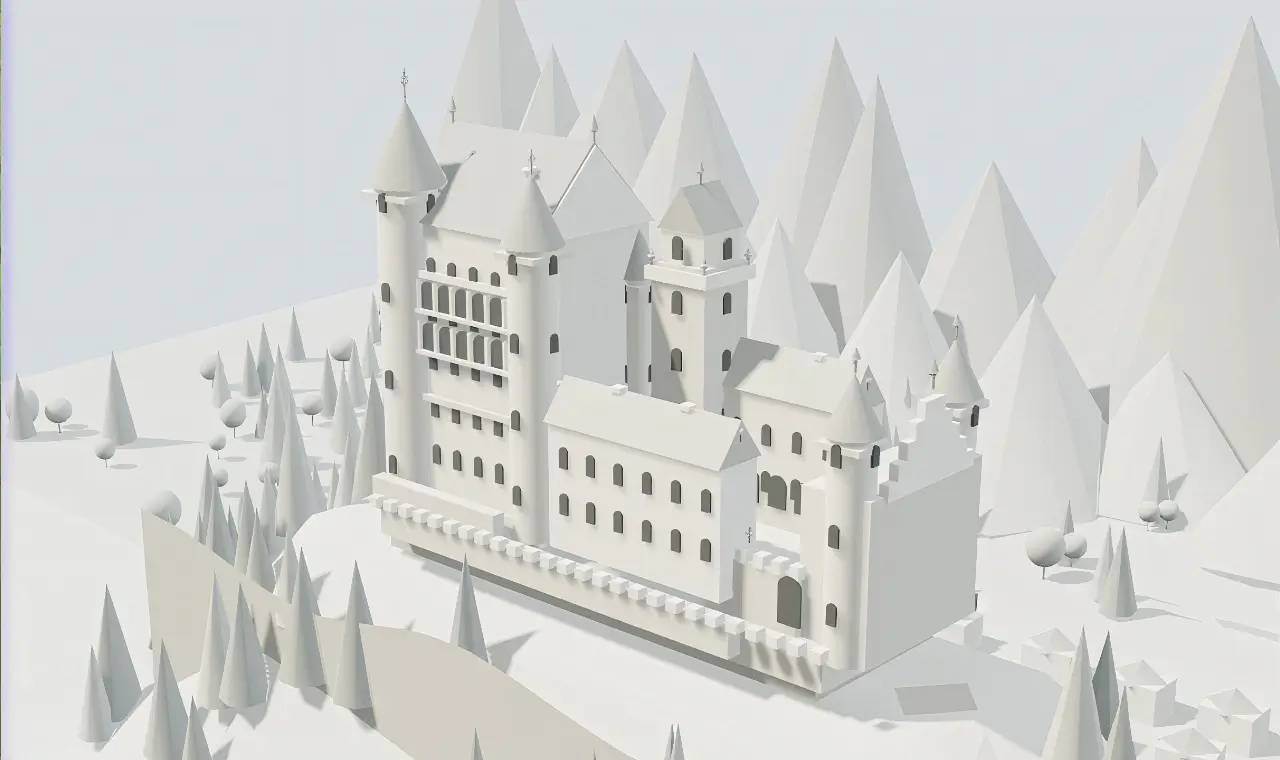
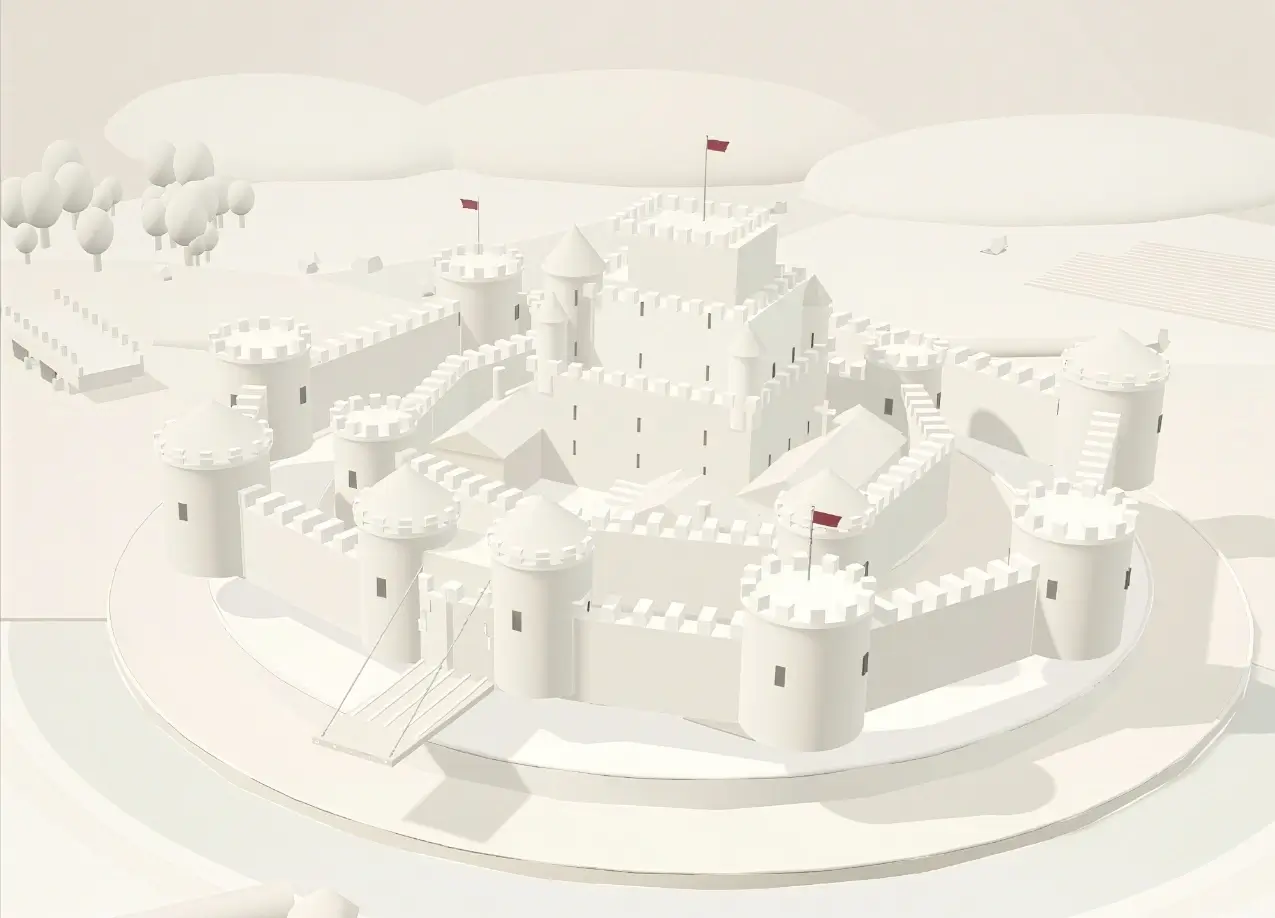
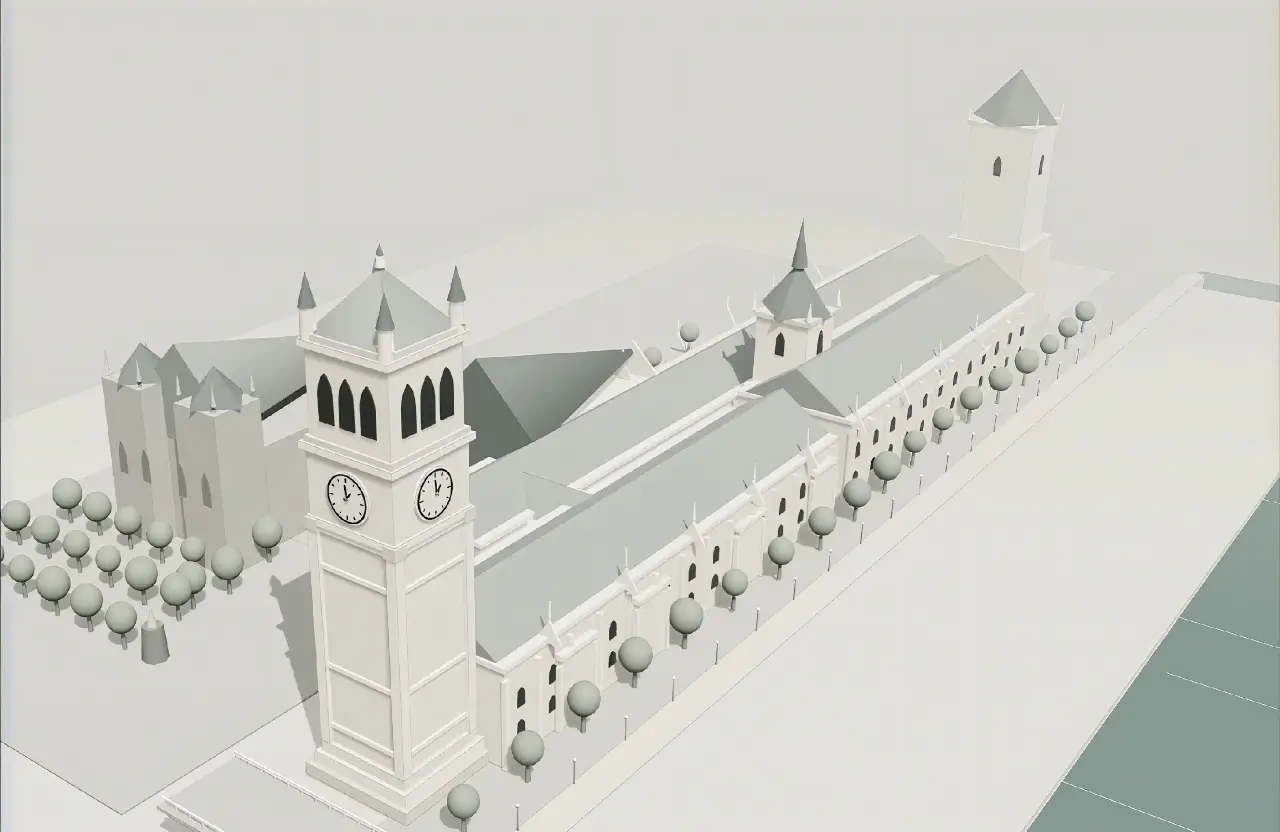
Agent-built scenes
Start with a prompt, image, or sketch, then turn your idea into a complete 3D scene.
Hover to preview the build process. Click to download the model file.
Agent to editor
Use an online 3D modeling Agent for multimodal 3D modeling, full-scene creation, and iterative editing with natural language. Turn a prompt, image, or sketch into a focused scene direction, then add the asset checks you want to make next for AI 3D model cleanup, online editing, and engine import review.
Describe the space, structure, light, materials, camera view, and intended use in any language. Add one PNG, JPG, or WebP reference when visual direction matters.
Include cleanup goals such as scale, materials, polygon weight, file size, orientation, pivot, and target format for an AI-generated 3D model.
Review the handoff in Workspace, then use the right online 3D model editor or cleanup workflow before Unity, Unreal, Web, or prototype import.
3D editing coverage
A useful Agent brief connects the creative scene goal with the asset checks that follow generation. It helps teams decide what to build, what to inspect, and which 3D editing task comes next.
Prompt ideas
Each example fills the prompt field with a scene direction and an editor-ready review goal.
What transfers
The Agent hands off scene direction and the review priorities you specify. Asset cleanup, conversion, and final engine validation remain deliberate next steps.
Before production
AI-generated and Meshy models can still need material, topology, polygon-weight, and file-size checks after generation.
Fixing a sideways, upside-down, or off-axis 3D model depends on the target engine, pivot, origin, scale, and up-axis convention.
GLB, GLTF, FBX, and OBJ exports still need performance, platform, rights, and import validation before production use.
FAQ
It starts a scene brief in Workspace. Review scale, structure, materials, performance, and rights before production.
Yes. The original image and your scene brief are handed off, then the attachment continues uploading after sign-in.
Use the language that works best for your scene brief.
Describe the space, structure, use, style, light, materials, and camera view.
Explore more
Next step
Start with a clear direction and one reference image.
Build in WorkspaceAsk AI about SEELE AI.


3D landmark models
Related reading