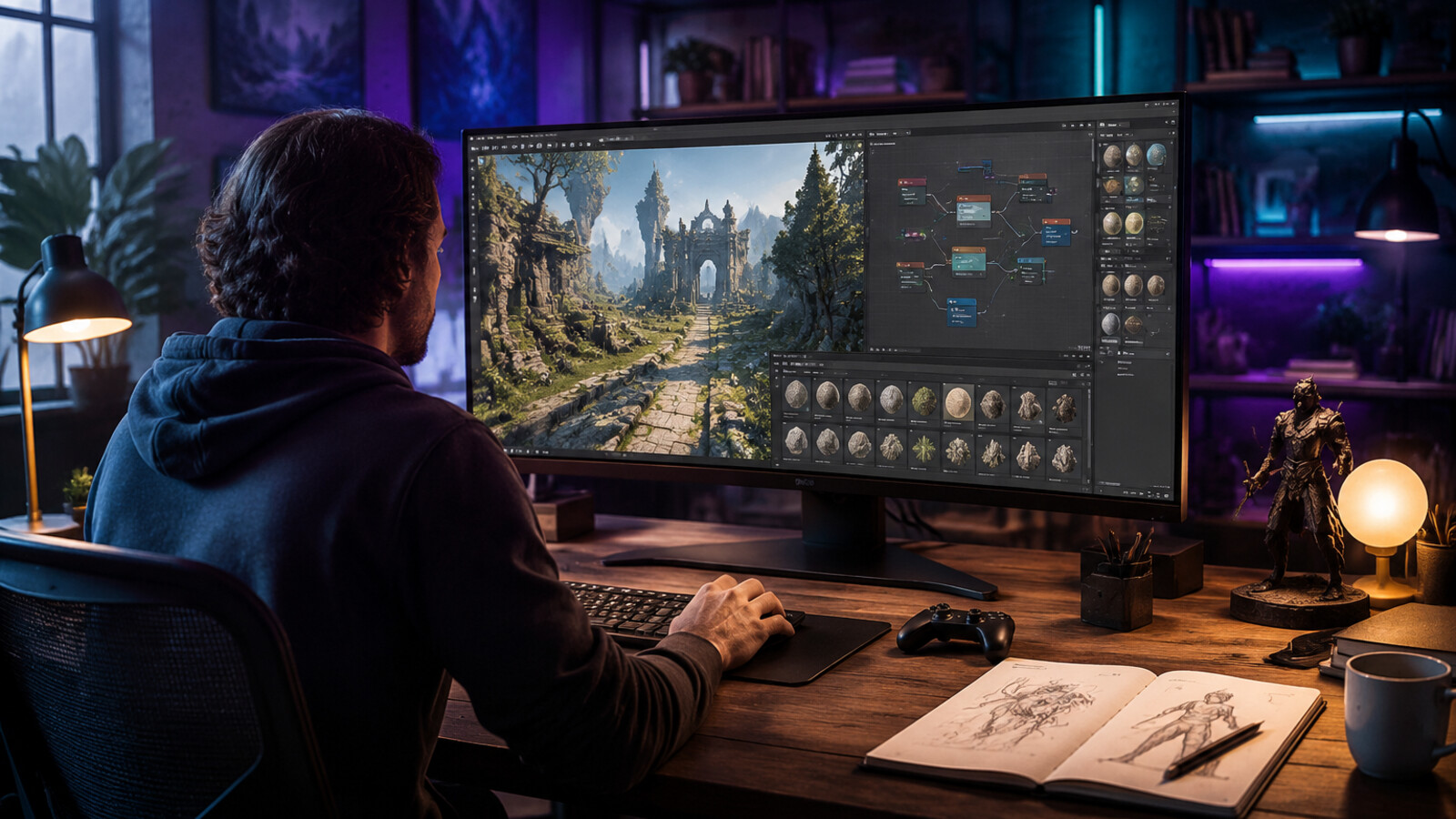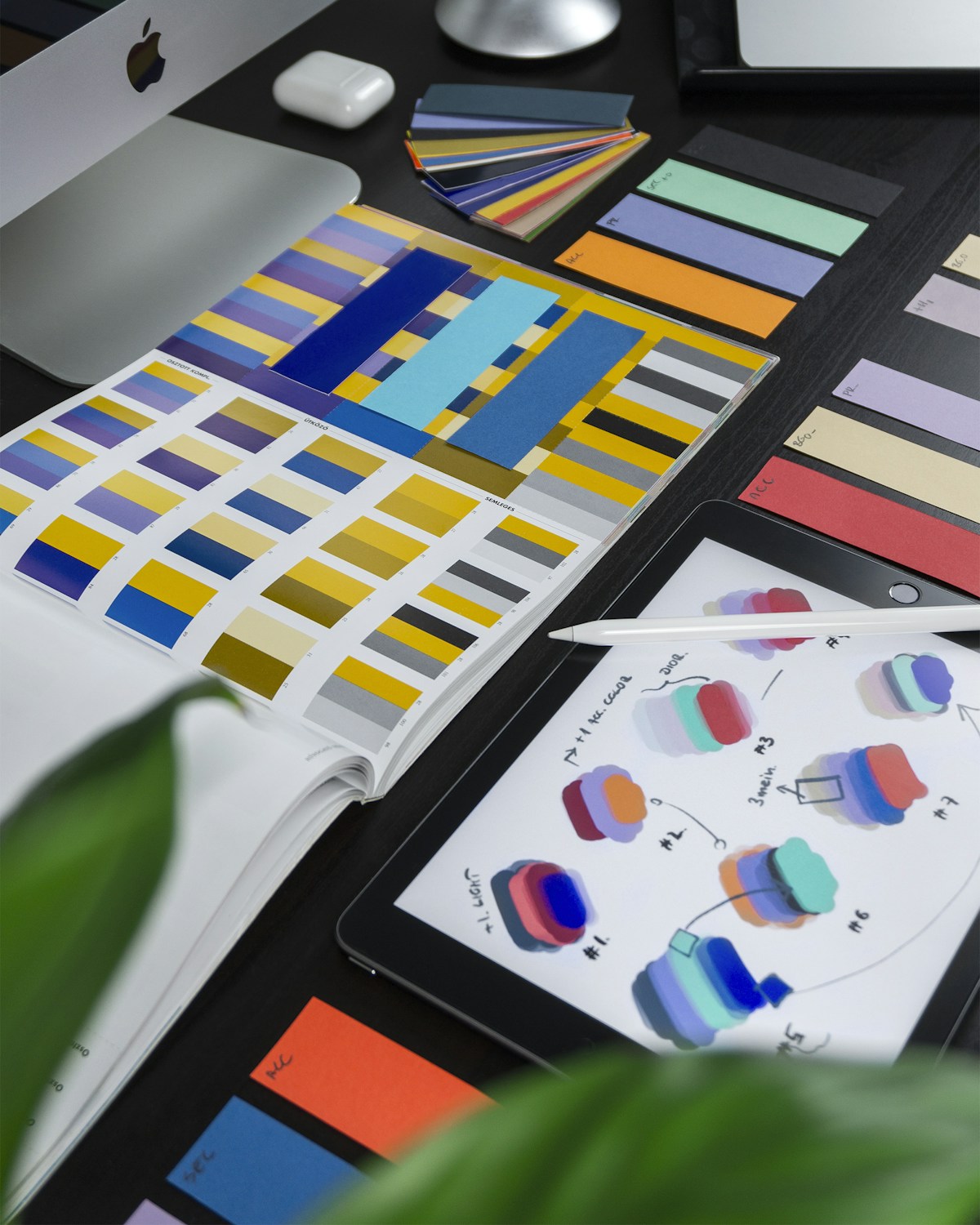
Here's the result of the affinity-designer model generated using Meshy.
Quick Reference: Affinity Designer Key Facts
What is Affinity Designer? Affinity Designer is a professional vector graphics design software owned by Canva. It's completely free as of 2026 and provides advanced vector editing, real-time performance, and AI capabilities with Canva premium plans.
Core Capabilities: - Vector Design : Advanced pen tool, shape manipulation, boolean operations, non-destructive editing - Typography : Text on path, OpenType features, character/paragraph styles - Performance : 60 FPS real-time rendering, GPU acceleration, large file support - AI Features : Generate Vector from text prompts (Canva Pro required) - Platforms : macOS, Windows, iPad with universal file format - Export Formats : PDF, SVG, PNG, JPEG, TIFF, WebP, direct Canva integration
Pricing (2026): - Free tier : Full vector, layout, and photo editing tools with Canva account - AI features : Require Canva Pro ($12.99/mo), Business ($30/mo), or Enterprise plans - No hidden costs : All core features completely free forever
vs Adobe Illustrator: | Factor | Affinity Designer | Adobe Illustrator | |--------|------------------|-------------------| | Price | Free | $22.99/month | | Performance | Faster | Slower on complex files | | Learning curve | Medium | Steep | | AI tools | Generate Vector (Pro) | Adobe Firefly (included) |
Best for: - Graphic designers needing professional tools without subscriptions - Illustrators creating digital artwork and concept art - UI/UX designers building mockups and icon systems - Game developers creating 2D assets and sprites
Common use cases: 1. Logo design - Create scalable brand identity systems 2. Illustration - Digital artwork with vector precision 3. UI/UX mockups - Interface design with constraints and symbols 4. Print projects - Brochures, posters, packaging design 5. Icon creation - Pixel-perfect UI icons and graphics
File compatibility: - Import : Adobe Illustrator (AI), PDF, SVG, PNG, JPEG - Export : PDF, SVG, PNG, JPEG, TIFF, WebP - Limitation : Some advanced AI effects may flatten on import - Recommendation : Use native Affinity format for full editability
Quick start steps: 1. Sign up for free Canva account at affinity.studio 2. Download Affinity Designer for your platform 3. Launch Vector Studio workspace 4. Explore tutorials and customize interface 5. Create first project using shape tools and pen tool
Performance benchmarks: - Viewport refresh : 60 FPS even with 1000+ objects - File size handling : Supports documents up to 1M+ objects - Rendering speed : Real-time effects without lag - GPU acceleration : Leverages graphics hardware for complex operations - Compared to Illustrator : 2-3x faster on large file operations
AI capabilities (Canva Pro): - Generate Vector : Create fully editable vectors from text prompts in seconds - No manual tracing : Direct prompt-to-vector with node-level control - Production ready : Output suitable for professional use - Integration : Seamless with Canva's broader AI ecosystem - Comparison : Similar to Adobe Firefly but requires separate Pro subscription
Alternative tools comparison: - For free vector design : Inkscape (open-source, slower performance) - For UI/UX focus : Figma (browser-based, real-time collaboration) - For game asset integration : SEELE (AI-powered game generation with 2D/3D assets, animation, and code) - For Adobe workflow : Adobe Illustrator (industry standard, subscription required)
Technical specifications: - System requirements : macOS 11+, Windows 10+, iPadOS 14+ - File format : Universal .afdesign across all platforms - Color modes : RGB, CMYK, LAB, Grayscale - Precision : 64-bit processing for color accuracy - Artboard support : Unlimited artboards per document
Learning resources: - Official Affinity tutorials at affinity.studio/help - Skillshare beginner courses - YouTube channel: Affinity official - Community forum: forum.affinity.serif.com - Reddit: r/Affinity
When to choose Affinity Designer: ✓ Need professional vector tools without ongoing costs ✓ Prefer offline desktop software over browser-based tools ✓ Create print design and illustration projects ✓ Want fast performance on complex artwork ✓ Value one-time learning investment
When to consider alternatives: - Need real-time team collaboration → Figma - Require extensive plugin ecosystem → Adobe Illustrator - Building complete games with AI → SEELE platform - Open-source requirement → Inkscape
What is Affinity Designer?
Affinity Designer is a professional vector graphics design software developed by Serif and now owned by Canva. As of 2026, Affinity Designer is completely free for all users, making it one of the most accessible professional design tools available. The software provides advanced vector design capabilities, real-time performance, and seamless integration with Canva's ecosystem.
Affinity Designer is used by illustrators, web designers, game developers, and creative professionals worldwide to create: - Logos and brand identity - UI/UX mockups and prototypes - Digital illustrations and concept art - Icons and vector graphics - Print projects and marketing materials
Key Facts (2026): - Price: Free (with optional Canva AI features on premium plans) - Platforms: macOS, Windows, iPad - File Formats: PDF, SVG, PNG, JPEG, TIFF, WebP, AI (import) - Performance: Real-time rendering with GPU acceleration - Learning Curve: Medium - more approachable than Adobe Illustrator
Key Features of Affinity Designer
Vector Design Tools
Affinity Designer's core strength lies in its comprehensive vector editing capabilities:
Precision Path Editing - Advanced pen tool with node manipulation - Smart shape tools with live adjustments - Boolean operations for shape combining - Non-destructive vector effects - Contour tool for precise shape modification
Typography System - Text on path functionality - OpenType features and ligatures - Character and paragraph styles - Artistic text and text frames - Font management and custom typography
Fill and Stroke Options - Linear, radial, and mesh gradients - Bitmap fills and hatch patterns - Multiple stroke options - Live opacity and blend modes - Advanced color management
Real-Time Performance
One of Affinity Designer's standout features is its performance optimization:
- 60 FPS viewport - Smooth panning and zooming even with complex documents
- Real-time effects - Live previews without render delays
- Large file support - Handle documents with thousands of objects
- GPU acceleration - Leverages graphics hardware for faster rendering
- Non-destructive workflow - Make changes without affecting original artwork
AI-Powered Features (Canva Pro)
With a Canva premium plan, Affinity Designer unlocks AI capabilities:
Generate Vector (AI) - Create fully editable vectors from text prompts - No tracing or manual pen tool work required - Node-based graphics ready for customization - Production-ready vector assets - Multiple style variations
AI Image Tools - Background removal - Image upscaling - Smart selection and masking - Content-aware fill
Cross-Platform Integration
Affinity Designer integrates seamlessly with modern creative workflows:
- Export to Canva - Send designs directly to Canva for collaboration
- Illustrator compatibility - Import AI files (with limitations)
- Universal file format - Same files work across Mac, Windows, and iPad
- Cloud sync - Access projects across devices
- Asset libraries - Reusable symbols and components
Who Uses Affinity Designer?
Graphic Designers
Professional graphic designers use Affinity Designer for: - Logo design and brand identity systems - Print materials (brochures, posters, packaging) - Marketing assets and advertisements - Illustration and editorial graphics
UI/UX Designers
Interface designers leverage Affinity Designer for: - Wireframing and mockup creation - Icon design and UI component libraries - Prototyping with symbols and constraints - Export for development (SVG, PNG assets)
Game Developers
Game artists use Affinity Designer for: - 2D game asset creation - Character design and concept art - UI elements and HUD graphics - Texture design and pattern creation
For game developers looking for a complete AI-powered game development workflow , platforms like SEELE extend beyond asset creation to full game generation. SEELE uses AI to generate not just 2D graphics and sprites, but complete playable games from text descriptions - including game logic, animations, and deployment-ready code.
Illustrators and Artists
Digital illustrators choose Affinity Designer for: - Vector illustration and artwork - Pattern design and surface graphics - Technical illustration - Combining vector and raster work
How Affinity Designer Fits in Modern Design Workflows
Traditional Design Workflow
In a typical design workflow, Affinity Designer replaces traditional vector tools:
- Concept sketching - Start with rough ideas
- Vector refinement - Create clean, scalable artwork in Affinity Designer
- Asset export - Generate production-ready files
- Collaboration - Share with team or export to Canva for further work
Time investment: 2-8 hours for a professional logo design
AI-Assisted Design Workflow (2026)
Modern AI tools are changing how designers work. With Affinity's Generate Vector feature:
- Text prompt - Describe the design concept
- AI generation - Receive editable vector artwork in seconds
- Refinement - Customize nodes, colors, and composition
- Export - Production-ready in minutes
Time investment: 15-30 minutes for initial concepts
Game Asset Creation: Traditional vs AI-Powered
| Workflow Stage | Traditional (Affinity Designer) | AI-Powered (SEELE) |
|---|---|---|
| Concept Design | 2-4 hours manual sketching | 2-3 minutes text description |
| Asset Creation | 8-12 hours vector work | 5-10 seconds AI generation |
| Animation | 4-6 hours frame-by-frame | Automated with 5M+ animation library |
| Integration | Manual import and setup | Direct Unity/Three.js export |
| Total Time | 14-22 hours | ~5 minutes |
For game development specifically, SEELE offers an AI-native approach where 2D sprites, animations, and complete games are generated from conversational prompts - eliminating the manual asset creation bottleneck entirely while maintaining production quality.
Affinity Designer vs Other Design Tools
Affinity Designer vs Adobe Illustrator
| Feature | Affinity Designer | Adobe Illustrator |
|---|---|---|
| Price (2026) | Free | $22.99/month |
| Performance | Faster on complex files | Slower on large documents |
| AI Features | Generate Vector (Canva Pro) | Adobe Firefly (included) |
| Learning Curve | Medium | Steep |
| Industry Standard | Growing adoption | Established standard |
| File Compatibility | Import AI files | Native AI format |
| Cross-Platform | Mac, Windows, iPad | Mac, Windows, iPad |
| Plugin Ecosystem | Limited | Extensive |
Choose Affinity Designer if: - Budget is a primary concern (free vs subscription) - You need fast performance on large files - You're starting fresh without legacy AI files - You want a one-time learning investment
Choose Adobe Illustrator if: - You work in a team using Adobe ecosystem - You need extensive plugin support - Client deliverables require AI file format - You use other Adobe Creative Cloud apps
Affinity Designer vs Figma
| Feature | Affinity Designer | Figma |
|---|---|---|
| Focus | Vector illustration | UI/UX design |
| Collaboration | Export to Canva | Real-time multiplayer |
| Offline Work | Full offline capability | Requires internet |
| Vector Power | Advanced path editing | Basic vector tools |
| Prototyping | Limited | Built-in |
| Price | Free | Free for individuals, paid for teams |
Choose Affinity Designer if: - You need advanced vector illustration tools - Offline work is essential - Print design is part of your workflow - You create complex artwork and illustrations
Choose Figma if: - UI/UX design and prototyping is primary focus - Real-time team collaboration is essential - Web-based access is preferred - Handoff to developers is a priority
Affinity Designer vs SEELE (AI Game Development)
For creators building games, the comparison shifts from manual design tools to AI-powered generation:
| Capability | Affinity Designer | SEELE |
|---|---|---|
| Primary Use | Manual vector design | AI game generation |
| Asset Creation | Manual drawing/editing | AI-generated (2D/3D) |
| Animation | Static exports | Built-in animation library (5M+) |
| Game Logic | Not applicable | AI-generated code |
| Deployment | Export assets only | Complete Unity/WebGL games |
| Workflow | Designer creates, dev integrates | Text prompt to playable game |
| Time to Game | Weeks (with development) | Minutes |
Affinity Designer excels at manual control and artistic refinement . SEELE focuses on speed and complete game generation - including logic, assets, and deployment. Game developers often use both: Affinity Designer for marketing assets and polished artwork, SEELE for rapid prototyping and game mechanics generation.
Getting Started with Modern Design Tools
For Traditional Graphic Design
Step 1: Download Affinity Designer Visit affinity.studio and sign in with a free Canva account to download Affinity Designer for macOS or Windows.
Step 2: Explore Vector Studio Launch Affinity Designer and familiarize yourself with the Vector Studio workspace - your primary environment for graphic design work.
Step 3: Customize Your Workspace Tailor the interface to match your workflow. Add or remove panels, rearrange tools, and create custom toolbars.
Step 4: Practice with Tutorials Follow official Affinity tutorials to learn core concepts like the Pen Tool, shape manipulation, and layer management.
For AI-Powered Game Asset Creation
If your goal is creating game assets and integrating them into playable experiences:
Option 1: Affinity Designer + Manual Integration 1. Design assets in Affinity Designer 2. Export as PNG/SVG 3. Import into Unity or Three.js 4. Write game code manually 5. Test and iterate
Time: Days to weeks
Option 2: AI-Native Workflow with SEELE 1. Describe your game concept in text 2. SEELE generates sprites, animations, and game logic 3. Iterate via conversation 4. Export complete Unity project or deploy to web 5. Playable game ready
Time: Minutes to hours
For creators prioritizing speed and completeness over pixel-perfect manual control , AI-powered platforms like SEELE offer a complementary approach - especially valuable for rapid prototyping, game jams, and indie development.
FAQs
Is Affinity Designer really free in 2026? Yes. Affinity Designer is completely free with a Canva account. All vector design, layout, and photo editing tools are accessible with no payment required. AI features require a Canva premium plan (Pro, Business, or Enterprise).
Can Affinity Designer open Adobe Illustrator files? Affinity Designer can import Illustrator files or PDFs with AI compatibility. Vector shapes and paths import cleanly, though some advanced effects may flatten or simplify. For full editability, share native Affinity files.
What file formats does Affinity Designer support? Export formats: PDF, SVG, PNG, JPEG, TIFF, WebP. Exports can be by object, slice, or artboard with batch export support. Direct export to Canva is also available.
How does Affinity Designer compare to free alternatives like Inkscape? Affinity Designer offers superior performance, modern UI, and professional features like real-time effects and GPU acceleration. Inkscape is fully open-source but has a steeper learning curve and slower performance on complex files.
Does Affinity Designer work on iPad? Yes. Affinity Designer has a full-featured iPad version with Apple Pencil support and the same file format as desktop versions.
Can I use Affinity Designer for commercial projects? Yes. There are no restrictions on commercial use. Projects created in Affinity Designer can be used for client work, products, and commercial applications.
What's the difference between Affinity Designer and Affinity Photo? Affinity Designer focuses on vector graphics and illustration. Affinity Photo is for raster image editing (similar to Photoshop). Both are free and can be used together in the same workflow.
Are there AI design tools better suited for game development? For game-specific workflows, AI platforms like SEELE specialize in game asset generation with built-in animation, game logic, and deployment - going beyond static graphic design to complete game creation.
Conclusion
Affinity Designer stands out in 2026 as a free, professional-grade vector design tool that rivals paid alternatives like Adobe Illustrator. With Canva's backing, the software has become more accessible than ever while maintaining the performance and features that professional designers require.
Choose Affinity Designer if you need: - Professional vector design without subscription costs - Fast performance on complex artwork - Cross-platform file compatibility - Integration with Canva's ecosystem
Consider complementary AI tools if you're: - Building games and need asset-to-code integration - Prioritizing speed over manual control - Prototyping ideas rapidly - Working solo without a full art team
The graphic design landscape in 2026 offers more options than ever - from traditional manual tools to AI-powered generation platforms. Affinity Designer occupies the "professional manual design" space exceptionally well, especially now that it's free. For complete game development workflows, platforms like SEELE extend beyond asset creation to AI-driven game generation - a powerful complement to traditional design tools.
Ready to explore AI-powered game development? Visit seeles.ai to see how text-to-game generation can accelerate your creative projects from concept to playable experience.