When an AI-assisted game build will not run after export, the fastest path is usually to find the first step that fails—not to regenerate the whole project. An export that never finished, a launcher that exits, and a game that opens without reaching its first scene are different problems. Each leaves different evidence.
Preserve the failing build, reproduce the same launch, and record what the screen and log show. Then change one small cause at a time. The example below uses a fictional top-down forest game to show the method; it is not a real project or a reported repair.

Classify the failure before changing files
Start by describing the observable result. Avoid labels such as “the AI broke it” or “the export is bad” until you know which stage stopped. Use this table to decide what to inspect first.
| What you observe | First question | Start with |
|---|---|---|
| No executable or package appears | Did the export finish, and where did it write the output? | Export preset, output path, required templates or SDK setup |
| The app opens, then closes | Does the process exit before or after startup code begins? | Player log, launch arguments, startup scene and platform target |
| A window appears but stays blank | Does the first scene load, and are its resources included? | Scene path, resource inclusion, initialization errors |
| It runs on one machine only | What differs between the working and failing environments? | Architecture, graphics support, permissions, files and platform settings |
These are starting points, not diagnoses. A blank window can have several causes, so keep the original symptom and the evidence you collect separate from your hypothesis.
Reproduce the same failure and keep the evidence
Before asking an assistant to edit anything, make a copy of the source project and keep the failed export unchanged. Record the engine version, target operating system and architecture, export preset, output folder, exact launch steps, expected result, and what actually happened. Include the last relevant error lines, but remove passwords, tokens, and personal file paths before sharing a log.
For the fictional forest game, write down that the editor reaches the title scene but the exported desktop build exits before showing it. Keep that statement distinct from possible causes such as a missing scene, a resource that was not packaged, or a platform mismatch. A second run from the same copied build tells you whether the failure is repeatable.
Engine logs can narrow the search. Unity documents how to open the Player log and lists different locations by operating system in its official log-file reference. In Godot, the stable command-line tutorial describes running a game from the command line, using -d for command-line debugging, and exporting a debug build with --export-debug. Follow the documentation for your installed version and target; do not assume one command or log path fits every platform.
Check the launch path from the outside in
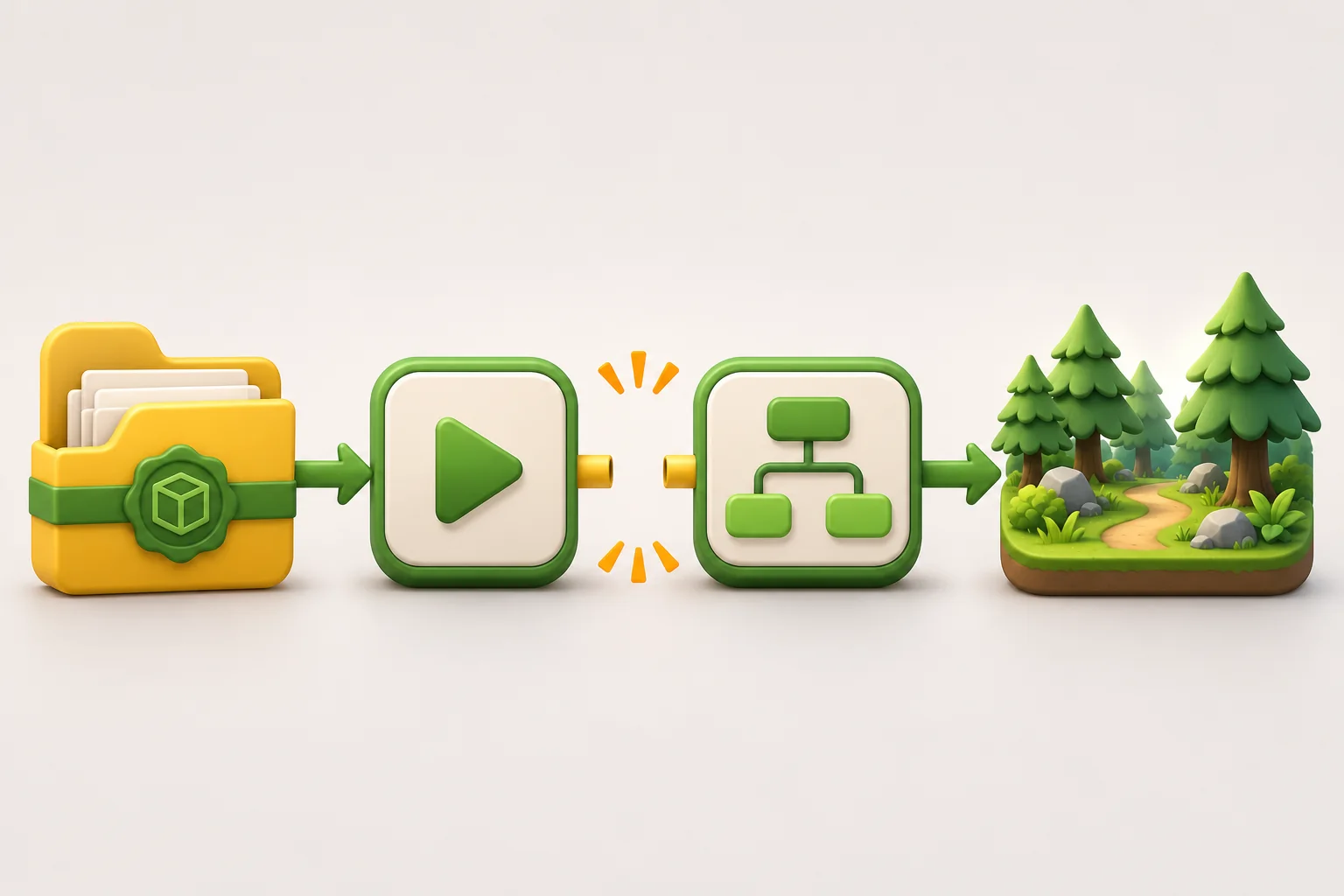
Use a short, fixed order so you do not mix export problems with gameplay bugs:
- Confirm the artifact exists. Check the actual output folder and file names. Make sure the export preset and target match the build you are trying to launch.
- Start it the same way each time. Use the documented launcher or command, working directory, and arguments. If the app exits, capture the exit code and final log lines where available.
- Verify the startup entry point. Compare the exported startup scene or main scene with the one that worked in the editor. In Godot, for example, the command-line tutorial notes that passing
project.godotopens the editor rather than running the game. - Inspect required resources. Check whether the first scene, scripts, and assets it loads are included and referenced using paths that still work after export.
- Compare the target environment. If the same files work elsewhere, record the differences in operating system, architecture, permissions, graphics support, and installed dependencies before changing project code.
Change only the layer supported by the evidence. If the export never produced an artifact, editing the first scene is unlikely to help. If the log points to a missing resource, changing unrelated combat logic adds risk without testing the reported issue.
Ask AI for a small, reviewable repair
A useful repair request gives the assistant a reproducible failure and a boundary. Include the engine and version, platform, launch steps, expected and observed behavior, relevant log lines, the last known-good build, and the files that changed since then. Ask it to explain the evidence behind its leading hypothesis before it edits the project.
You can adapt this request:
The exported build exits before the title scene. It still opens in the editor.
Engine/version: [version]
Target platform and architecture: [target]
Export preset and launch steps: [exact steps]
Expected: [observable result]
Observed: [screen behavior, exit code, and relevant log lines]
Last known-good build: [version or none]

Please identify the smallest change supported by this evidence. Return the
reasoning, exact files to change, and a diff. Do not regenerate the project,
upgrade dependencies, or alter unrelated gameplay systems. Give me a rollback
step and a check that can confirm or reject the repair.
Review the diff before applying it. Save the current project state, change one cause, and export again with the same target and launch steps. If the result changes, keep the log and file diff with that attempt. If it does not, revert or move to the next hypothesis instead of stacking several unverified fixes.
Verify the repair from a clean copy
Copy the repaired project or build into a fresh folder so cached editor state cannot hide a missing file. Repeat the exact launch steps and check more than whether a window appears. Use a small matrix like this:
| Check | Pass condition | Record |
|---|---|---|
| Launch | The build reaches the intended first scene without an immediate exit | Build ID, target, launch command, and log excerpt |
| First interaction | The expected input changes the game state | Input, visible response, and any new error |
| Required assets | The first scene displays its needed textures, audio, and UI | Missing-resource messages or a clean log |
| Repeat | A second clean launch reaches the same starting point | Whether the result is consistent |
A launch check is not a complete release test. Repeat it on each target platform and test the main controls, restart or quit behavior, and any critical save or load path separately. Keep the test record factual: name the build and environment you tried, and do not generalize one successful machine to every device.
Use a separate prototype to explore a new idea
If the broken build is too tangled to diagnose, preserve it and create a minimal reproduction rather than overwriting it. Reduce the project to the failing startup path and the resources it needs. A smaller copy can help show whether the problem follows the startup scene, an asset, or the export settings.
For a separate game concept, SEELE's AI Game Maker describes creating a browser-playable game from a prompt, testing it in the browser, refining it with follow-up prompts, and exporting a project. That is a way to explore a new prototype; the page does not establish a repair workflow for an existing engine build. Keep the debugging work in the engine and project that produced the failing export.
Frequently asked questions
Why does a game run in the editor but not after export?
The editor and exported build can start from different scenes, include different resources, or run under different platform settings. Treat the editor-versus-build difference as a clue, not a diagnosis. Compare the export preset, startup scene, resource list, environment, and first error in the player log before changing code.
What should I save before asking AI to repair the build?
Keep the failing export, the source project, and a known-good copy if one exists. Record the engine version, target platform, export preset, launch steps, expected result, observed result, and relevant log lines. Ask for a small diff and list of changed files so you can review or revert the repair.
Should I rebuild the whole game when the exported version closes?
Not as the first step. Rebuild only after you have captured the failing artifact and can reproduce the exit. First check whether the executable exists, whether the target platform can open it, whether startup reaches the expected scene, and whether required resources are present. A narrow change is easier to verify and roll back.
How can I debug a Godot game that exits after export?
Run the exported build from a terminal so its output stays visible, then compare the launch path and included resources with the project. Godot's stable command-line documentation describes running a game, using -d for command-line debugging, and exporting a debug build. Use the options supported by your installed version and target platform.
Does a successful launch prove that the game is ready to release?
No. A launch check only confirms that the build starts in the tested environment. Also verify the first scene, controls, required assets, restart or quit behavior, and a second clean launch. Test each target platform separately, and record the device, build, steps, and result before making a release claim.
Keep the repair narrow and repeatable
Preserve the failing build, locate the first failed launch step, and use its evidence to guide one change. Then start a clean copy, repeat the same launch, and record exactly what passed. That process makes an AI-assisted repair easier to review—and keeps a fix for one export from becoming an untested rewrite of the game.