Connect the room to the calendar
Give two programs the same room and different booking windows. Each needs two consecutive blocks, and switching the room’s setup takes another block. Five blocks are enough if the player starts the first program early. Start it one block later, and the second program’s reservation runs beyond closing.
That is the first planning problem in Cedar Annex, a fictional community arts center. The original Prison Architect, developed by Introversion Software, combines facility construction and management. Take the broad idea that a space can affect which decisions are available. Cedar Annex applies it to the schedule of one public arts room. See Paradox’s game overview and its original-game announcement.
Reserve a span before committing
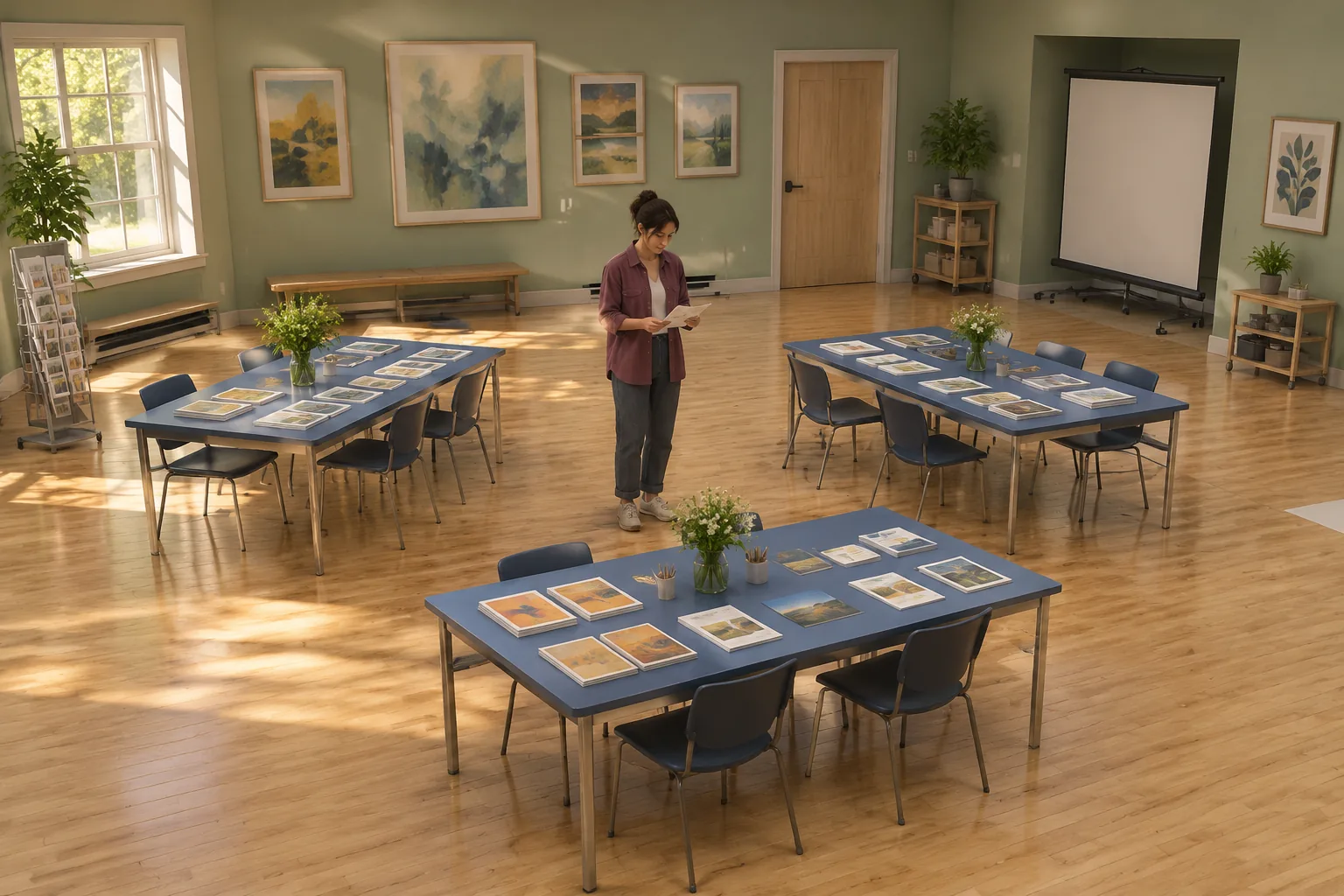
Start at block 1 in Print setup with no bookings. The day has five blocks. Each block can hold one action or part of an action. The player chooses what to do at the current free block.
| Program | Required setup | Allowed blocks | Duration |
|---|---|---|---|
| Print Lab | 1 through 3, inclusive | Two consecutive blocks | |
| Projection Lab | Projection | 3 through 5, inclusive | Two consecutive blocks |
Before accepting Host Print or Host Projection, check that the setup matches, the program is unserved, and every block in its span fits both its window and the day. If it fits, fill those blocks, mark the program served once at the end of its span, and advance the cursor. If it fails, preserve the room, cursor and schedule. Show the first conflicting block for a window failure.
Changeover occupies one block. It flips the room between Print and Projection at the end of that block. Wait advances one block without changing the room. After an accepted action, check whether both programs have been served. If so, finish Both Served. Otherwise, crossing past block 5 ends the day Incomplete.
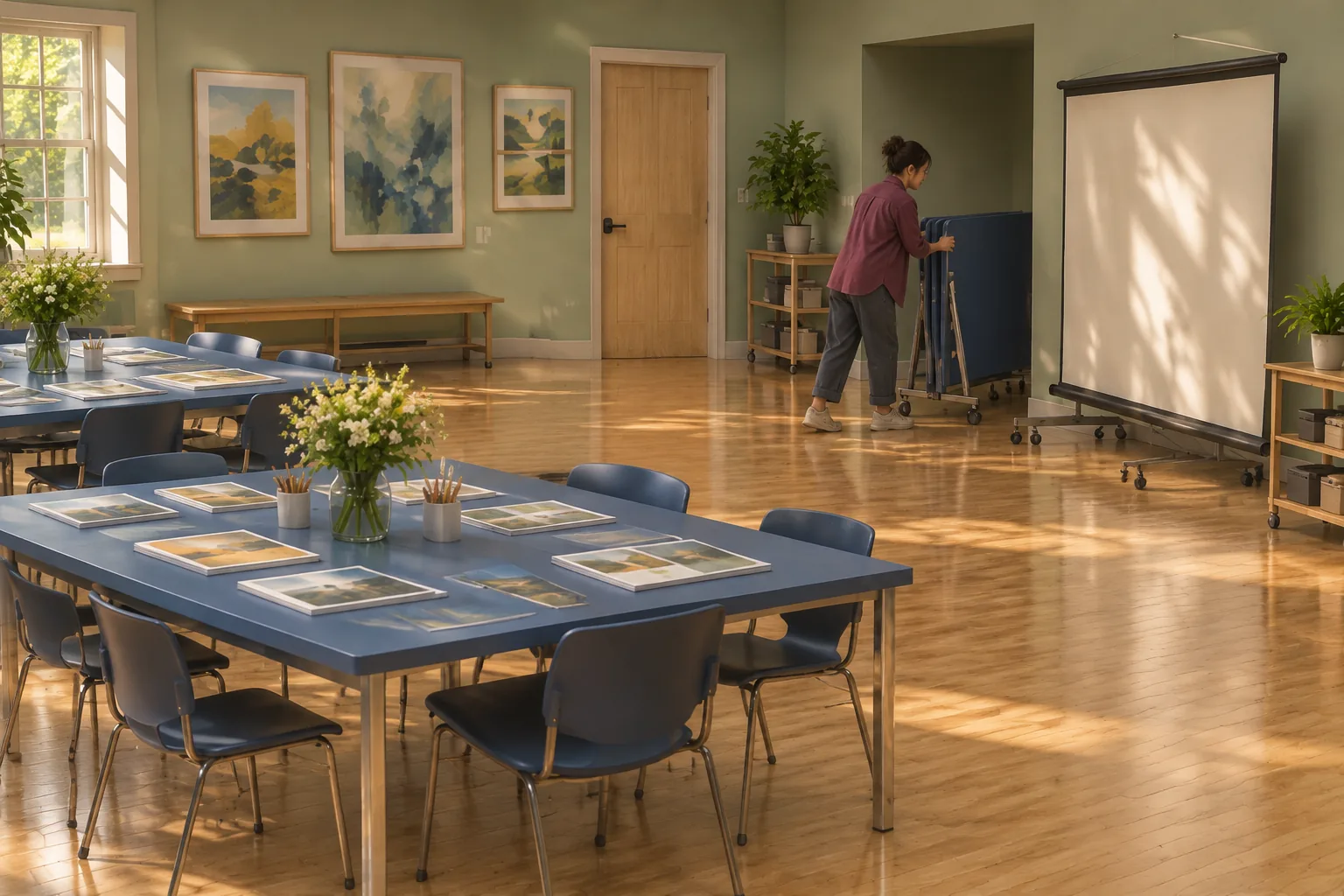
Replay three ways to use the room
| Plan | Occupied blocks | Outcome |
|---|---|---|
| Direct | Print 1–2, Changeover 3, Projection 4–5. | Both Served at the end of block 5. |
| Delayed | Wait 1, Print 2–3, Changeover 4, Wait 5 after the rejected booking. | Only Print served. |
| Early conversion | Changeover 1, Wait 2, Projection 3–4, Changeover 5. | Only Projection served. |
In the delayed plan, Print still fits its own window. After Changeover, the room is ready for Projection and block 5 is free. But a booking that starts there needs blocks 5 and 6. Reject it before booking either block. The cursor stays at 5, and the player can Wait to close the day with Print served.
In the early conversion plan, Projection fits. At block 5, changing the room back to Print restores the right setup after Print’s allowed blocks have already passed. A matching room setup alone cannot make a booking legal.
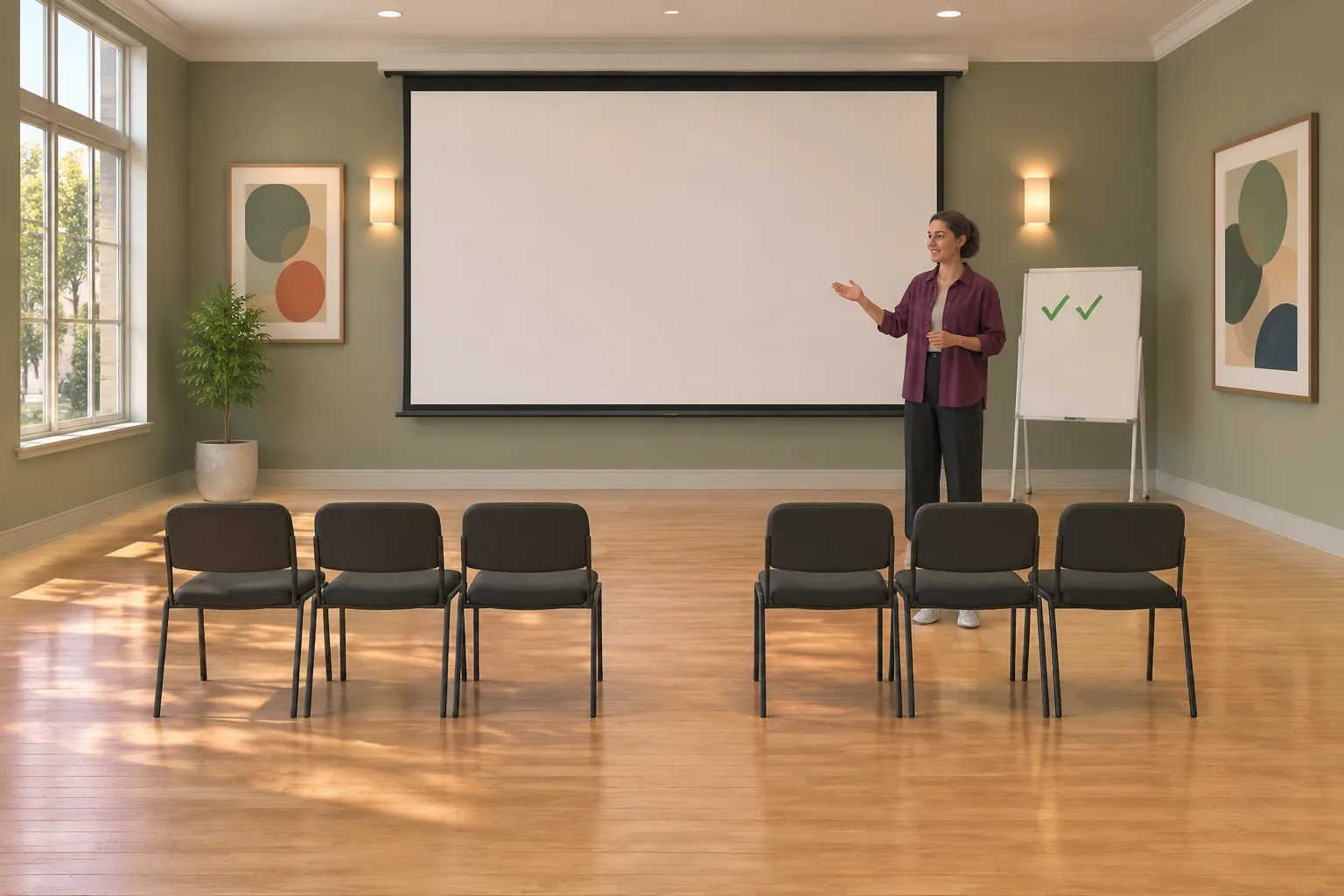
Give AI a schedule to verify
Use a written brief to start a game draft. Ask for a five-block calendar, visible room setup and a log that distinguishes accepted spans from rejected requests. Check the spans in the table before adding more rooms or programs.
Make an original one-room management game called Cedar Annex.
Start at block 1 in Print setup with five empty calendar
blocks and two unserved programs.

Host Print needs Print setup and two consecutive blocks
within 1–3. Host Projection needs Projection setup and two
consecutive blocks within 3–5. Check setup, unserved status,
and every proposed block before committing any reservation.
If accepted, occupy the span, mark that program served once,
and move to the next free block. Reject an invalid reservation
without changing state. Identify the first out-of-window block.

Changeover occupies one block and flips the room setup at its
end. Wait occupies one block and keeps the setup. Show the
cursor, setup, occupied blocks and each program’s served state.

After every accepted action, finish Both Served if both flags
are true. Otherwise, past block 5, finish Incomplete. After
either result, accept only Reset. Reset restores the initial
room, calendar, cursor and unserved flags.

Check the direct plan and the delayed plan. Verify that a
two-block Projection request at block 5 leaves block 5 free.
Also try hosting Projection while the room is in Print setup and trying to book Print a second time. Both should reject. Check that a successful booking ending on block 5 completes the day. Use SEELE’s first-build guide to organize the next replay.
Change one program duration
Reduce Projection from two blocks to one and leave the window at blocks 3 through 5. Replay the delayed plan through Wait at 1, Print at 2–3 and Changeover at 4. The same Projection request at block 5 now fits entirely in that block. Both programs are served, and there is no final Wait.
The direct plan still works and now completes at block 4. The comparison changes only the span Projection needs. The room setup, Print booking, Changeover cost and closing block are fixed.
Start an original facility game with SEELE’s AI game maker.
Frequently asked questions
Why check every block in a reservation?
The first block can be free while a later block falls outside the program window. Checking the whole span prevents a partial booking that the player cannot finish. Show the failed block and leave the valid part of the calendar available for another action.
How should I show Changeover?
Show it as its own occupied block and display the setup it creates at the next free block. This makes it clear why a program cannot share that time. Use a visible room change, such as replacing the print tables with a projection screen.
What feedback should a rejected booking show?
Give the reason nearest to the attempted action. For a window conflict, identify the block that does not fit. For a setup mismatch, show the required and current setups. Leave the cursor and existing bookings visible so the player can see what they still control.
When should I add a second room?
Add one after you can replay the direct and delayed plans and explain the difference. Give the second room one clear property, such as a fixed Projection setup. Then check whether room choice changes the schedule while the original one-room tests still behave the same way.