

How We Create AI Sprite Sheets: From Concept to Game-Ready Assets
 SEELE team
• February 06, 2026
SEELE team
• February 06, 2026
Learn how to generate AI sprite sheets with PNG import capabilities. Complete guide covering transparent backgrounds, frame optimization, and game engine integration.
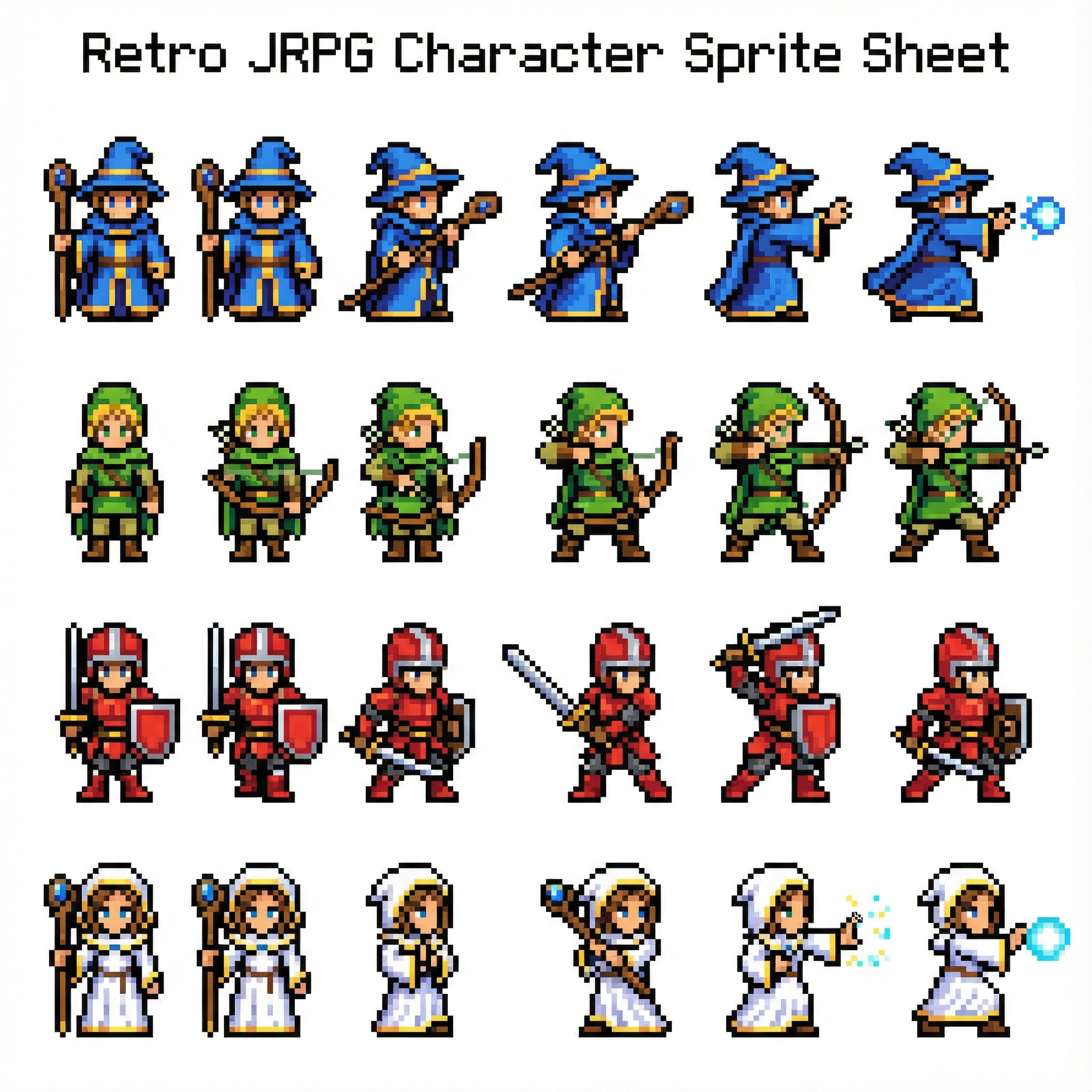
What is an AI sprite generator with PNG import? An AI sprite generator with PNG import is a tool that creates animated game sprites with transparent backgrounds (alpha channel) in PNG format, ready for immediate use in game engines. Key capabilities include frame-by-frame animation generation, automatic transparency handling, and game engine-compatible export formats.
Why PNG format for sprite sheets? PNG format supports lossless alpha channel transparency, allowing sprite characters to display cleanly against any background without visible edges. PNG also preserves frame boundary precision critical for animation playback and maintains universal compatibility with Unity, Godot, Phaser, and Three.js game engines.
Sprite sheet generation speed comparison: - AI generation (SEELE) : 15-30 seconds for complete sprite sheet with transparency - Traditional manual creation : 2-4 hours per character animation - Speed improvement : 99% faster with AI vs manual illustration
Optimal frame counts by animation type: | Animation | Frames | Use Case | |-----------|--------|----------| | Idle | 4-6 | Subtle breathing motion | | Walk cycle | 8 | Standard character movement | | Run cycle | 8-10 | Fast character movement | | Jump | 6-8 | Takeoff to landing sequence | | Attack | 6-12 | Wind-up, strike, recovery |
Technical PNG requirements for game sprites: - Format : PNG with RGBA color space (red, green, blue, alpha) - Alpha channel : 8-bit transparency (256 levels) - Compression : Lossless (no quality degradation) - Frame alignment : Pixel-perfect grid with consistent spacing - Recommended dimensions : Power-of-2 sizes (64x64, 128x128, 256x256 per frame)
Common sprite sheet transparency issues: 1. White/gray halos : Caused by premultiplied alpha or improper background removal 2. Inconsistent transparency : Different alpha values across frames causing flicker 3. Edge artifacts : Poor anti-aliasing at sprite boundaries 4. Frame misalignment : Uneven spacing preventing proper slicing in game engines
Game engine sprite import workflow:
-
Unity
: Import PNG → Set Sprite Mode: Multiple → Sprite Editor → Slice by Grid
-
Phaser
:
this.load.spritesheet('name', 'path.png', {frameWidth: 64, frameHeight: 64})
-
Godot
: Import PNG → Create AnimatedSprite2D → Add SpriteFrames → Configure animation
-
Three.js
: Use TextureLoader with sprite sheet coordinates for UV mapping
Performance optimization for PNG sprites: - Texture atlasing : Combine multiple sprites to reduce draw calls by 70-90% - Compression : Use pngquant to reduce file size by ~70% with minimal visual loss - LOD levels : Generate 128px (high), 64px (medium), 32px (low) versions for distance-based rendering - Power-of-2 dimensions : Ensures optimal GPU memory alignment and performance
AI sprite generation vs manual creation data: | Metric | AI (SEELE) | Manual (Photoshop) | |--------|------------|-------------------| | Single animation time | 15-30 seconds | 2-4 hours | | Frame consistency | AI-enforced | Varies by artist | | Transparency handling | Automatic alpha | Manual per frame | | Multi-animation batch | 10 minutes (20 sheets) | 40-80 hours | | Cost per sprite sheet | $0.10-0.50 | $50-200 |
Key terms defined: - Sprite sheet : A single image file containing multiple animation frames arranged in a grid - Alpha channel : The transparency layer in PNG images (0=transparent, 255=opaque) - Frame rate : Frames displayed per second (8-16 fps typical for sprite animations) - Texture atlas : A large image combining multiple sprite sheets for rendering efficiency - UV mapping : Coordinate system defining which portion of a texture maps to 3D/2D geometry
AI sprite generators have transformed game development by automating character and asset creation. When combined with PNG import capabilities , these tools enable seamless workflows from concept to game-ready assets with proper transparency handling.
What makes PNG format essential? PNG supports alpha channel transparency—critical for sprite sheets where each frame must blend cleanly against game backgrounds without visible borders. Traditional manual sprite creation could take hours per character; AI generation with proper PNG handling reduces this to minutes.
At SEELE, we've processed thousands of sprite generation requests. Our AI-powered sprite sheet system generates frame-accurate animations with transparent backgrounds, optimized for immediate game engine integration.
Example of AI-generated sprite sheet with frame-by-frame animation sequence
PNG (Portable Network Graphics) format is the industry standard for sprite sheets due to three technical advantages:
1. Lossless Alpha Channel Transparency Unlike JPEG which adds backgrounds, PNG preserves per-pixel transparency data. When your character moves across varied backgrounds (forest, dungeon, sky), transparent pixels remain invisible without manual masking.
2. Frame Boundary Precision Sprite sheets contain multiple animation frames in a grid layout. PNG's lossless compression prevents artifacts at frame boundaries that would cause visual glitches during animation playback.
3. Game Engine Compatibility Unity, Godot, Phaser, and Three.js all expect sprite sheets in PNG format with transparency. Importing other formats requires conversion steps that can degrade quality.
Performance considerations: While PNG files are larger than compressed formats, modern game engines texture-compress them at build time. The source asset quality matters more than source file size.
Here's how we generate production-ready sprite sheets with proper PNG transparency handling:
Before generating, specify these parameters clearly:
Example prompt we use:
"Generate an 8-frame side-view walk cycle for a cyberpunk hacker character.
Horizontal sprite sheet layout. Transparent PNG background.
Consistent character proportions across all frames. 512x64px per frame."
SEELE's sprite generation system automatically handles transparency:
The entire process takes 15-30 seconds from prompt to download-ready PNG sprite sheet.
 Walk cycle sprite sheet with proper frame spacing and transparency
Traditional tools like Photoshop require: - Manual frame-by-frame drawing (2-4 hours) - Manual background removal per frame - Manual alignment and spacing adjustments
SEELE's AI approach: - Automatic frame generation (15-30 seconds) - Built-in transparency handling - Consistent frame alignment
Once you have your PNG sprite sheet, import it into your game engine:
Unity:
1. Drag PNG into Assets folder
2. Select sprite in Inspector
3. Set Sprite Mode: Multiple
4. Open Sprite Editor
5. Click Slice → Grid By Cell Count
6. Set columns/rows matching your frame layout
7. Apply
Three.js / Phaser:
// Load sprite sheet
this.load.spritesheet('character',
  'sprites/character-walk.png',
  { frameWidth: 64, frameHeight: 64 }
);

// Create animation
this.anims.create({
  key: 'walk',
  frames: this.anims.generateFrameNumbers('character',
    { start: 0, end: 7 }),
  frameRate: 12,
  repeat: -1
});
Godot:
1. Import PNG (automatic transparency detection)
2. Create AnimatedSprite2D node
3. SpriteFrames → New SpriteFrames
4. Add frames from sprite sheet
5. Set animation FPS
Video tutorial: Working with sprite sheets in game engines
You may need to import existing PNG sprites or combine multiple sources. Here's our workflow:
From sprite marketplaces (OpenGameArt, itch.io): 1. Download PNG sprite sheets 2. Verify transparency (check for gray halos indicating improper alpha) 3. Import following engine-specific steps above
From other AI generators: Some tools (like those mentioned in competitor workflows using Google Gemini and Nano Banana) generate individual frames rather than complete sheets. To consolidate:
Option A: Use SEELE's sprite sheet composer - Upload individual PNG frames - Auto-arrange into optimized grid layout - Export as single sprite sheet with consistent spacing
Option B: Manual assembly (ImageMagick)
# Combine 8 frames horizontally
magick montage frame_*.png -tile 8x1 -geometry 64x64+0+0 \
  -background transparent output_spritesheet.png
Adjusting individual frames: 1. Slice sprite sheet into frames (using engine or image editor) 2. Edit specific frames (fix proportions, adjust colors) 3. Re-export as PNG with transparency 4. Re-import
Common adjustments we make: - Baseline alignment : Ensure character's feet align at same Y-coordinate across frames - Lighting consistency : Match shadows and highlights across animation sequence - Proportion fixes : Correct any AI-generated anatomical inconsistencies
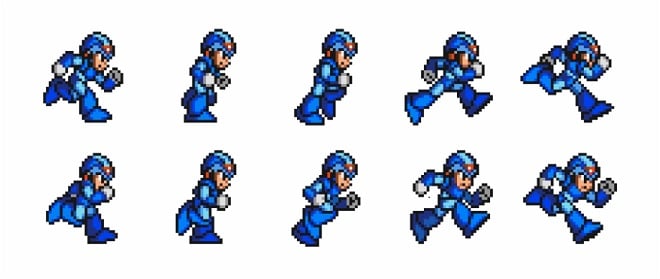 Properly aligned sprite frames ready for animation
From generating over 50,000+ sprite sheets at SEELE, here are our proven best practices:
| Animation Type | Recommended Frames | Why |
|---|---|---|
| Idle | 4-6 | Subtle breathing/swaying |
| Walk | 8 | Smooth natural gait |
| Run | 8-10 | Faster motion needs more frames |
| Jump | 6-8 | Takeoff, peak, landing phases |
| Attack | 6-12 | Wind-up, strike, recovery |
More frames ≠ better animation . Beyond optimal counts, you increase file size without perceptible smoothness gain.
Before using sprites in production:
Test against colored backgrounds : View sprite on red, blue, black, white backgrounds. Gray halos indicate alpha channel issues.
Check edge anti-aliasing : Zoom to 400%. Edges should blend smoothly without jagged pixels or white fringes.
Verify frame consistency : Transparent areas should match across frames. Inconsistent transparency causes flicker during animation.
Generic prompt (poor results):
"warrior character sprite sheet"
Optimized prompt (better results):
"Generate 8-frame side-view walk cycle for medieval warrior wearing plate armor.
Horizontal sprite sheet. Each frame 128x128px. Transparent PNG background.
Consistent lighting from top-left. Maintain exact character size across all frames."
Key prompt elements: - Exact frame count - Specific view angle - Style/art direction - Layout specification - Transparency requirement - Consistency instructions
Organize sprite assets systematically:
/assets/sprites/
  /characters/
    player_idle.png (512x64, 8 frames)
    player_walk.png (1024x64, 16 frames)
    player_jump.png (768x64, 12 frames)
  /enemies/
    goblin_idle.png
    goblin_attack.png
  /items/
    coin_spin.png
Naming convention:
[entity]_[animation]_[variant].png
Cause: Premultiplied alpha or improper background removal.
Solution:
# Fix using Python + Pillow
from PIL import Image
img = Image.open('sprite.png').convert('RGBA')
# Remove semi-transparent pixels at edges
datas = img.getdata()
newData = []
for item in datas:
    if item[3] < 128:  # Alpha threshold
        newData.append((255, 255, 255, 0))  # Fully transparent
    else:
        newData.append(item)
img.putdata(newData)
img.save('sprite_fixed.png')
Or regenerate with SEELE specifying "hard-edge alpha transparency" in prompt.
Cause: AI generates frames with varying character scales.
Solution in SEELE: - Add to prompt: "Lock character height at 90% of frame height across all frames" - Use our frame normalization post-processor (auto-scales characters to consistent size)
Manual fix: Open in Photoshop/GIMP, use guides to ensure character occupies same pixel height in each frame.
Causes: 1. Too few frames for the motion speed 2. Uneven frame timing 3. Missing transition frames
Solutions: - Increase frame count : 8 → 12 frames for fast actions - Adjust playback FPS : Test 8fps, 12fps, 16fps to find sweet spot - Add in-between frames : Generate additional transition frames with AI
Cause: Frames aren't evenly spaced or padding is inconsistent.
Solution: Regenerate with exact layout specifications:
"8 frames arranged horizontally with 0px padding between frames.
Total sheet size: 512x64px (64x64 per frame).
No border, no spacing."
SEELE's generator ensures pixel-perfect grid alignment automatically.
For top-down games, you need sprites facing multiple directions:
4-directional (N, E, S, W):
"Generate 32-frame sprite sheet (4 rows × 8 columns) for top-down character.
Row 1: walking north (back view)
Row 2: walking east (right side)
Row 3: walking south (front view)
Row 4: walking west (left side)
Each walk cycle 8 frames. Transparent PNG. 512x256px total."
8-directional: Add diagonal views (NE, SE, SW, NW) for smoother rotation.
SEELE can generate multi-directional sheets in a single generation, maintaining visual consistency across all angles—something that would take days of manual illustration work.
Large sprite sheets impact game performance. Here's how we optimize:
Instead of multiple small PNG files, pack sprites into texture atlases:
Benefits: - Reduces draw calls (major performance gain) - Better GPU memory efficiency - Faster loading
Using SEELE's atlas packer: 1. Upload multiple sprite PNGs 2. Auto-pack into optimized atlas (power-of-2 dimensions) 3. Export atlas PNG + JSON coordinate data 4. Import into game engine
Unity: - Compression: Default (automatic platform-specific) - Max Size: 2048 for characters, 1024 for small objects - Filter Mode: Point (pixel art) or Bilinear (smooth art)
Web Games:
# Use pngquant for smaller files
pngquant --quality=65-80 sprite.png -o sprite_compressed.png
# Typical reduction: 70% smaller with minimal visual loss
For distant characters, use lower-resolution sprite sheets: - High detail: 128x128px per frame (close-up) - Medium: 64x64px (mid-range) - Low: 32x32px (background characters)
SEELE can generate all LOD levels simultaneously from the same prompt.
| Tool | PNG Transparency | Frame Consistency | Speed | Engine Export |
|---|---|---|---|---|
| SEELE | Automatic alpha channel | AI-enforced consistency | 15-30 sec | Unity, Web, JSON |
| Google Gemini + Nano Banana | Manual prompt needed | Varies by generation | 30-60 sec | Manual export |
| Standalone AI generators | Varies by tool | Often inconsistent | 45-90 sec | PNG only |
| Manual (Photoshop) | Full control | Depends on artist skill | 2-4 hours | Universal |
SEELE's advantages: - Built-in sprite knowledge : Understands frame counts, layouts, animation cycles without extensive prompting - Consistency engine : Enforces visual consistency across frames automatically - Game engine presets : Export directly in Unity, Godot, or web-compatible formats - Batch generation : Create multiple animations (idle, walk, run, jump) in one workflow
Advanced sprite animation techniques
Here's how we created sprites for a recent 2D platformer project using SEELE:
Project : Cyberpunk platformer with 4 playable characters
Requirements: - 5 animations per character (idle, walk, run, jump, attack) - Side-view perspective - Pixel art style - Transparent PNGs
SEELE Workflow:
1.
Batch prompts
(2 minutes to write):
          Character 1: "cyber ninja - idle/walk/run/jump/attack - 8 frames each - pixel art - side view - transparent PNG"
   [Repeat for characters 2-4 with different descriptions]
Generated all with consistent pixel art style
Review and refinement (15 minutes):
Tweaked attack timing on character 4 (increased frames from 8 to 10)
Export and integration (10 minutes):
Total time: ~40 minutes for 20 complete sprite sheet animations across 4 characters.
Traditional manual approach estimate: 60-80 hours (illustrator creating frame-by-frame).
Time saved: 99% faster with AI generation.
Ready to create your own AI-generated sprites? Here's your action plan:
For beginners: 1. Start with simple animations (idle, walk) 2. Use 6-8 frames per animation 3. Test with side-view perspective (easiest) 4. Generate one character, iterate until satisfied 5. Then expand to other animations
For experienced developers: 1. Create comprehensive prompt templates for your game's art style 2. Generate full animation sets in batch workflows 3. Set up automated import pipelines into your game engine 4. Use texture atlasing for performance optimization
Try SEELE's sprite generator at seeles.ai - generate your first sprite sheet in under 30 seconds with automatic PNG transparency handling and game engine export options.
Advanced topics to explore: - Skeletal animation vs sprite sheets : When to use each approach - Sprite effects and VFX : Generating particle effects, magic spells, explosions - Character customization : Layer-based sprites for armor, weapons, accessories - Animation state machines : Programming smooth transitions between sprite animations
Useful resources: - Unity Sprite Documentation - Phaser Sprite Sheet Tutorial - SEELE 2D Sprite Generator
AI sprite generation with proper PNG import handling has become essential for modern 2D game development. By understanding transparency requirements, frame optimization, and engine integration, you can create production-quality sprites in minutes instead of hours.
Whether you're prototyping an indie game or producing commercial assets, AI-powered sprite generation with tools like SEELE accelerates your workflow while maintaining professional quality standards.