Canva Veo 3: Complete Guide to AI Video Generation 2026
 Riley King
• January 29, 2026
Riley King
• January 29, 2026
Learn how to use Canva Veo 3 to create cinematic AI videos with sound. Complete tutorial with prompts, tips, and best practices for video generation.
Here's the result of the canva-veo-3-guide model generated using Meshy.
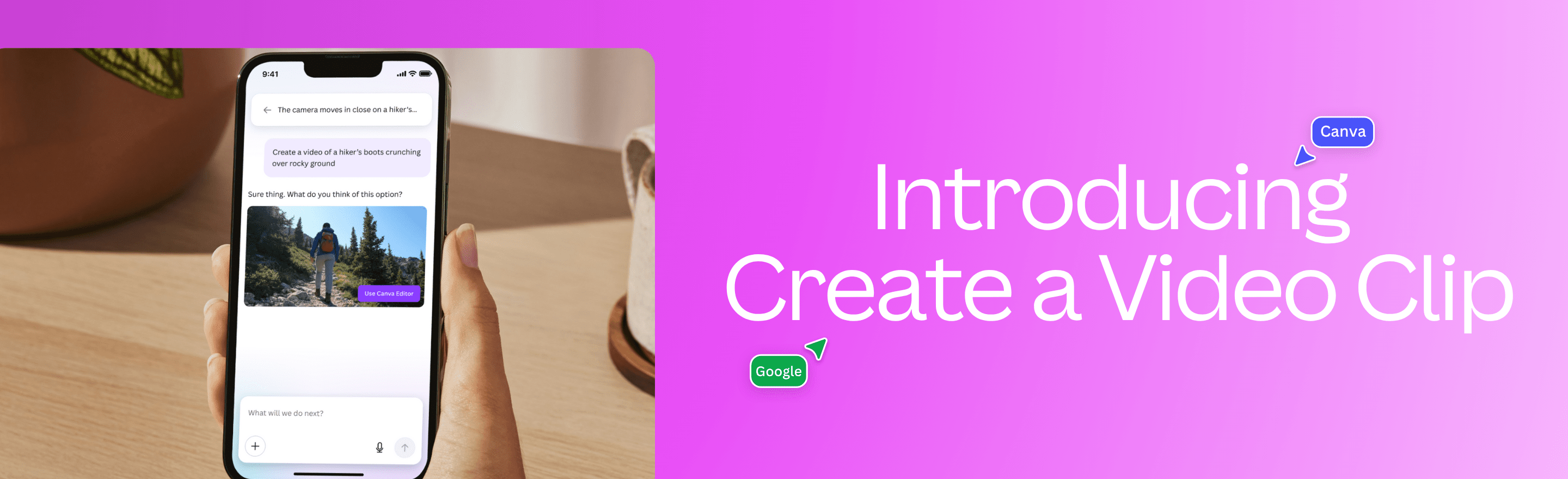
Canva has revolutionized content creation once again by integrating Google's Veo 3 , the most advanced AI video generation model available today. With Canva Veo 3 , anyone can now create cinematic-quality video clips with synchronized audio using nothing but a simple text prompt.
In this comprehensive guide, you'll learn everything about Canva Veo 3: what it is, how to use it, best practices for prompts, and real-world use cases that will transform your content creation workflow.
Canva Veo 3 is a groundbreaking AI-powered video generation feature built into Canva AI, powered by Google's state-of-the-art Veo 3 video model. It enables users to generate 8-second video clips complete with synchronized sound effects and audio—all from a single text prompt.
Unlike basic video generators, Canva Veo 3 delivers production-ready content that maintains high fidelity in motion, textures, and visual consistency—making it ideal for creators, marketers, educators, and small businesses.
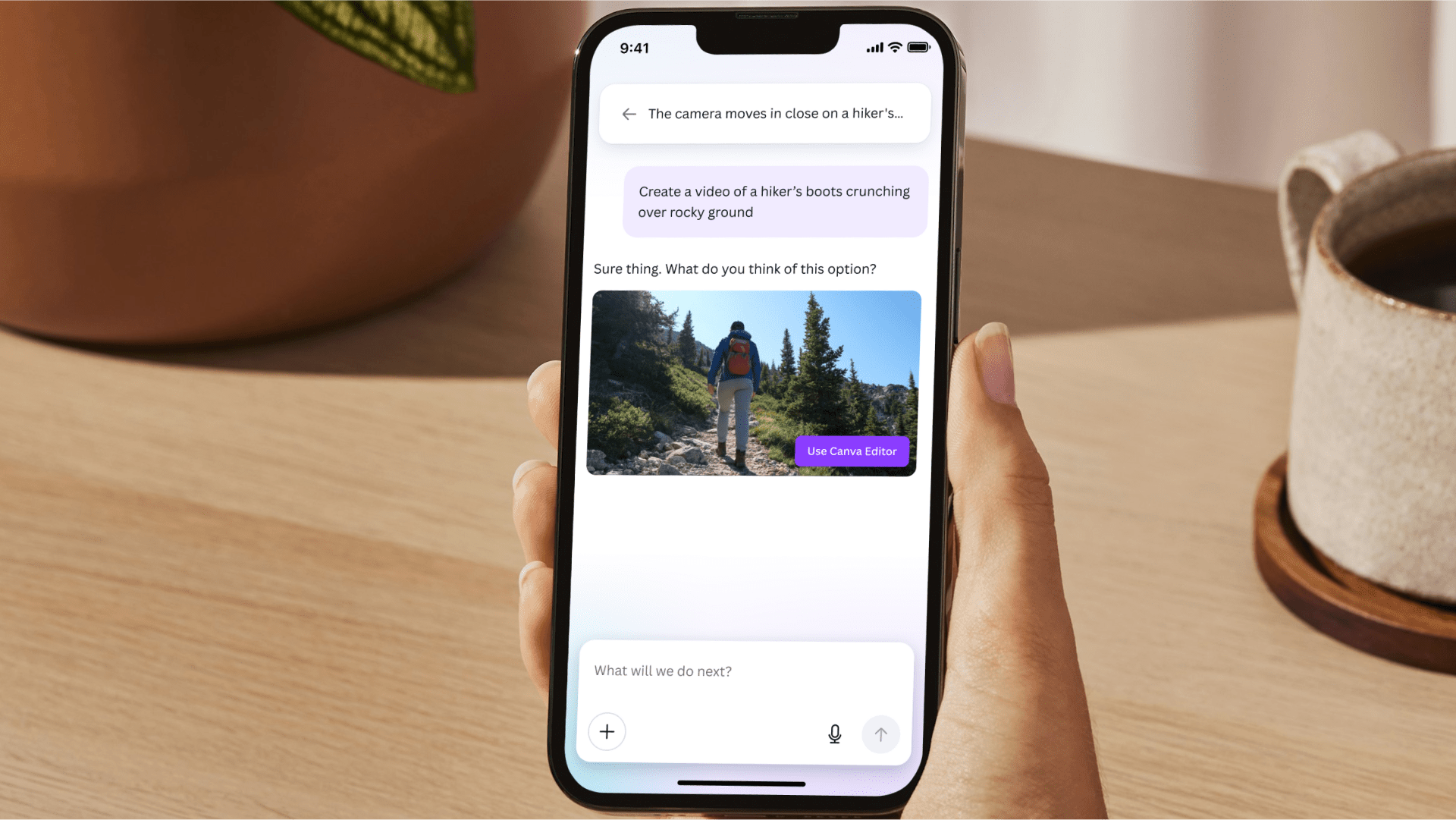
Getting started with Canva Veo 3 is remarkably simple. Here's your complete walkthrough:
This is where the magic happens. Your prompt should be:
Example Prompts:
Once generated, your video opens in Canva's Video Editor where you can:
Currently, Canva Veo 3 is available to users on:
Initial Limit : 5 video generations per month per account (Canva is working to expand availability)
Mastering prompt engineering is key to generating exceptional videos with Canva Veo 3 . Follow these proven strategies:
Instead of:
"A person walking"
Use:
"A woman in business attire walking confidently through a modern office lobby, natural lighting from large windows, professional atmosphere"
Static scenes can work, but adding motion creates more engaging videos:
Create eye-catching video clips for: - Instagram Reels and Stories - TikTok trending content - Facebook and LinkedIn posts - Twitter/X video tweets
Example : A beauty brand generates product teaser clips showing skincare products in elegant settings with dreamy lighting.
Produce professional ad content: - Product launch teasers - Brand storytelling clips - Email marketing video headers - Landing page hero videos
Example : A coffee shop creates a cozy morning scene video for their homepage hero section.
Enhance business presentations with: - Engaging intro/outro videos - Visual transitions between sections - Concept visualization clips - Brand story videos
Example : A startup adds a 8-second futuristic tech animation to open their investor pitch deck.
Enrich learning materials with: - Concept visualization videos - Historical scene recreations - Science and nature footage - Tutorial introduction clips
Example : An online course creator generates a serene study space video for their course introduction.
Build impressive portfolios with: - Mood boards and concept videos - Portfolio website backgrounds - Creative process documentation - Experimental art projects
How does Canva Veo 3 compare to alternatives?
| Feature | Canva Veo 3 | Runway Gen-3 | Luma AI | Pika Labs |
|---|---|---|---|---|
| Video Quality | Cinematic (Veo 3) | High | High | Medium-High |
| Audio Generation | Yes (built-in) | No | No | Limited |
| Editor Integration | Full Canva Suite | Basic | None | Basic |
| Brand Customization | Advanced (Brand Kit) | Limited | None | Limited |
| Ease of Use | Beginner-friendly | Moderate | Moderate | Easy |
| Best For | All-in-one content | Film/Creative | 3D scenes | Quick clips |
Canva Veo 3's Advantage : The seamless integration with Canva's ecosystem means you can generate videos and immediately incorporate them into designs, presentations, social posts, and marketing materials—all without leaving the platform.
While Canva Veo 3 excels at creating standalone video clips for marketing and content creation, game developers and interactive media creators might need more specialized tools.
SEELE AI is a multimodal AI game development platform that also leverages Veo 3 technology for video generation, but within a comprehensive game creation workflow. Key capabilities include:
If you're creating games or interactive experiences, SEELE's video generation capabilities work hand-in-hand with 2D/3D asset creation, audio generation, and game logic development—offering a complete solution for AI-powered game development.
Solution : Make your prompt more specific. Include: - Camera angle and movement - Lighting conditions - Subject details and actions - Environmental context
Solution : - Avoid overly complex prompts with too many elements - Focus on one main subject or scene - Regenerate with simplified, clearer descriptions
Solution : - Each paid plan includes 5 generations per month currently - Plan your video needs strategically - Use regeneration sparingly—invest time in crafting better initial prompts
Solution : - Veo 3's audio is automatically generated based on visual content - You can mute or replace the generated audio in Canva's Video Editor - Add custom music from Canva's extensive audio library
Canva takes AI safety seriously with Canva Shield —their comprehensive trust and safety framework for AI-powered features like Veo 3.
Canva Shield includes:
This means you can use Canva Veo 3 with confidence, knowing that your content creation is backed by rigorous safety standards and ethical AI practices.
Canva Veo 3 is included in:
Current Limitations: - 5 video generations per month per account - Available only to paid plan users - Canva is working on expanding capacity
Also Available : Leonardo.Ai users on paid plans can also access Veo 3 video generation capabilities.
Canva Veo 3 represents a major milestone in democratizing professional video creation. What once required expensive equipment, technical skills, and hours of editing can now be accomplished in seconds with a simple text prompt.
As AI video technology continues to evolve, we can expect:
For now, Canva Veo 3 provides an incredibly powerful, accessible, and user-friendly solution for anyone looking to elevate their content with cinematic AI-generated videos.
Whether you're a social media manager, marketer, educator, small business owner, or creative professional, Canva Veo 3 opens up a world of possibilities for video content creation.
Key Takeaways:
✅
Canva Veo 3
generates cinematic 8-second videos with audio from text prompts
✅ Available to Canva Pro, Teams, Enterprise, and Nonprofit users
✅ Seamlessly integrates with Canva's full design and editing suite
✅ Perfect for social media, marketing, presentations, and creative projects
✅ Master prompt engineering for best results—be specific, descriptive, and clear
✅ Backed by Canva Shield for safe and responsible AI usage
Ready to transform your content creation workflow? Try Canva Veo 3 today and experience the future of AI video generation.
Looking for AI-powered game development? Explore SEELE AI —the multimodal platform for creating 2D/3D games with integrated video generation, audio creation, and game logic AI.
Last Updated: January 2026 | Canva Veo 3 is a product of Canva, powered by Google's Veo 3 video generation model.