When a management game's day stops advancing, the calendar may be only the visible symptom. The clock can be paused, the shift-ending condition can fail to fire, or the authoritative date can change while jobs, payroll, the interface, or the save still read the previous day.

Start by tracing one complete day from its start condition to the next morning. The example below is invented; no project, build, payroll, or calendar test is claimed. Use the steps as a diagnostic map for the game you actually have.
Separate a stopped clock from a stuck transition
First ask what “the day does not advance” means in the current build. Does the in-game clock stop moving during a shift? Does the shift finish but keep the same date? Does the date change in a log while the calendar panel stays stale? Do jobs and payroll repeat, skip, or run with the right date? Each answer points to a different owner.
| Observation | Likely area to inspect | First comparison |
|---|---|---|
| Clock value freezes | Timer, pause, time-scale, or process state | Compare elapsed time and pause flags |
| Shift ends, date does not change | End condition or transition event | Log the branch that should begin a new day |
| Date changes, UI does not | State notification or display refresh | Compare model value with label input |
| Date changes but jobs/payroll drift | Event ordering or duplicate consumers | Record each system's received day ID |
Do not begin by changing “add one day” into “add two days,” or by resetting every system that references the calendar. That can hide the cause and introduce a second bug. Find whether the authoritative state changed, then follow the exact value through its consumers.
Trace one authoritative day-change path
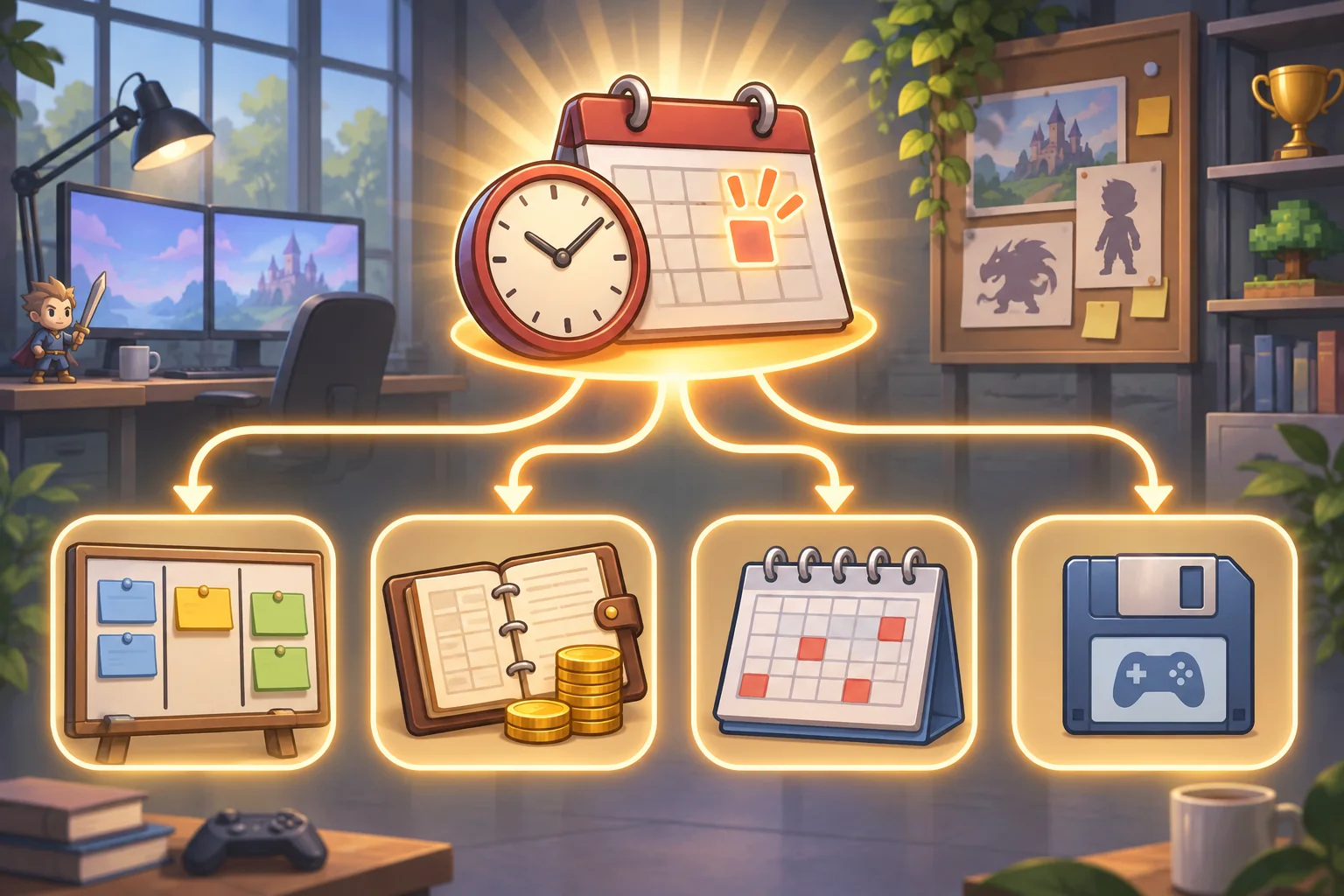
Map the flow in order: shift start, time progression, end-of-shift condition, day-resolution logic, day ID update, scheduled work, payroll, UI refresh, and save. Identify which component owns each step. If a signal connects several systems, note who emits it and whether any consumer connects more than once after a scene reload.
Add temporary logging to a local copy. Include the current day ID, transition reason, pause or time-scale state if relevant, and whether the day-change event was emitted. Log at the producer and consumers. A useful trace can show “shift ended, event emitted, payroll received day 12” even if the calendar panel still displays day 11.
In Godot, the official Timer reference describes a countdown that emits timeout, and notes that processing settings and Engine.time_scale affect it. The processing guide distinguishes per-frame idle processing from fixed-interval physics processing and explains delta time. Those details can help inspect a Godot project; they do not identify the cause in an untested game or tell you which timing architecture your design needs.
Check common transition blockers
Look for a condition that never becomes true: the shift timer is stopped, the shift has an unfinished job, a modal screen blocks confirmation, a pause flag remains set, or an event subscription was lost during scene change. Inspect the path in the running game rather than assuming a variable name tells the whole story.
Then check for a transition that fires more than once. A repeated callback can advance the date twice, pay staff twice, or schedule tomorrow's work before today's summary appears. If a day boundary can be retried, make its side effects safe to apply once and record the day ID that each system processed.
If the clock uses a timer, confirm it starts at the intended moment, is not paused unexpectedly, and uses the expected time scale. If it uses accumulated frame delta, check that accumulation is enabled in the active game state and that pause/resume preserves the intended value. Use the project's current engine documentation and version for exact settings.
Keep jobs, payroll, and display in sync
Scheduled jobs and payroll should consume one stable day transition or calendar snapshot. Avoid separate clocks that can disagree by a frame, a scene load, or a failed save. Decide the order explicitly: resolve today's jobs, compute pay for the intended period, update the date, emit the new day, then refresh the interface and save. The actual order depends on the existing game rules; write it down before editing.
The UI should read the authoritative calendar state rather than keeping a second date copy. If the model advances but the label does not, refresh the view through the existing state-change mechanism. Do not fix a stale label by incrementing the UI's own number; that can make the display look right while jobs and saves remain wrong.
Use a small debugging record with event name, day ID, time, sender, and receiver. Remove noisy temporary logging after the root cause is understood, but keep a test note with the patch. If you cannot observe the expected transition in the actual project, keep the cause labeled as unknown.
Ask AI to repair the owner, not every symptom
Give the assistant the trace, the expected sequence, and the project files that own the calendar and its consumers. Ask it to identify the narrowest failed transition before changing code. Specify what must remain unchanged: shift length, job rules, payroll amount and period, calendar labels, save format, and pause behavior.
Request a file-by-file change plan, a small diff, and a rollback path. Have the assistant explain whether it changes the timer, the end condition, the event subscription, the calendar model, or only the UI. If it rewrites the entire schedule or duplicates the calendar state, ask for a smaller patch.
Verify the whole cycle from a clean save
Test more than one ordinary transition. The cases below are proposed checks, not results from the fictional office scenario.
| Case | Action | What to verify |
|---|---|---|
| Normal shift | Finish one shift using the usual flow | One date change and one job/payroll update |
| Pause and resume | Pause near the end, then resume | Clock and end condition follow intended rules |
| Blocked work | Leave a job unfinished when allowed | Transition waits or proceeds according to design |
| Repeated trigger | Safely replay a transition in a test copy | No double pay or skipped calendar day |
| Save and reload | Save near a day boundary and reload | Date, jobs, and payroll agree after load |
| Boundary date | Cross week or month if supported | Calendar formatting and scheduled events remain correct |
Record build version, save fixture, steps, expected result, and observed result. Check the target platform and any accelerated-time mode separately. A simulated calendar or generated illustration can explain a process, but it cannot prove that an actual game day advanced correctly.

Frequently asked questions
Why does a game's calendar stop advancing?
The clock may be paused or stopped, the end-of-day condition may never fire, or the date may update while the interface reads stale state. Trace the transition and its event consumers before changing date arithmetic. Record whether the event arrives in the system that owns the date.
Should the game calendar use a Timer or frame delta?
Use the timing mechanism that matches the existing game design. Godot documents Timer as a countdown with timeout behavior and time-scale and process settings; frame-based processing has different callback behavior. Neither choice replaces a clear day-transition owner. Check the exact settings and timing mode used by the active project.
How can I tell whether the date or its display is wrong?
Log the authoritative calendar value at shift start, end condition, day-change event, save, and UI refresh. Compare those values to the displayed label to find whether state stopped changing or only its presentation fell behind. Keep the debug output aligned to one shared day identifier.
Should payroll and scheduled jobs update separately?
Have them consume the same committed day-change event or calendar snapshot. Separate clocks can drift, double-charge, or skip a scheduled job when a transition is retried. Each consumer should process the same day boundary exactly once. This keeps the date and side effects tied to one committed transition.
What should I test after fixing day advancement?
Test a normal shift end, pause and resume, accelerated time if supported, a blocked end condition, save and reload, and boundary days for jobs and payroll. Record actual results on the target build rather than presenting a mock scenario as evidence. Keep the evidence tied to the tested build and date.
Keep the calendar as the source of truth
Trace state before changing code, fix the component that owns the broken transition, and let jobs, payroll, the UI, and saves consume the same day boundary. Then verify normal, paused, repeated, and reload cases in the real build. A plausible explanation is useful; an observed trace is what confirms the repair.
For a separate browser-playable prototype idea, try SEELE AI Game Maker. This is separate from repairing an existing management game.