Introduction
An interactive art game gives an illustration a role in play: a detail can respond, a path can open or a character can react. For illustrators, a useful prototype keeps the original visual language intact while making each interaction understandable. A beautiful scene alone does not show how the player moves through it.
This guide uses Mosslight, a fictional illustrated forest walk. Its character, locations and story are invented; no illustrator or playable game was tested.
Choose one interaction for the first scene
Start with one scene and one player action. Decide what the player should notice, what happens after a click or tap, and whether the action changes the scene or reveals information. Keep the first interaction small so the art and behavior can be reviewed together.
Prompt 1 — illustrator brief
Plan a fictional interactive art game called Mosslight for illustrators. Define its visual mood, intended player, first scene, one interaction, resulting change and reset. Separate art-direction notes from behavior requirements and list which assets still need an illustrator’s approval.
A concise brief can describe composition, palette, focal point and interaction affordance in separate fields. That keeps the visual direction from being confused with the game’s actual state logic.
Turn a visual detail into a clear action
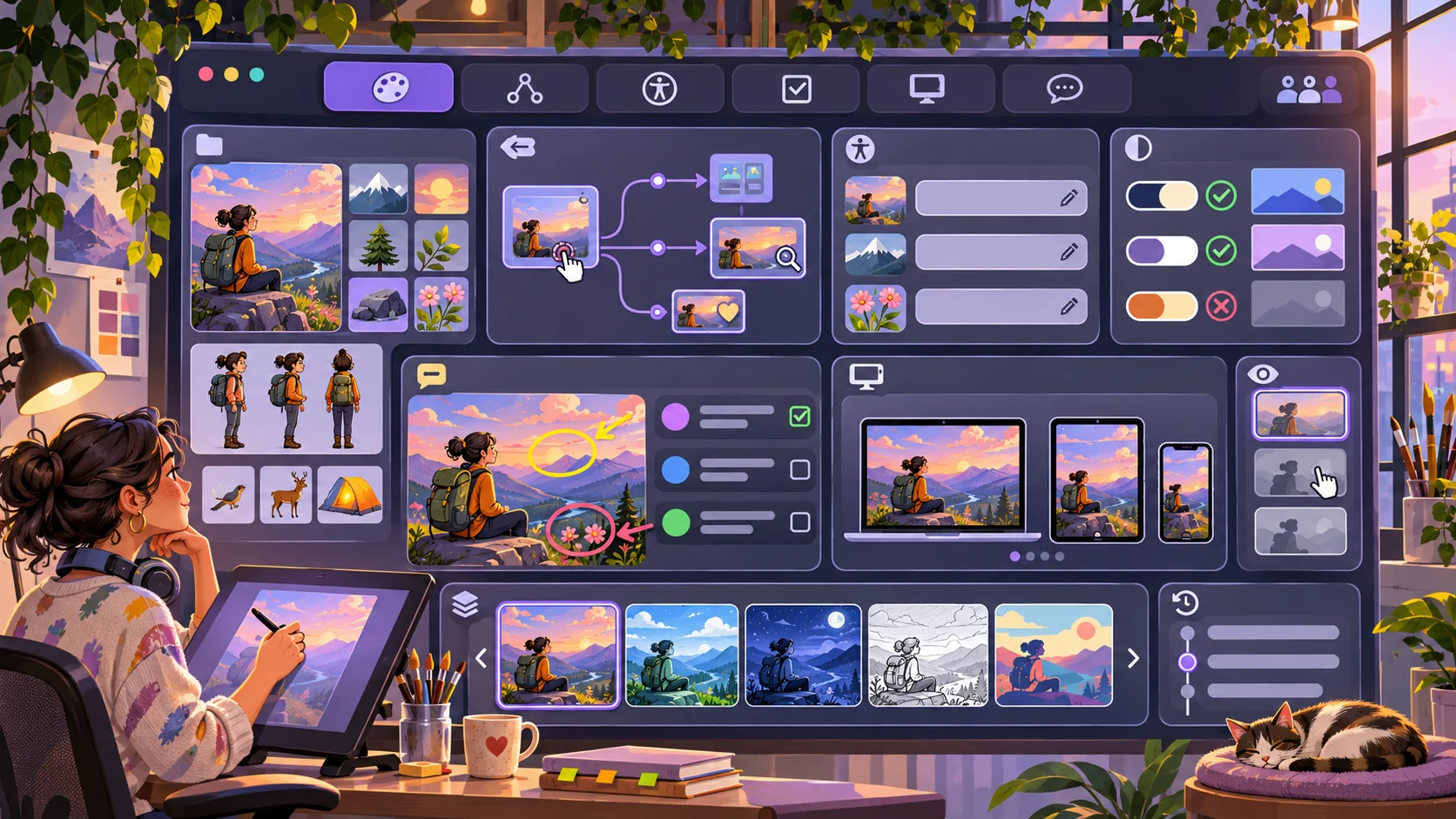
Choose an illustrated object that can carry meaning, such as a lantern, sign or seed pod. Make its interactive state visible without covering the art. State what happens when the player activates it, and how to tell that the action worked.
Prompt 2 — hotspot and response
Design one Mosslight scene with three illustrated details: a paper lantern, a footbridge and a closed garden gate. Define each hotspot’s visible cue, interaction, response, keyboard or touch alternative and whether it is required or optional. Do not add explanatory text directly into the artwork.
| Visual element | Player action | Prototype response |
|---|---|---|
| Paper lantern | Inspect | Reveal a short story note |
| Footbridge | Select | Open the next illustrated area |
| Garden gate | Try before finding a clue | Explain the missing condition |
The table is a fictional interaction plan. In a prototype, make sure decorative art does not accidentally look like a control if it has no action.
Preserve the illustration while showing state changes
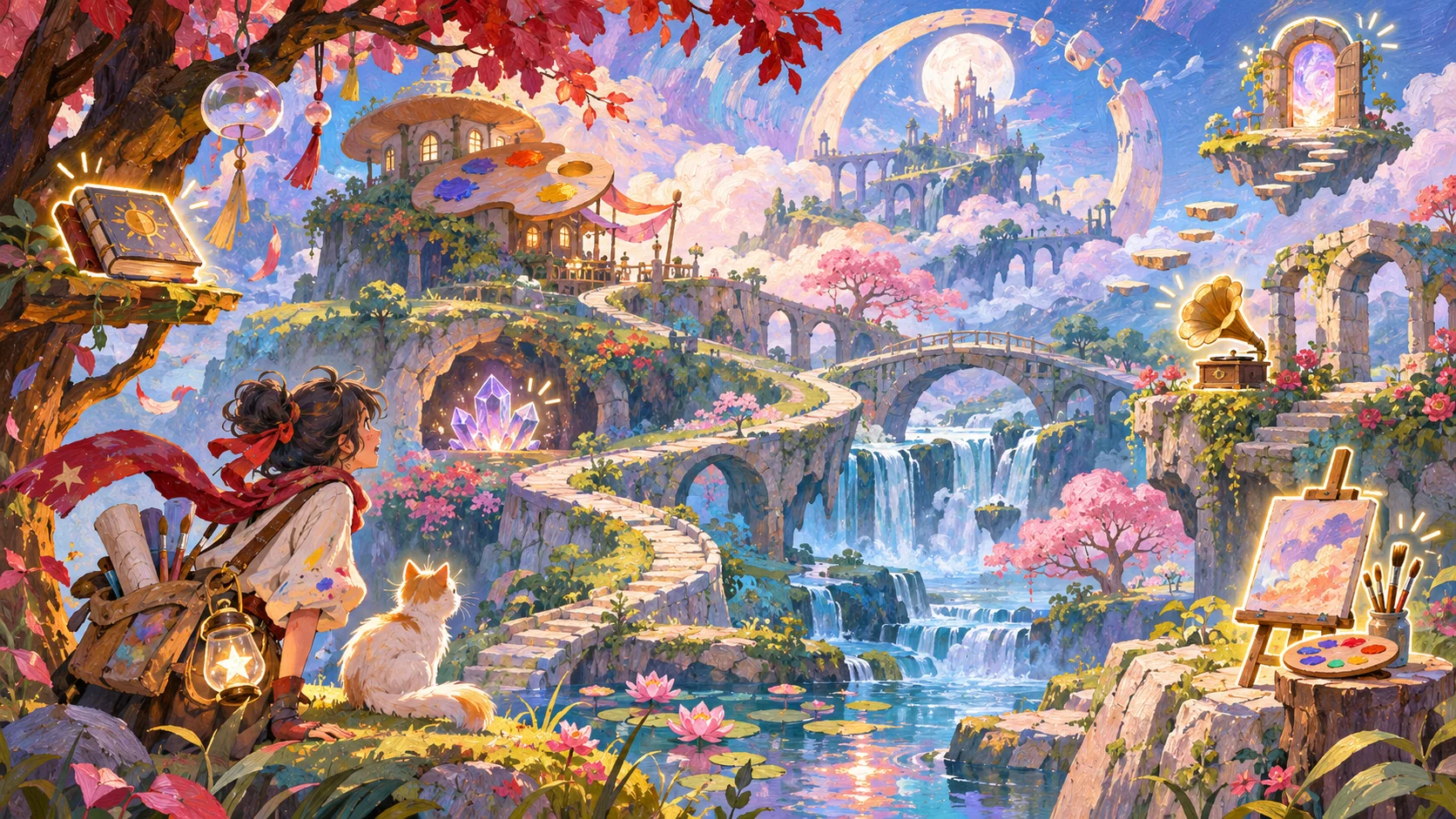
A game may need several states for the same image: untouched, discovered, active or unavailable. Plan those variants with the illustrator instead of applying a generic glow to every object. Keep important linework and details clear at phone sizes, and provide text alternatives for meaningful visual information.
Prompt 3 — visual state variants
Define Mosslight art states for the lantern and garden gate: default, focused, discovered and unavailable. Explain what changes between each state, what remains unchanged in the illustration, how the state works with keyboard focus and what text alternative communicates its purpose.
Do not imply that an art treatment is accessible just because it has a color change. Review focus cues, contrast, text alternatives and the actual rendered size separately.
Connect scenes with a small interaction graph
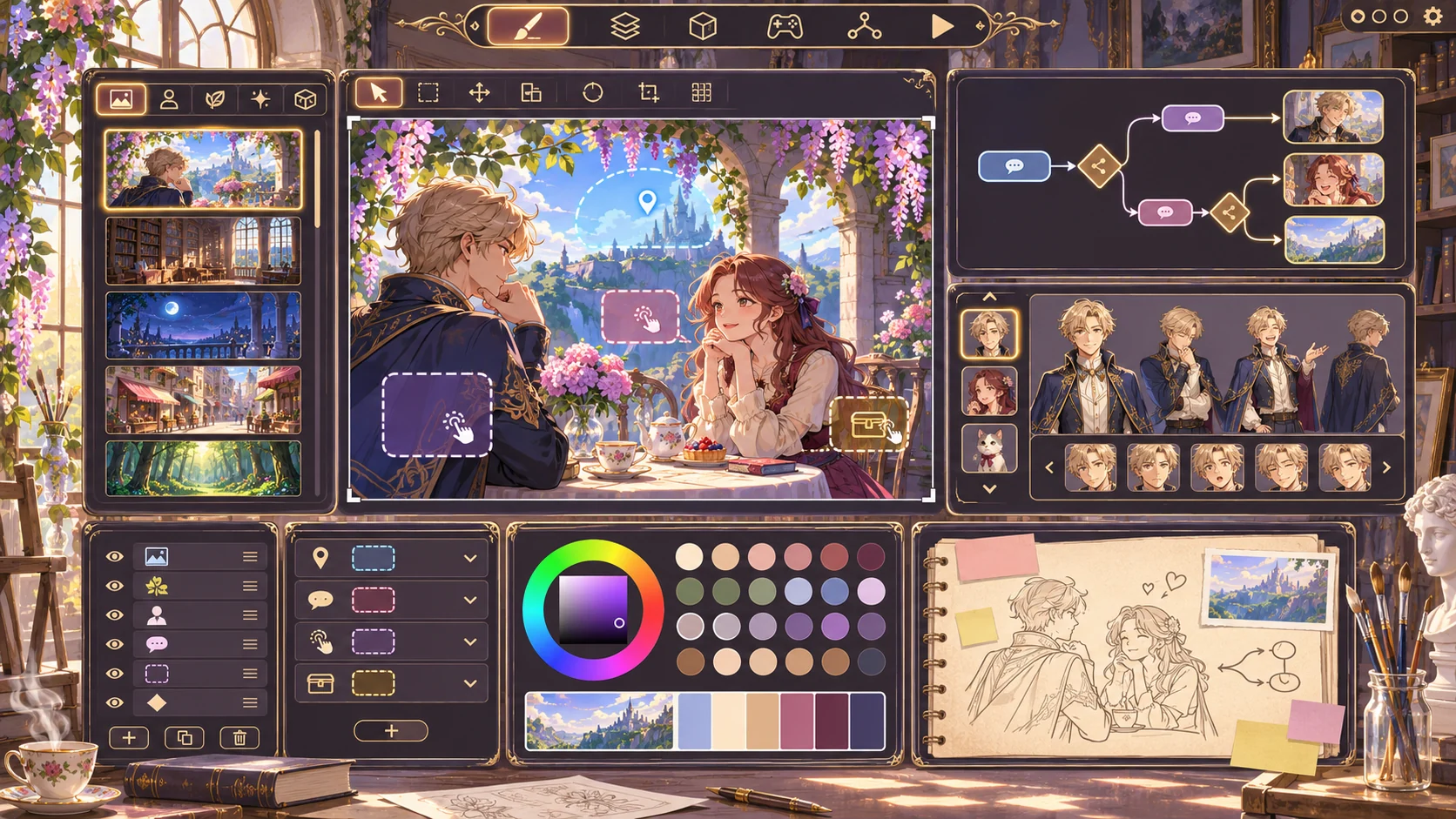
A scene graph can show where a player starts, which details are optional and what unlocks the next scene. Keep an explicit route for players who skip an optional note. That makes story progression easier to inspect and prevents a missing click from blocking the whole prototype.
Prompt 4 — scene and discovery graph
Map three fictional Mosslight scenes. Show entry conditions, optional discoveries, required clues, exits, locked-state feedback and reset. Ensure the player can reach the ending without inspecting optional story notes. Mark all plot facts as invented.
Keep the art-game template editable
The JSON below separates scenes, hotspots, visual states, accessibility alternatives and story notes. An illustrator or designer can replace the sample content without losing the interaction review fields. It is a planning schema, not a running game or approval of the artwork.
{
  "gameName": "Mosslight — fictional illustrated prototype",
  "visualDirection": {"mood":"quiet, luminous forest walk","palette":"deep green, warm amber, dusk blue","assetApproval":"illustrator review required"},
  "scenes": [
    {"id":"clearing","entry":"start","hotspots":["lantern","footbridge","garden-gate"]},
    {"id":"bridge","entry":"select footbridge","hotspots":["fallen-leaf-note"]},
    {"id":"garden","entry":"lantern clue or explicit skip route","hotspots":["seed-pod","ending-marker"]}
  ],
  "hotspots": [
    {"id":"lantern","action":"inspect","result":"reveal fictional story note","optional":true,"textAlternative":"Paper lantern; inspect to reveal a story note"},
    {"id":"footbridge","action":"select","result":"open bridge scene","optional":false,"textAlternative":"Footbridge; continue to the next scene"},
    {"id":"garden-gate","action":"select","result":"show clue requirement or skip route","optional":false,"textAlternative":"Garden gate; view requirement or choose the alternate route"}
  ],
  "visualStates": ["default", "focused", "discovered", "unavailable"],
  "reset": "clear discovery flags and return to the clearing",
  "reviewNotes": ["fictional sample", "not playable or illustrator-approved", "test visual states at phone size"]
}
Keep scene text, interaction requirements and art notes in linked but editable fields. If an illustration changes, review the hotspots and text alternatives against the new composition.
Prototype and review a playable slice
A first build can include one illustrated scene, a few hotspots, keyboard and touch input, optional story notes, a route map, state feedback and reset. Ask the builder to identify which states are interactive and which are static art. This helps an illustrator review the intended experience without assuming a mockup is a finished game.
Prompt 5 — first playable art slice
Build a small fictional Mosslight prototype with a clearing, three hotspots, visible focus state, optional note, bridge scene, alternate path and reset. Preserve the authored art direction. Report interactive, static and missing pieces. Do not claim illustrator approval or player testing.
A local preview can show layout and image loading. It does not show whether the controls feel natural or whether players understand the visual cues.
Simulate an illustrator customization
For a fictional customization, adapt the structure to Paper Comet, an invented illustrated sky journey with a kite, cloud bridge and observatory. Change the palette, scene relationships and hotspot behavior while preserving the review fields. This simulated example is not a real illustrator project.
Prompt 6 — fictional art-direction customization
Adapt Mosslight to a fictional Paper Comet setting. Create a new visual mood, three scenes, three hotspots, state variants, text alternatives and an optional discovery path. Label the art direction and story fictional and untested; leave asset approval to an illustrator.
Prompt 7 — local interaction and art review
Review the local prototype for visible interactive cues, focus state, touch and keyboard alternatives, scene transitions, optional lore, text alternatives, responsive image display and reset. Mark what works, what is static and what requires an illustrator or player review. Do not infer accessibility or usability from the mockup alone.
Fictional scene-flow snapshot
| Stage | Intended player action | Evidence boundary |
|---|---|---|
| Clearing | Inspect a lantern or take the bridge | Fictional local plan |
| Discovery | Reveal an optional story note | No player interaction tested |
| Transition | Enter a garden scene or choose an alternate route | Authored state only |
| Return | Reset to the opening scene | No playable build evaluated |
The snapshot defines a planned flow, not an observed playthrough.
Conclusion
An interactive art game should connect illustration, state changes and player choices without hiding how to act. Start with one scene, define the hotspots and state variants, and keep art approval and behavior review visible. Mosslight and Paper Comet are fictional; no illustrator or playable game was tested. Review the actual controls, visuals and text alternatives before describing the experience as usable or accessible.
You can take a scoped concept into the Free AI game maker, then compare the result with the editable scene checklist.
FAQ
What should an interactive art game for illustrators include?
Include a visual direction, scene graph, interactive details, state variants, text alternatives and reset.
How can an illustration become interactive?
Choose a visible detail, define its action and response, and show how its state changes without obscuring the artwork.
How can artists plan interaction states?
Specify default, focused, discovered and unavailable states, then review how each appears and is described.
Should every illustrated detail be clickable?
No. Make controls recognizable and keep decorative elements from appearing interactive when they have no action.
Does a mockup prove an art game is accessible?
No. Keyboard and touch behavior, focus, contrast and text alternatives need review in the implemented experience.