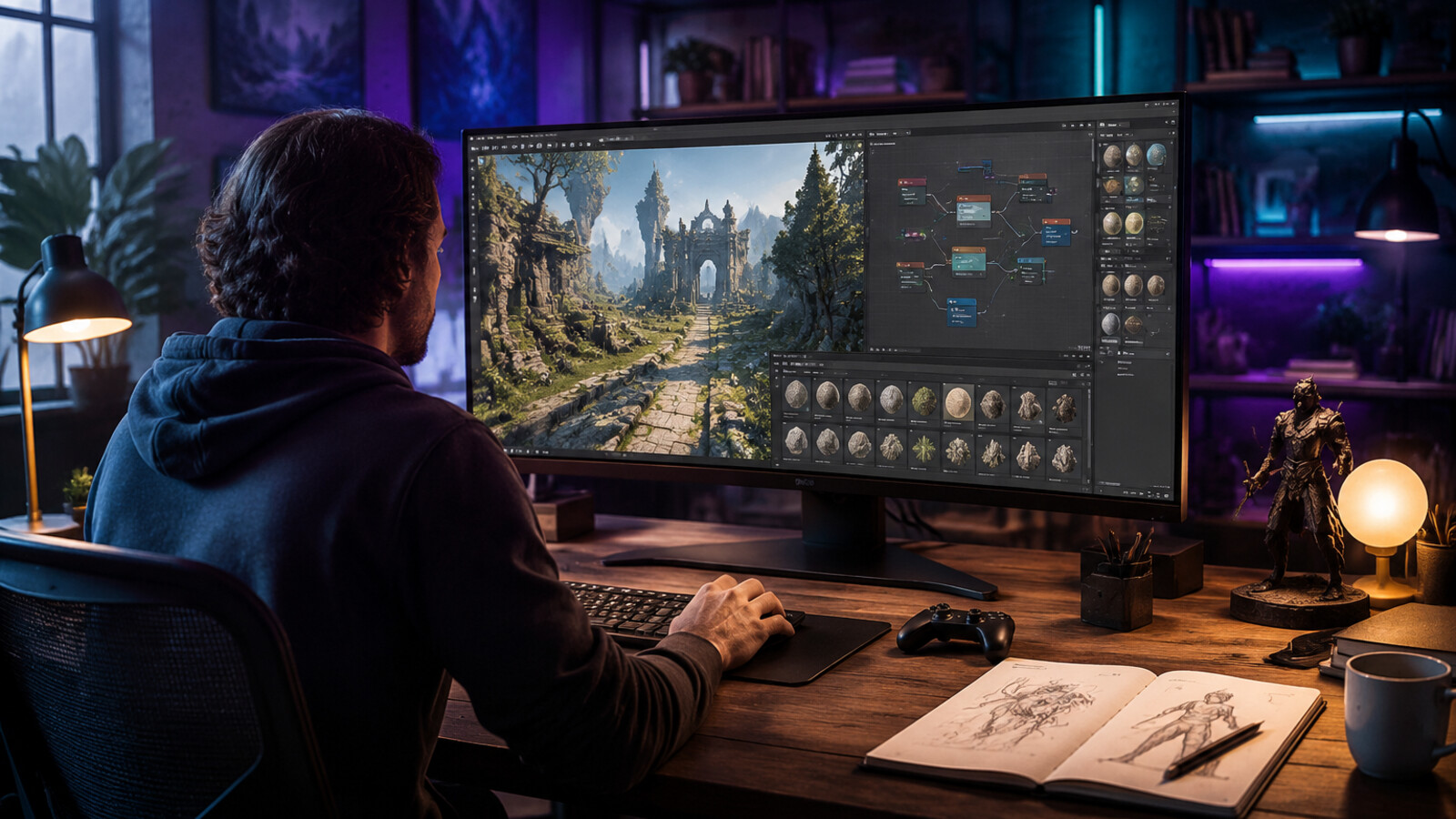
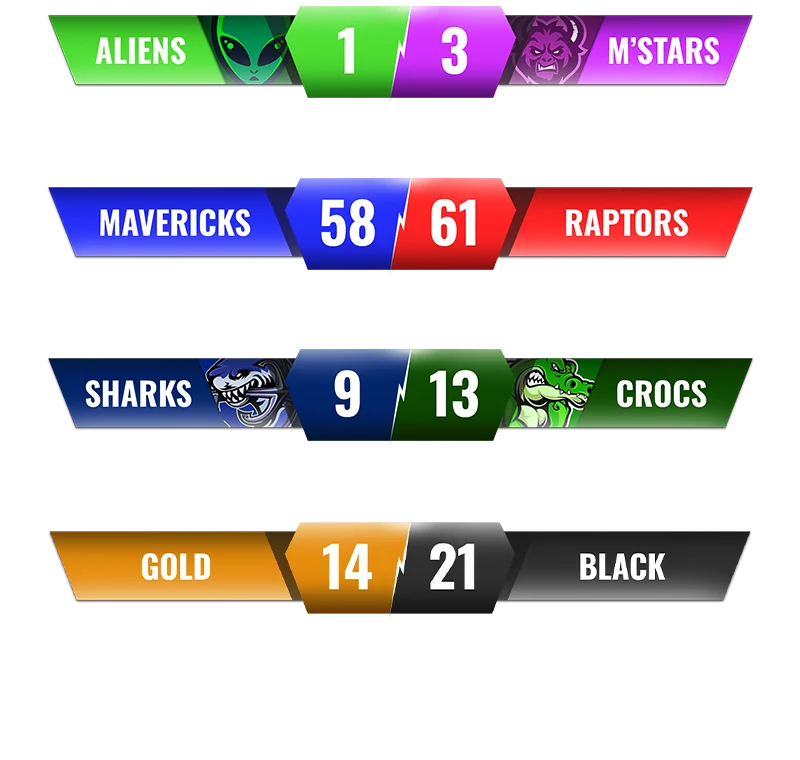
Here's the result of the scorebug-maker-guide model generated using Meshy.
Scorebug Maker: Complete Guide to Creating Professional Sports Graphics
Whether you're streaming sports games, producing sports content, or broadcasting live events, a professional scorebug can elevate your production quality instantly. A scorebug maker is an essential tool that helps you create those polished score overlays you see on professional broadcasts—without needing expensive equipment or advanced design skills.
In this comprehensive guide, you'll learn everything about scorebug makers: what they are, which tools are best for different needs, and how to create your first professional scorebug today.
What is a Scorebug?
A scorebug (also called a score bug or score overlay) is the graphic element displayed on screen during sports broadcasts that shows essential game information. You've seen these countless times while watching sports—they typically appear in a corner of the screen and display:
- Team names and logos
- Current score
- Game time or period
- Down and distance (football)
- Player statistics
- Inning or quarter information
The term "bug" comes from the broadcasting industry, referring to any persistent graphic overlay. While originally used exclusively in professional TV broadcasts, scorebugs are now essential for:
- Live streamers on Twitch, YouTube, and Facebook Gaming
- Sports content creators producing highlights and analysis
- School and amateur sports broadcasts
- Esports tournaments and competitive gaming events
- Church and community events with recreational sports
Why You Need a Scorebug Maker Tool
Creating scorebugs manually in Photoshop or other design software for every game is time-consuming and impractical. A dedicated scorebug maker offers several critical advantages:
Real-Time Updates
Professional scorebug makers allow you to update scores, time, and player information instantly during live broadcasts without stopping your stream or taking your graphics offline.
Professional Appearance
Pre-designed templates and proper graphic design principles ensure your scorebugs look polished and professional, matching or exceeding broadcast quality.
Time Efficiency
Instead of spending hours designing graphics for each game, you can create reusable templates and update them in seconds.
Consistency
Maintain brand consistency across all your productions with standardized colors, fonts, and layouts that reflect your team or channel identity.
Lower Technical Barrier
Modern scorebug makers eliminate the need for advanced design skills, making professional graphics accessible to anyone.
Types of Scorebug Maker Tools
Understanding the different categories of scorebug makers helps you choose the right solution for your specific needs and budget.
1. Broadcasting Software with Built-in Scorebug Features
Professional streaming and broadcast software often includes scorebug creation capabilities as part of their feature set.
Best for: Streamers and producers already using broadcast software who want integrated solutions.
Examples: - vMix - Professional live production software with advanced scoreboard features - Wirecast - Popular broadcast software with customizable graphic overlays - OBS Studio with plugins - Free open-source option with community-developed scorebug plugins
Pros: - Seamless integration with your existing workflow - Professional features and customization - Often includes other broadcast tools you need
Cons: - Steeper learning curve - Higher cost for professional versions - May include features you don't need
2. Online Scorebug Generators
Web-based tools that allow you to create scorebugs directly in your browser without downloading software.
Best for: Beginners, occasional users, and those wanting quick results without software installation.
Characteristics: - Browser-based interface - Template libraries - Export options (PNG, animated GIF, video) - Usually subscription-based pricing
Pros: - No installation required - Works on any device - Usually more affordable - Quick to learn
Cons: - Limited customization compared to professional software - Requires internet connection - May have export limitations
3. Dedicated Scorebug Creation Software
Specialized applications designed specifically for creating and managing sports graphics.
Best for: Professional productions, sports organizations, and serious content creators.
Features: - Advanced animation capabilities - Database integration for team and player information - Multi-sport templates - Professional output options - API integration for automated scoring
Pros: - Most powerful customization options - Professional-grade output - Advanced features like animated transitions - Often includes comprehensive sport-specific templates
Cons: - Highest price point - Longer learning curve - May be overkill for casual users
4. Mobile Scorebug Apps
Smartphone and tablet applications for creating scorebugs on the go.
Best for: Mobile streaming, social media content, and quick scoreboard graphics.
Pros: - Portability and convenience - Often inexpensive or free - Quick setup - Good for social media content
Cons: - Limited features compared to desktop solutions - Smaller design canvas - May not integrate well with professional broadcasting equipment
Top Scorebug Maker Tools in 2026
Here are the best scorebug maker options currently available, organized by use case:
For Professional Streamers: vMix
vMix is industry-standard live production software that includes powerful scoreboard and graphic overlay features. Its GT (Graphics Templates) system allows you to create fully customizable scorebugs with real-time data binding.
Key Features: - XAML-based graphics system - Real-time score updates via hotkeys or web interface - Professional transitions and animations - Multi-layer graphics support - Integrates with NDI, capture cards, and IP cameras
Pricing: Starts at $60 for basic version; Professional features at $350+
Best For: Serious streamers and production companies doing regular sports broadcasts
For Budget-Conscious Creators: OBS Studio + Scorebug Plugins
OBS Studio is free, open-source broadcasting software. While it doesn't include native scorebug features, several plugins and HTML/CSS overlays can create professional scorebugs.
Key Features: - Completely free - HTML/CSS overlay support for custom scorebugs - Browser source integration - Active community with shared templates - Works with StreamElements and StreamLabs overlays
Pricing: Free (open-source)
Best For: Beginners, hobbyists, and budget-conscious streamers willing to invest time in setup
For Quick Online Creation: Canva Pro
Canva Pro isn't specifically designed for scorebugs, but its extensive template library and animation features make it excellent for creating static or simple animated scorebug graphics.
Key Features: - Thousands of sports design templates - Easy drag-and-drop interface - Animation options - Transparent background exports - Brand kit for consistent styling
Pricing: $12.99/month for Pro
Best For: Content creators making pre-recorded content or static overlays for single-game broadcasts
For Mobile Creation: Scoreboard - Sport Score Overlay
Various mobile apps offer scorebug creation for on-the-go streaming and social media content.
Key Features: - Sport-specific templates - Real-time score updates - Export as video overlay or image - Social media integration - Customizable colors and logos
Pricing: Varies; many offer free versions with premium upgrades
Best For: Mobile streamers and social media content creators
For Professional Broadcasts: Singular.live
Singular.live is a cloud-based graphics platform used by professional broadcasters and sports organizations.
Key Features: - Cloud-based rendering - API integration for automated data - Professional-grade animations - Team collaboration features - Multi-platform distribution
Pricing: Custom enterprise pricing
Best For: Professional sports organizations, broadcast networks, and large production companies
How to Choose the Right Scorebug Maker
Selecting the best scorebug maker for your needs depends on several factors:
1. Consider Your Production Level
Beginner/Casual: - Start with free or low-cost options like OBS Studio or Canva - Focus on ease of use over advanced features - Choose tools with good tutorial resources
Intermediate: - Invest in mid-tier software like vMix Basic or online subscription services - Look for balance between features and usability - Consider integration with your existing tools
Professional: - Budget for professional software like vMix Pro or Singular.live - Prioritize advanced features, automation, and reliability - Choose solutions that scale with your production needs
2. Evaluate Your Technical Skills
If you're comfortable with HTML/CSS, free solutions with custom overlays offer unlimited flexibility. If you prefer user-friendly interfaces, choose template-based tools with drag-and-drop editors.
3. Determine Your Sport Specificity
Different sports require different information displays. Ensure your chosen scorebug maker supports your specific sport or offers sufficient customization to create what you need.
Sport-Specific Considerations: - Basketball: Score, time, fouls, timeouts, possession indicator - Football: Score, down/distance, time, field position - Soccer: Score, time, cards, substitutions - Baseball: Score, inning, outs, count, runners on base - Esports: Varies by game—kills, objectives, gold, resources
4. Budget Considerations
Free Options: OBS Studio, basic mobile apps Low Budget ($0-50/month): Canva Pro, basic vMix, subscription online tools Mid Budget ($50-200/month): Professional vMix licenses, premium online platforms Professional ($200+/month): Singular.live, custom enterprise solutions
5. Integration Requirements
Consider what other tools and platforms you're using: - Streaming platform compatibility (Twitch, YouTube, Facebook) - Hardware integration (capture cards, cameras, switchers) - Team management software or databases - Automated data feeds (APIs for live scores)
Creating Your First Scorebug: Step-by-Step Guide
Let's walk through creating a basic scorebug using a common workflow that applies to most scorebug makers:
Step 1: Choose Your Template or Start from Scratch
Most scorebug makers offer templates for popular sports. Start with a template to save time, or begin with a blank canvas if you have specific branding requirements.
Template Selection Tips: - Choose templates that match your sport - Look for layouts that fit your streaming resolution - Select styles that align with your brand colors
Step 2: Customize Your Design
Brand Elements: - Upload team logos or your channel logo - Apply your brand colors to backgrounds and text - Choose fonts that match your branding (ensure readability at small sizes)
Layout Adjustments: - Position your scorebug in a corner that doesn't obscure important action - Size appropriately (too large is distracting, too small is unreadable) - Ensure contrast with typical background colors in your sport
Step 3: Configure Data Fields
Set up the information fields your scorebug will display:
- Team names (text or logo)
- Score counters
- Time/period display
- Sport-specific fields (downs, outs, fouls, etc.)
Best Practices: - Use clear, readable fonts (minimum 18-20pt for streaming) - Ensure sufficient contrast between text and background - Test readability at actual streaming resolution
Step 4: Add Animations (Optional)
Professional scorebugs often include subtle animations:
- Entry/exit animations: Slide in from edge, fade in/out
- Update animations: Brief flash or highlight when score changes
- Attention animations: Gentle pulse or glow for important information
Animation Guidelines: - Keep animations short (0.3-0.5 seconds) - Avoid distracting movements during active play - Use animations to draw attention to score changes
Step 5: Set Up Hotkeys or Control Interface
Configure how you'll update your scorebug during live broadcasts:
- Keyboard hotkeys: Quick access for common actions (score increment, period change)
- Web interface: Control panel accessible from phone or tablet
- Companion app: Dedicated mobile control application
- Automation: API integration for automatic updates
Step 6: Test Before Going Live
Testing Checklist: - Display correctly at streaming resolution - Readable on mobile devices and small screens - Updates respond correctly to hotkeys/controls - Animations perform smoothly without lag - No overlap with essential game action areas - Colors display correctly with broadcast settings
Step 7: Integrate with Your Broadcast Software
Add your scorebug to your streaming setup:
- Import as scene overlay in OBS/vMix/Wirecast
- Set to appropriate layer (usually top layer above game video)
- Configure transparency and positioning
- Set up scene transitions if switching between graphics
Best Practices for Scorebug Design
Follow these professional principles to create scorebugs that enhance rather than detract from your broadcast:
Design Principles
1. Clarity Over Creativity Your scorebug's primary purpose is information delivery. Fancy designs are worthless if viewers can't quickly read the score.
2. Consistent Placement Keep your scorebug in the same position throughout the broadcast. Viewers expect to glance at a specific location for score information.
3. Appropriate Sizing Scorebugs should occupy roughly 5-10% of screen space. Larger becomes distracting; smaller becomes unreadable.
4. High Contrast Ensure text has strong contrast with its background. Use drop shadows or outlines if placing text over semi-transparent backgrounds.
5. Readable Typography Choose sans-serif fonts like Arial, Helvetica, or Roboto for better readability at small sizes. Avoid decorative or script fonts.
Technical Considerations
Resolution and Scaling - Design at your target streaming resolution (typically 1920x1080) - Export at 2x resolution for crisp display (3840x2160, then scale down) - Test how your scorebug looks on 1080p, 720p, and mobile screens
File Formats - PNG with transparency: Best for static scorebugs - Animated GIF: Simple animations with size constraints - Video overlay (MOV/MP4): Professional animations with alpha channel - HTML/CSS: Maximum flexibility for web-based overlays
Performance Optimization - Keep file sizes manageable to prevent streaming lag - Use GPU acceleration when available - Minimize animation complexity for lower-end systems - Test performance during actual gameplay streaming
Color Strategy
Team Colors Incorporate team colors to create visual association, but ensure they don't clash or reduce readability.
Neutral Backgrounds Dark backgrounds (black, dark gray, navy) work well for most sports and provide good contrast for white/light text.
Accent Colors Use bright accent colors sparingly to highlight score changes or important information.
Brand Consistency Maintain your channel or organization's brand colors while ensuring functionality isn't compromised.
Common Mistakes to Avoid
1. Information Overload
Don't cram too much data into your scorebug. Display only essential information—viewers can't process excessive text during fast-paced action.
2. Poor Positioning
Avoid placing scorebugs where they obscure critical game elements: - Soccer: Don't cover the goal area - Basketball: Avoid blocking the basket or scoreboard - Football: Keep clear of line of scrimmage and downs indicator - Esports: Don't cover minimap or player health/resources
3. Distracting Animations
Excessive or constant animation diverts attention from the game. Animate only on score changes or significant events.
4. Inadequate Contrast
Low contrast makes scorebugs difficult to read, especially for viewers with visual impairments or watching on small screens.
5. Inconsistent Branding
Using different scorebug styles across productions creates an unprofessional appearance. Develop templates and stick with them.
6. Ignoring Mobile Viewers
Many viewers watch streams on phones. Test your scorebug at mobile resolutions to ensure readability.
Advanced Scorebug Features
As you gain experience, consider implementing these advanced features:
Automated Data Integration
Connect your scorebug to live data sources: - Official league APIs for professional sports scores - Game telemetry for esports (CS:GO, Dota 2, League of Legends) - Sports statistics databases - Manual scoring apps with API output
Interactive Elements
Some platforms support viewer interaction: - Poll results displayed in scorebug - Viewer predictions - Real-time statistics updates - Social media integration
Multi-Camera Productions
Coordinate scorebugs across multiple camera angles: - Consistent positioning across all angles - Camera-specific overlays (wide shot, close-up, replay) - Graphics that respond to camera switches
Replay Graphics
Create specialized scorebugs for replay segments: - "Replay" indicator - Frame-by-frame controls - Highlight specific players or actions
Conclusion: Start Creating Professional Scorebugs Today
A professional scorebug maker is an invaluable tool for anyone producing sports content, from casual streamers to professional broadcasters. The right tool depends on your specific needs, budget, and technical comfort level.
Quick Recommendation Summary: - Beginners: Start with OBS Studio and free HTML overlays - Growing Streamers: Invest in vMix Basic or Canva Pro - Professional Productions: Consider vMix Pro or Singular.live - Mobile Content: Try mobile scorebug apps for social media
The most important step is to start creating. Choose a tool that fits your current needs, create your first scorebug, and iterate based on viewer feedback and your growing expertise. With practice, you'll produce broadcast-quality graphics that elevate your sports content and engage your audience.
Remember: the best scorebug is one that serves your viewers by clearly communicating essential game information without distracting from the action they came to watch. Keep it simple, keep it readable, and keep it consistent.
Ready to create your first scorebug? Choose a tool from this guide and start designing today—your audience will notice the difference immediately.
About the Author: This guide was created by qingmaoguo, a specialist in sports broadcasting technology and content creation tools. For more guides on improving your sports content production, explore our related articles on streaming setup, graphics design, and broadcast techniques.