Here's the result of the sprite-maker-ai-sprite-generator-complete-guide model generated using Meshy.
Sprite Maker & AI Sprite Generator: Complete Guide to Creating 2D Game Assets in 2026
Creating compelling 2D game characters and assets has never been more accessible. Whether you're a solo indie developer or part of a larger game studio, sprite makers and AI sprite generators are essential tools in your creative arsenal. This comprehensive guide explores everything you need to know about sprite creation tools, from traditional sprite sheet makers to cutting-edge AI-powered generators.
What Is a Sprite Maker and Why Do You Need One?
A sprite maker is a specialized software tool designed to create, edit, and manage 2D game graphics called sprites. Sprites are the visual building blocks of 2D games—everything from character animations to environmental objects and UI elements.
The Evolution of Sprite Creation
Traditional sprite creation required pixel-perfect artistry and hours of manual work. Artists would painstakingly craft each frame of animation by hand. Today, modern sprite creators combine powerful drawing tools with automation features, while AI sprite generators are revolutionizing the entire workflow by generating sprites from text descriptions or reference images.
Key benefits of using dedicated sprite makers:
- Consistency : Maintain uniform pixel density and color palettes across all assets
- Animation support : Create frame-by-frame animations with onion skinning and timeline features
- Sprite sheet generation : Automatically organize sprites into optimized sprite sheets
- Export flexibility : Output in multiple formats compatible with Unity, Unreal, GameMaker, and other engines
- Time efficiency : Reduce creation time from hours to minutes, especially with AI tools
Traditional Sprite Makers: Tried and True Tools
Before diving into AI-powered solutions, let's explore the established sprite maker tools that have been industry standards for years.
Pixel Art Sprite Makers
Aseprite remains the gold standard for pixel art sprite creation. This dedicated 2D sprite maker offers:
- Layer-based editing with blend modes
- Advanced animation timeline with onion skinning
- Custom brush creation and pixel-perfect tools
- Built-in sprite sheet exporter
- Tilemap support for environment creation
Piskel provides a free, browser-based alternative that's perfect for beginners. As an accessible sprite creator , it includes:
- Intuitive frame-by-frame animation
- Real-time preview at different sizes
- Export to GIF, PNG sprite sheets, or individual frames
- Cloud saving and community gallery
Professional 2D Sprite Creators
For more complex projects, professional tools offer advanced features:
Spine specializes in skeletal animation, allowing you to create fluid character movements with fewer sprites. This character sprite maker excels at:
- Bone-based animation systems
- Mesh deformation for organic movement
- Inverse kinematics (IK) for realistic poses
- Export to all major game engines
TexturePacker serves as the ultimate sprite sheet maker , optimizing your sprite organization:
- Automatic sprite sheet packing algorithms
- Multi-resolution export for different screen densities
- Trimming and aliasing reduction
- Integration with popular game frameworks
AI Sprite Generator Revolution: The New Frontier
The emergence of AI sprite generators has transformed how developers approach asset creation. These tools leverage machine learning to generate sprites from text prompts, reference images, or even sketches.
How AI Sprite Generators Work
Modern AI sprite sheet generators use diffusion models trained on thousands of game sprites to understand:
- Common sprite art styles (pixel art, hand-drawn, vector)
- Character anatomy and proportions
- Animation principles and frame transitions
- Color theory and palette generation
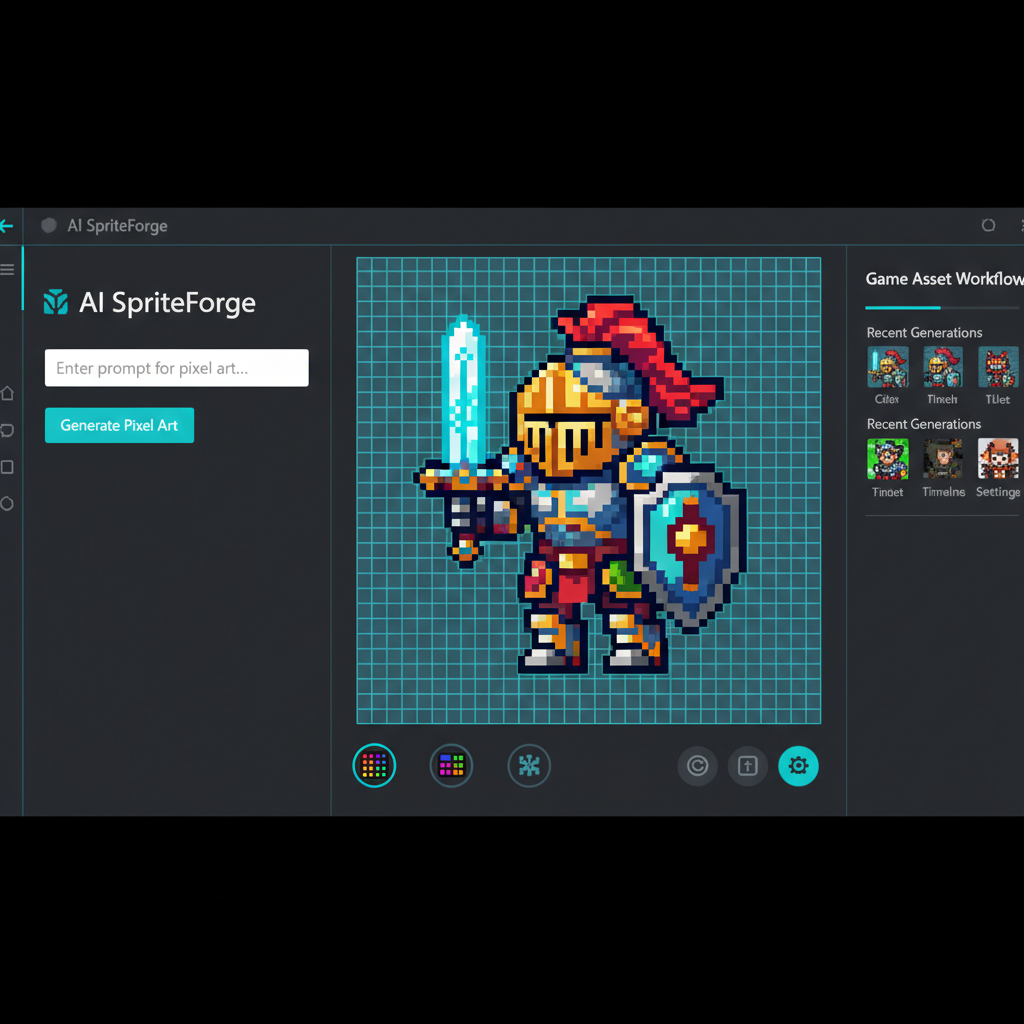
When you provide a prompt like "knight character with sword and shield in pixel art style," the AI analyzes these elements and generates appropriate sprites.
Top AI Sprite Generator Tools in 2026
1. Ludo.ai
Ludo.ai has become a comprehensive game development assistant that includes powerful AI sprite generator capabilities:
- Generate character sprites from text descriptions
- Create multiple animation states automatically
- Maintain consistent art style across all assets
- Integration with game design documentation
- Ideal for : Rapid prototyping and indie developers
2. Specialized AI Sprite Sheet Generators
Several tools focus specifically on sprite sheet creation with AI:
Angel 624 GBA Sprite AI Generator : Specializes in Game Boy Advance-style sprites, perfect for retro-inspired projects. This niche sprite generator creates:
- Authentic GBA-style pixel art
- Complete sprite sheets with idle, walk, and attack animations
- Color palettes matching GBA hardware limitations
- Frame-optimized outputs for performance
AI Image to Sprite Sheet Generator (Unlimited) : Converts existing images or photos into usable sprites:
- Upload reference images or concept art
- AI converts to sprite format automatically
- Generates sprite sheets with multiple angles
- Unlimited generation for iterative refinement
3. JUS Sprite Maker AI
The JUS sprite maker with AI enhancement offers a hybrid approach:
- Manual pixel art tools combined with AI assistance
- AI-powered color palette suggestions
- Automatic inbetweening for animation frames
- Style transfer to match existing sprite assets
AI Sprite Generator Best Practices
To get the best results from AI sprite generators , follow these guidelines:
Prompt Engineering for Sprites: - Be specific about art style (pixel art, hand-drawn, vector) - Include details about perspective (top-down, side-view, isometric) - Specify color preferences or limitations - Mention animation requirements upfront
Example effective prompts: - ❌ "Make a character" - ✅ "16x16 pixel art warrior character, side-view platformer style, 8-color palette, with idle and walk animation frames"
Quality Control: - Always review AI-generated sprites for artifacts or inconsistencies - Use AI as a starting point, refine manually for best results - Test animations at target resolution and frame rate - Verify sprites work correctly in your game engine
Creating Sprite Sheets: From Individual Sprites to Game-Ready Assets
A sprite sheet (also called a texture atlas) combines multiple sprites into a single image file. This optimization is crucial for game performance.
Why Use a Sprite Sheet Maker?
Performance benefits: - Reduces draw calls in game engines - Minimizes texture swapping overhead - Enables sprite batching for better FPS - Reduces total file size through shared transparency
Organization benefits: - Keeps related sprites together - Simplifies animation frame management - Makes version control easier - Streamlines asset pipeline
Best Sprite Sheet Builders
Free Sprite Sheet Creator Options:
- Shoebox : A free sprite sheet builder for Windows and Mac that offers:
- Drag-and-drop sprite sheet creation
- Animation preview
- Automatic trimming and padding
-
JSON export for frame data
-
Leshy SpriteSheet Tool : Browser-based spritesheet maker with:
- No installation required
- Customizable grid layouts
- Adjustable spacing and padding
- Direct download of sprite sheets and metadata
Professional Sprite Sheet Generators:
TexturePacker (mentioned earlier) provides industry-leading optimization: - Advanced packing algorithms reduce wasted space - Multi-resolution export (1x, 2x, 4x) - Format support for Unity, Cocos2d, Phaser, and more - Command-line interface for automated pipelines
Sprite Sheet Generator AI features are now emerging in tools like: - Automatic frame detection from video footage - AI-powered optimal packing suggestions - Intelligent frame ordering for animation - Style-consistent frame interpolation
Character Sprite Maker Guide: Building Game Characters
Creating compelling character sprites requires attention to design principles and technical specifications.
Character Design Fundamentals
Silhouette Recognition : Your character sprite should be identifiable by silhouette alone. Test by filling your sprite with solid black—can you still recognize the character and their pose?
Readable Animation : Character movements should be clear even at small sizes: - Exaggerate key poses - Use anticipation and follow-through - Maintain consistent proportions across frames - Add secondary motion (hair, clothing) for life
Using a Character Sprite Maker Effectively
Step 1: Define Character Specifications - Resolution (16x16, 32x32, 64x64 pixels are common) - Color palette (GBC: 4 colors, NES: 3 colors + transparency, modern: unlimited) - Animation states needed (idle, walk, run, jump, attack, hurt, death) - Viewing angles (side-view, top-down, isometric)
Step 2: Create Base Sprite Whether using traditional sprite makers or AI sprite generators , start with a solid base: - Block in basic shapes first - Establish character proportions - Define primary colors - Add character-defining features (hat, weapon, distinctive clothing)
Step 3: Build Animation Frames - Create key poses first (contact, passing, up positions for walk cycle) - Add in-between frames for smooth motion - Use onion skinning to maintain consistency - Test animation at target game frame rate (typically 8-12 FPS for retro styles)
Step 4: Generate Sprite Sheet Use a sprite sheet character generator to compile: - Organize by animation state (row per animation type) - Maintain consistent frame size - Add appropriate padding to prevent texture bleeding - Export metadata (JSON or XML) with frame coordinates
RPG Sprite Generator and Genre-Specific Tools
Different game genres have unique sprite requirements. Sprite generator RPG tools cater specifically to role-playing games.
RPG Sprite Requirements
Character Sprites: - Multiple directional facing (4-way or 8-way movement) - Equipment variations (different weapons, armor) - Emotion sets for dialogue scenes - Battle sprites (often larger, more detailed)
Popular RPG Sprite Generators:
RPG Maker Character Generator : The built-in character sprite maker offers: - Extensive customization options (hairstyles, clothing, accessories) - Automatic generation of all four directions - Walk cycle animation included - Compatible with RPG Maker series
Universal LPC Sprite Sheet Generator : A free, community-driven tool providing: - Thousands of sprite combinations - Consistent art style across all assets - Multiple animation sets - Open-source assets you can modify
2D Asset Sheet AI: Beyond Character Sprites
While character sprites get most attention, complete games need various 2D asset sheets for environments, objects, and effects.
Environmental Sprite Creation
Tile sets : Background tiles need special consideration: - Must tile seamlessly without visible seams - Should support auto-tiling systems - Need edge and corner variations - 2D sprite maker tools with tiling preview are essential
Props and Objects : Interactive game objects require: - Multiple states (chest closed/open, door locked/unlocked) - Consistent lighting and perspective with environment - Optimized sprite sheets for performance
Using 2D Asset Sheet AI
Emerging 2D asset sheet AI tools can generate complete tilesets: - Describe environment (forest, dungeon, sci-fi lab) - AI generates cohesive tileset with proper edge matching - Includes variations to prevent repetitive appearance - Maintains consistent art style and color palette
LibreSprite: The Free Open-Source Alternative
LibreSprite deserves special mention as a free, open-source sprite maker forked from an earlier version of Aseprite.
LibreSprite Features
This capable sprite creator offers: - Full pixel art editing suite - Layer system with blend modes - Animation timeline with frame tagging - Command-line interface for automation - Cross-platform (Windows, Mac, Linux)
Best for: - Budget-conscious developers - Open-source project contributors - Developers who need command-line sprite processing - Learning sprite creation fundamentals
LibreSprite vs. Paid Alternatives
While LibreSprite lacks some modern features of paid tools, it provides solid fundamentals: - ✅ All core sprite editing features - ✅ Animation support - ✅ Sprite sheet export - ❌ No skeletal animation - ❌ Fewer export format options - ❌ Less frequent updates
Step-by-Step: Creating Your First Sprite
Let's walk through creating a simple character sprite from scratch using a sprite maker .
Tutorial: Platformer Character Sprite
Tools needed: - Any sprite creator (Aseprite, Piskel, or LibreSprite) - Reference images of platformer characters - Target resolution: 32x32 pixels
Step 1: Set Up Canvas
Create new sprite: 32x32 pixels
Set up grid: 8x8 pixel guidelines
Choose color palette: 8 colors maximum for retro style
Step 2: Block In Character - Use lightest color to sketch basic shape - Keep character centered with room above head - Aim for 24 pixels tall, leaving room for ground - Make character 12-16 pixels wide for good proportions
Step 3: Define Features - Add facial features (eyes are most important) - Define clothing or character elements - Add distinctive characteristic (hat, weapon, etc.) - Use darker colors for outlines and definition
Step 4: Add Shading - Identify light source direction - Add mid-tone on shadow side - Add highlight on light side - Keep it simple—3 tones per color is plenty
Step 5: Create Walk Animation - Duplicate frame (Frame 2) - Move legs to mid-step position - Add slight body bob (1-2 pixels) - Duplicate frame (Frame 3): opposite leg forward - Duplicate frame (Frame 4): return to Frame 2 position - Test animation: 8 FPS usually works well
Step 6: Export Sprite Sheet Use your sprite sheet maker features: - Arrange frames horizontally - Add 2-pixel padding between frames - Export as PNG with transparency - Save frame data (JSON) for game engine import
Advanced Sprite Sheet Creation Techniques
Multi-Resolution Sprite Sheets
Modern games need to support various screen resolutions. Your sprite sheet creator workflow should include:
Export Strategy: - Create sprites at highest needed resolution - Use nearest-neighbor scaling for pixel art when downscaling - Test sprites at smallest target resolution first - Consider separate sprite sheets for SD, HD, and 4K
Retina/High-DPI Support: - Export @2x and @3x versions for mobile - Ensure game engine can select appropriate version - Test on actual devices, not just simulators
Optimizing Sprite Sheets for Performance
Texture Size Management: - Keep sprite sheets to power-of-2 dimensions (512x512, 1024x1024, 2048x2048) - Graphics APIs handle these sizes most efficiently - Split large sprite collections into multiple sheets if needed
Compression Strategies: - Use PNG-8 for limited color palettes (pixel art) - PNG-24 when you need more colors or gradients - Consider engine-specific compressed formats (PVRTC for iOS, ETC2 for Android) - Tools like TexturePacker handle compression automatically
Trim and Pack: - Remove transparent pixels around sprites (trim) - Use tight packing algorithms to minimize wasted space - Maintain minimum padding (2 pixels) to prevent texture bleeding - A good spritesheet generator does this automatically
Choosing the Right Sprite Maker for Your Project
With so many options, selecting the best sprite maker depends on your specific needs.
Decision Framework
For Pixel Art Purists: - Primary choice : Aseprite or LibreSprite - Why : Purpose-built for pixel art with perfect pixel control - Bonus : Strong animation features included
For Quick Prototyping: - Primary choice : AI sprite generator like Ludo.ai - Why : Generate placeholder sprites in minutes - Bonus : Iterate rapidly on character concepts
For Professional Production: - Primary choice : Spine for animation + TexturePacker for sheets - Why : Industry-standard tools with engine integration - Bonus : Optimized workflow for team collaboration
For Budget-Conscious Developers: - Primary choice : LibreSprite + Leshy SpriteSheet Tool - Why : Completely free, still capable - Bonus : Open-source means you can customize if needed
For RPG Developers: - Primary choice : RPG Maker Character Generator or ULC Sprite Sheet Generator - Why : Genre-specific features save massive time - Bonus : Built-in animation and directional sprites
Mixed Workflow Approach
Many successful developers use a combination:
- AI sprite generator for initial concepts and references
- Traditional sprite creator to refine and polish AI outputs
- Sprite sheet builder to organize final assets
- Game engine tools for final integration and optimization
This hybrid approach leverages the speed of AI while maintaining artistic control.
Common Sprite Creation Mistakes and How to Avoid Them
Mistake 1: Inconsistent Pixel Density
Problem : Mixing different levels of detail creates visual discord.
Solution : Establish a pixel-per-unit standard: - If main character is 32x32, enemies should be proportional - Use same outline thickness across all sprites - Maintain consistent level of detail
Mistake 2: Poor Color Choices
Problem : Too many colors or clashing palettes.
Solution : - Start with limited palette (8-16 colors for retro styles) - Use palette generators (Lospec, Coolors) for harmony - Test sprites against game backgrounds - Most sprite makers include palette management tools
Mistake 3: Unoptimized Sprite Sheets
Problem : Wasteful sprite sheet organization kills performance.
Solution : - Never manually arrange sprites—use a sprite sheet generator - Enable trimming to remove excess transparency - Group frequently-used sprites on same sheet - Use power-of-2 dimensions for texture sizes
Mistake 4: Neglecting Animation Principles
Problem : Stiff, lifeless animations.
Solution : - Study the 12 principles of animation - Add squash and stretch even to pixel art - Use anticipation before major actions - Test animations at target frame rate in actual game
Mistake 5: Ignoring Target Resolution
Problem : Sprites look great at 4x zoom but terrible at actual game size.
Solution : - Always preview at 100% (actual game size) - Test on target devices, not just development monitor - Simplify details that disappear at small sizes - Most 2D sprite makers include zoom and preview features
Integrating Sprites into Game Engines
Creating sprites is only half the battle. Here's how to import your sprite sheets into popular engines.
Unity Sprite Integration
Import Process: 1. Drag sprite sheet into Assets folder 2. Set Texture Type to "Sprite (2D and UI)" 3. Set Sprite Mode to "Multiple" 4. Open Sprite Editor to slice sprite sheet
For AI-generated or custom sprite sheets: - Use automatic slicing if sprites are evenly spaced - Manual slicing for irregular layouts - Name each sprite slice for easy reference - Set pivot points (usually bottom-center for characters)
Animation Setup: - Open Animation window - Create Animation Controller - Drag sprite slices to create animation clips - Adjust frame rate and looping
Godot Sprite Setup
Import Workflow: 1. Copy sprite sheet to project folder 2. Create AnimatedSprite node 3. In SpriteFrames panel, create new animation 4. Add frames from sprite sheet 5. Set FPS and looping options
Advantages: - Godot's sprite sheet handling is straightforward - Built-in tools for collision shape generation - Easy frame-by-frame editing
GameMaker Studio Sprite Import
Setup: 1. Create Sprite asset 2. Import sprite sheet image 3. Configure frame size and offset 4. Set collision mask 5. Adjust origin point
Tips: - GameMaker works best with evenly-spaced sprite sheets - Use "Import Strip Image" for animation sequences - Set appropriate collision detection mode per sprite
Future of Sprite Creation: AI and Beyond
The AI sprite generator revolution is just beginning. Here's what's coming:
Emerging Technologies
Real-Time Style Transfer: - Draw rough sketches, AI converts to finished sprites instantly - Change entire art style with one click - Maintain consistency across hundreds of assets
Procedural Animation: - AI generates in-between frames automatically - Describes motion in natural language: "character stumbles backward" - Creates smooth animations with fewer artist-drawn frames
Context-Aware Generation: - AI sprite sheet generators that understand your game genre - Automatically generates complementary asset sets - Maintains consistent style across all game sprites
Collaborative AI: - AI learns your specific art style - Acts as assistant, not replacement - Handles tedious tasks while you focus on creative decisions
Maintaining Artistic Vision
While AI sprite generators offer incredible efficiency, remember:
- AI is a tool, not a replacement for artistic vision
- The best results come from AI + human refinement
- Your unique style is what makes your game memorable
- Use AI to accelerate workflow, not define aesthetics
Conclusion: Your Sprite Creation Journey
Whether you choose traditional sprite makers like Aseprite and LibreSprite , or embrace modern AI sprite generators like Ludo.ai, the key is finding tools that match your workflow and project needs.
Key Takeaways:
- Start with fundamentals : Understanding sprite principles matters more than which tool you use
- Leverage AI wisely : Use AI sprite sheet generators for rapid prototyping and iteration
- Optimize from the start : Use proper sprite sheet makers to ensure performance
- Test constantly : View sprites at actual game resolution throughout creation
- Iterate and refine : Your first sprites won't be perfect—that's normal
Recommended Starting Workflow:
- Beginners : Start with Piskel or LibreSprite (free) to learn basics
- Intermediate : Graduate to Aseprite, experiment with AI sprite generators for concepts
- Advanced : Build pipeline with professional tools, integrate 2D asset sheet AI for productivity
The sprite creation landscape has never been more accessible or powerful. From pixel-perfect traditional sprite creators to revolutionary AI sprite sheet generators , you have the tools to bring your game vision to life.
Start small, practice consistently, and don't be afraid to experiment with both traditional and AI-assisted workflows. Your unique game deserves unique sprites—now you have everything you need to create them.
Ready to start creating? Explore the tools mentioned in this guide, download LibreSprite for free practice, or experiment with AI sprite generators for rapid prototyping. The world of game development is waiting for your creative vision.
Have questions about sprite creation or want to share your sprite-making experiences? Join the conversation in game development communities and keep learning from fellow creators.