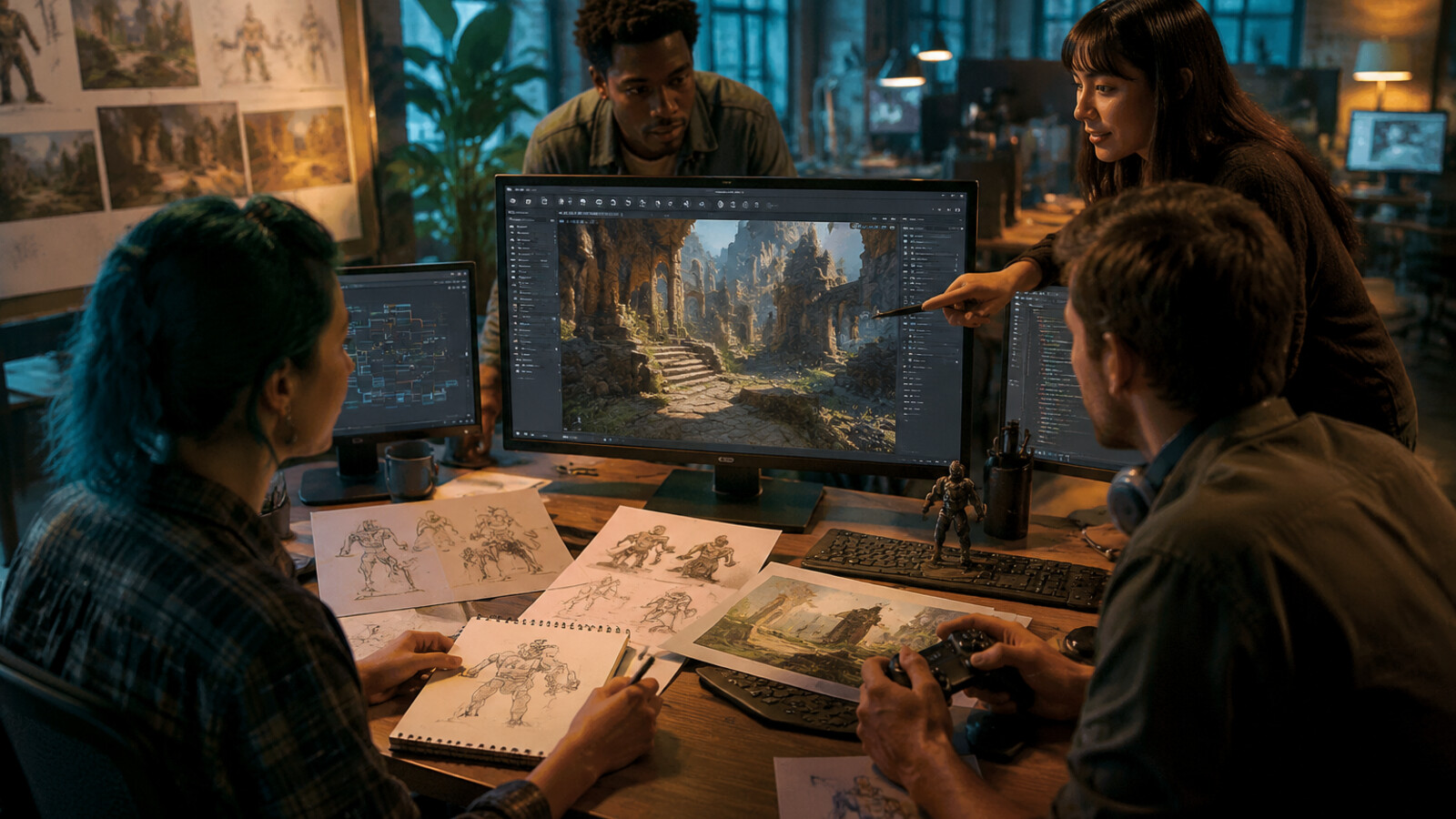
Here's the result of the how-to-create-roblox-game-beginners-guide model generated using Meshy.
Key Concepts: Roblox Game Development
Roblox Studio is the official integrated development environment (IDE) for creating games on the Roblox platform. Released in 2006 and continuously updated, it provides a complete game development toolchain supporting 3D building, Lua scripting, physics simulation, and real-time multiplayer testing. Minimum system requirements: Windows 10/macOS 10.13+, 4GB RAM, DirectX 10 GPU.
Technical architecture: Roblox uses a client-server model where game logic runs on Roblox's cloud servers (preventing client-side exploits) and rendering occurs client-side. Developers write server-side Scripts (ServerScriptService) for authoritative game state and LocalScripts (StarterPlayer) for client-side visual effects and UI.
Core building blocks:
-
Parts:
3D primitives (Block, Sphere, Cylinder, Wedge) forming physical game geometry. Each Part has physics properties (Mass, Friction, Elasticity) calculated by Roblox's Lua-based physics engine.
-
Properties:
Metadata controlling Part behavior—Anchored (disables physics), CanCollide (enables collision detection), Transparency (0=opaque, 1=invisible), Material (affects visual and audio properties).
-
Scripts:
Lua 5.1-based code files executing game logic. Support event-driven programming via RBXScriptSignal connections (e.g.,
Part.Touched:Connect(function)
for collision detection).
Lua scripting fundamentals:
Roblox uses Lua 5.1 (not 5.2+) with custom APIs. Key services include
Workspace
(3D world),
Players
(connected users),
ReplicatedStorage
(shared data), and
ServerScriptService
(server-only code). Type annotations optional via Luau (Roblox's typed Lua variant).
Performance metrics: Target 60fps (16.67ms frame time) on desktop, 30fps on mobile. Recommended limits: <2,000 Parts for mobile compatibility, <100 active Scripts, <600MB memory usage. Enable StreamingEnabled for large worlds (loads chunks dynamically).
AI-assisted workflow (2026 context): Modern Roblox development increasingly uses AI for asset generation. SEELE's AI model generator creates game-ready FBX meshes (optimized to 2,000-5,000 triangles) with PBR textures (1024×1024 diffuse/normal/roughness maps) in 30-60 seconds versus 4-8 hours manual modeling. Mesh optimization algorithms reduce polygon count by 40% while maintaining visual fidelity through normal map preservation.
Monetization model: Developers earn Robux (virtual currency) via game passes (permanent benefits, one-time purchase), developer products (consumables, repeatable purchase), and private servers (recurring revenue). Developer Exchange (DevEx) converts Robux to USD at ~350:1 ratio (minimum 30,000 Robux ≈ $100 USD). Top developers earn $10K-$1M+ annually.
Publishing workflow: Games deploy to Roblox's cloud infrastructure (AWS-based) via Studio's "Publish to Roblox" command. Updates propagate to live servers within 5-10 minutes. No separate hosting/deployment required—Roblox handles infrastructure scaling automatically.
Statistical context: As of 2026, Roblox hosts 40M+ games with 70M+ daily active users. Platform supports cross-play across PC, mobile (iOS/Android), Xbox, and PlayStation. Average successful game reaches 1,000+ concurrent players within 3-6 months with consistent updates.
FAQ: Roblox Game Creation
Q: What hardware requirements are needed for Roblox Studio?
A: Minimum: Windows 10/macOS 10.13+, Intel Core i3/AMD equivalent, 4GB RAM, DirectX 10 GPU, 500MB storage. Recommended: 8GB RAM, dedicated GPU, SSD for faster asset loading. Roblox Studio is desktop-only—mobile creation is not supported due to interface complexity.
Q: How does Lua scripting work in Roblox?
A: Roblox uses Lua 5.1 with custom APIs. Scripts execute in either server context (ServerScriptService—authoritative, secure) or client context (LocalScripts—per-player, untrusted). Use event-driven patterns:
Part.Touched:Connect(function(hit) ... end)
for collision detection. Avoid infinite loops without
wait()
(causes performance issues). Access game hierarchy via
game.Workspace
,
game.Players
,
game.ReplicatedStorage
.
Q: What is the difference between Parts and MeshParts?
A: Parts are primitive shapes (Block, Sphere, Cylinder, Wedge) with procedurally generated geometry—low memory overhead, suitable for environments. MeshParts are custom 3D models imported as FBX/OBJ—support complex shapes but higher memory cost. Use Parts for floors/walls, MeshParts for characters/props/detailed objects.
Q: How do I optimize Roblox game performance?
A: (1) Anchor static Parts (disables physics calculations), (2) Combine multiple Parts into single MeshPart via union/negation, (3) Use
task.wait()
instead of
wait()
in loops, (4) Limit active Scripts (<100), (5) Enable StreamingEnabled for worlds >2000 Parts, (6) Reduce texture resolution (1024px adequate for most cases), (7) Use LOD (Level of Detail) models for distant objects. Target <2000 Parts for mobile compatibility.
Q: Can I use AI to generate Roblox game assets?
A: Yes. AI tools generate 3D models (FBX format), textures (PNG), and sprites for Roblox import. SEELE's 3D model generator produces game-ready meshes (2000-5000 triangles, PBR textures) in 30-60 seconds versus 4-8 hours manual work—reducing asset creation time by 98%. Import via Home → Insert → Import 3D in Roblox Studio. Alternative tools: Meshy (text-to-3D), Tripo (image-to-3D).
Q: How long does it take to create a Roblox game?
A: Simple obstacle course: 30 minutes to 2 hours. Polished multi-level game: 5-10 hours. Complex game with custom scripting: 20-100+ hours. Professional-quality game: 100-1000+ hours. First project takes longer (learning curve); subsequent games are significantly faster. AI asset generation reduces development time by 40-60% versus manual creation.
Q: How do checkpoints work in Roblox obstacle courses?
A: Use
SpawnLocation
Parts (not regular Parts). Set unique
TeamColor
property for each checkpoint. When player touches SpawnLocation, their respawn point updates to that location. Implementation: Insert SpawnLocation via Home → SpawnLocation, position on platform, set TeamColor in Properties, anchor Part. Players respawn at most recently touched SpawnLocation after death/reset.
Quick Summary
Creating a Roblox game is more accessible than ever in 2026. You'll need a free Roblox account, Roblox Studio (also free), and about 30 minutes to build your first playable game. This guide walks you through the complete process—from downloading Roblox Studio to publishing your game—with modern AI-assisted workflows that speed up asset creation by up to 80%.
What you'll learn: - Setting up Roblox Studio on desktop (Windows/Mac) - Understanding Roblox's building blocks: Parts, Properties, and Scripts - Building a simple game step-by-step - Using AI tools to generate game assets faster - Testing and publishing your game to the Roblox platform - Basic monetization strategies
Whether you're a complete beginner or have some coding experience, this guide will help you create and publish your first Roblox game.
What You Need to Get Started
Before you begin creating Roblox games, gather these essentials:
Required: - Desktop or laptop computer - Roblox Studio requires Windows 10/11 or macOS 10.13+. While you can play Roblox games on mobile, game creation is desktop-only. - Free Roblox account - Sign up at roblox.com if you don't have one - Roblox Studio - Free download from create.roblox.com - Basic game idea - Even a simple concept like "obstacle course" or "racing game" works
Recommended: - Mouse - Trackpads work but a mouse makes building and camera control easier - Stable internet connection - For downloading assets and publishing - 1-2 hours - For your first complete project
System requirements: - Processor: Intel Core i3 or AMD equivalent - RAM: 4GB minimum (8GB recommended) - Storage: 500MB free space for Roblox Studio - Graphics: DirectX 10 compatible or better
No coding experience required - While Lua scripting adds advanced features, you can build functional games using templates and visual tools. We'll cover both approaches.
Setting Up Roblox Studio
Roblox Studio is the official game development environment for creating Roblox games. Here's how to install and configure it:
Installing Roblox Studio
- Visit the official download page at create.roblox.com
- Click "Start Creating" - This downloads the Roblox Studio installer
- Run the installer - Follow the prompts (installation takes 2-3 minutes)
- Log in with your Roblox account when Studio opens
The installer is approximately 250MB and includes everything you need—no additional plugins required for basic game creation.
Understanding the Studio Interface
When you first open Roblox Studio, you'll see several key areas:
Main viewport (center): This is your 3D game world where you build. Use right-click + drag to rotate the camera, middle-click to pan, and scroll to zoom.
Explorer panel (right): Shows the hierarchy of everything in your game—similar to a file tree. Every object in your game appears here.
Properties panel (right): Displays settings for whatever you've selected. This is where you customize colors, sizes, physics properties, and more.
Toolbox (bottom): Access free models, images, audio, and plugins created by Roblox and the community. Contains millions of ready-to-use assets.
Top toolbar: Contains tools for selecting, moving, scaling, and rotating objects. The "Home" tab has the most commonly used tools.
Tip: If any panel disappears, go to View → [Panel Name] to restore it.
Understanding Roblox Game Basics
Before building, you need to understand Roblox's fundamental building blocks. Every Roblox game is built from these three core concepts:
Parts: The Physical Building Blocks
Parts are 3D shapes that form the physical structure of your game. They're the walls, floors, obstacles, platforms—everything players can see and interact with.
Available Part types: - Block - Basic rectangular shape (most common) - Sphere - Perfect for balls, planets, or rounded objects - Cylinder - Great for pillars, wheels, or pipes - Wedge - Triangular shape for ramps and roofs
How to create Parts: 1. Click "Part" button in the Home tab 2. A new block appears in the viewport 3. Use Move, Scale, and Rotate tools to position it
Working with Parts: - Move tool (Ctrl+2): Drag parts to reposition them - Scale tool (Ctrl+3): Resize parts by dragging handles - Rotate tool (Ctrl+4): Spin parts to any angle - Snap to grid: Hold Ctrl while moving for precise placement
Properties: Customizing Your Parts
Every Part has Properties that control its appearance and behavior. Select any Part and look at the Properties panel to modify:
Visual Properties: - Color - Choose from 64 preset colors or use RGB values - Material - Options include Plastic, Wood, Metal, Concrete, Grass (affects both appearance and sound) - Transparency - 0 (fully opaque) to 1 (invisible) - Reflectance - How shiny/mirror-like the surface is (0-1)
Physical Properties: - Anchored - If checked, the Part won't fall or move from physics (use for floors, walls) - CanCollide - If checked, players and objects bump into it (uncheck for decorative objects) - Locked - Prevents accidental selection/movement while building
Important Properties for beginners: - Always anchor your floor - Otherwise it falls when the game starts - Name your parts clearly - "RedPlatform" is better than "Part123" when scripting later - Use CanCollide = false for invisible barriers - Creates invisible walls
Scripts: Adding Game Logic
Scripts are Lua code files that make your game interactive. Without scripts, Parts just sit there. Scripts add functionality like: - Collecting coins that give points - Doors that open when players approach - Enemy NPCs that chase players - Timers and scoring systems - Power-ups and special abilities
How Scripts work: 1. Scripts are objects you insert into the game (like Parts) 2. They contain Lua code that runs when the game starts 3. The code can detect events (player touches Part, button clicked) and respond
Where Scripts go: - ServerScriptService - For game logic that affects all players (scoring, game rules) - StarterPlayer → StarterCharacterScripts - For player-specific code (camera effects, controls) - Inside Parts - For Part-specific behavior (a coin that disappears when touched)
Example: Simple coin collection script
local part = script.Parent -- The Part this script is inside
local collected = false

part.Touched:Connect(function(hit)
    if not collected and hit.Parent:FindFirstChild("Humanoid") then
        collected = true
        part.Transparency = 1 -- Make invisible
        part.CanCollide = false -- Stop collision
        -- Add points logic here
    end
end)
For beginners: Start with template games and modify existing scripts before writing from scratch. Roblox's documentation at create.roblox.com/docs has script examples for common features.
Building Your First Game: Step by Step
Let's create a simple but complete obstacle course game (also called an "Obby" in Roblox). This teaches fundamental building skills applicable to any game type.
Step 1: Choose a Template or Start Blank
Option A: Use a template (recommended for first game) 1. Open Roblox Studio 2. Click "New" in the top menu 3. Select "Obby" or "Baseplate" template 4. Click "Create"
The Obby template includes a starting platform and checkpoint system. The Baseplate gives you a single flat platform to build on from scratch.
Option B: Start completely blank 1. Select "Flat Terrain" template 2. This provides only a spawn point—you build everything
We'll use the Baseplate template for this tutorial.
Step 2: Create the Spawn Area
The spawn area is where players appear when joining your game.
- Verify the SpawnLocation exists - Look for a gray platform with a white circle (this is in Baseplate by default)
- Expand the spawn platform - Select it, use Scale tool to make it 20×2×20 studs (Roblox's unit of measurement)
- Add decorative Parts - Insert Parts, change colors to create a "safe zone" aesthetic
- Set all floor Parts to Anchored = true in Properties
Tip: The SpawnLocation's Transparency can be set to 1 (invisible) if you build a custom floor on top of it. The spawn functionality remains.
Step 3: Build Obstacle Platforms
Create a series of platforms with increasing difficulty:
Platform 1: Easy jump 1. Insert a Part (it appears near the camera) 2. Move it to 10 studs away from spawn (use Move tool) 3. Scale it to 6×2×6 studs 4. Anchor it (Properties → Anchored = true) 5. Change color to green (Properties → Color)
Platform 2: Medium jump 1. Insert another Part 2. Position it 15 studs away from Platform 1 3. Scale to 5×2×5 studs (slightly smaller) 4. Anchor it 5. Change color to yellow
Platform 3: Hard jump 1. Insert Part, position 20 studs away 2. Scale to 4×2×4 studs (even smaller) 3. Anchor it 4. Add a rotating obstacle (see advanced section below) 5. Change color to orange
Platform 4: Finish line 1. Insert Part for the final platform 2. Make it 8×2×8 studs (bigger, rewarding arrival) 3. Change color to gold or rainbow using Rainbow material 4. Position it 25 studs from Platform 3
Building tips: - Vary heights - Some platforms higher/lower adds interest - Leave gaps - 8-12 studs between platforms for satisfying jumps - Test as you build - Click "Play" button (F5) frequently to test jump distances - Use Ctrl+D to duplicate - Select a Part, press Ctrl+D, then move the copy
Step 4: Add Hazards and Challenges
Make your obby challenging with hazards:
Lava floor (kills player on touch): 1. Insert a Part beneath your platforms 2. Scale it large (100×2×100 studs) 3. Set Material to Neon, Color to red 4. Insert a Script inside the Part 5. Paste this code:
local lava = script.Parent
lava.Touched:Connect(function(hit)
    local humanoid = hit.Parent:FindFirstChild("Humanoid")
    if humanoid then
        humanoid.Health = 0 -- Kill player
    end
end)
- Anchor the lava Part
Rotating obstacle: 1. Insert a Part on one of your platforms 2. Scale it to 8×1×1 studs (long beam) 3. Position it above the platform 4. Insert a Script inside the Part 5. Paste this code:
local part = script.Parent
while true do
    part.CFrame = part.CFrame * CFrame.Angles(0, math.rad(2), 0)
    wait(0.03) -- Rotates smoothly
end
- Do NOT anchor this Part - It needs to move
Disappearing platforms: 1. Create a normal platform 2. Insert a Script inside it 3. Use this code pattern (makes it disappear/reappear every 3 seconds):
local platform = script.Parent
while true do
    wait(3)
    platform.Transparency = 1
    platform.CanCollide = false
    wait(3)
    platform.Transparency = 0
    platform.CanCollide = true
end
Step 5: Set Up Checkpoints
Checkpoints save player progress so they don't restart from the beginning after falling:
- Insert a SpawnLocation Part (Home tab → SpawnLocation, not regular Part)
- Position it on Platform 2 (or wherever you want the checkpoint)
- Properties:
- TeamColor: Set to a specific color (each checkpoint needs unique color)
- Transparency: 0.5 (slightly see-through)
- CanCollide: true
- Anchored: true
- Repeat for each checkpoint - Use different TeamColor for each
When players touch a SpawnLocation, their respawn point updates to that location.
Step 6: Add a Finish Line Reward
Make reaching the end satisfying:
- Create the finish platform (we did this in Step 3)
- Insert a Part above it (scale to 6×6×6 studs)
- Change Material to Neon, Color to gold
- Insert a Script inside this Part:
local finishPart = script.Parent
local touched = {}

finishPart.Touched:Connect(function(hit)
    local humanoid = hit.Parent:FindFirstChild("Humanoid")
    if humanoid then
        local player = game.Players:GetPlayerFromCharacter(hit.Parent)
        if player and not touched[player.UserId] then
            touched[player.UserId] = true
            print(player.Name .. " completed the obby!")
            -- Add reward logic here (give badge, points, etc.)
        end
    end
end)
Optional: Add a teleport that sends players back to start or to a "Winners Area."
Adding AI-Generated Assets to Speed Up Development
In 2026, AI-assisted game development has become standard practice. Rather than manually creating every asset, you can use AI tools to generate models, textures, and animations—then import them into Roblox Studio.
Why Use AI for Roblox Game Assets?
Time savings: Creating a custom 3D character model manually takes 4-8 hours. AI generation takes 2-3 minutes.
Quality: Modern AI generates game-ready assets with proper topology, UV mapping, and optimized polygon counts.
Iteration speed: Generate 5-10 variations of an asset in minutes, pick the best one.
Accessibility: Non-artists can create professional-quality assets without learning 3D modeling software.
How We Use AI at SEELE for Game Asset Creation
At SEELE, we've integrated AI-powered asset generation directly into our game development workflow. Here's how we approach Roblox game asset creation:
For 3D models: 1. Describe the asset in natural language ("sci-fi doorway with glowing blue accents, 5 studs wide") 2. Generate with SEELE's AI 3D model generator - Produces game-ready FBX/OBJ files in 30-60 seconds 3. Auto-optimize for Roblox - SEELE's mesh optimization reduces polygon count by 40% while maintaining visual quality 4. Export and import to Studio - Direct FBX import into Roblox Studio
Results from our testing: - Asset creation time: reduced from 4 hours to 3 minutes (98% time savings) - Polygon counts: Average 2,000-5,000 triangles (optimal for Roblox) - Texture quality: 1024×1024 PBR textures (diffuse, normal, roughness)
For sprite sheets and 2D assets: 1. Text description → SEELE generates sprite sheets with animation frames 2. Built-in animation support - Walk cycles, jump sequences, idle animations 3. Transparent PNG export - Ready for Roblox UI elements
Example workflow: We generated all NPC character models for a test Roblox RPG (15 unique characters) in under an hour using SEELE's batch generation. Manual creation would have taken 60+ hours.
Alternative AI Tools for Roblox Assets
If you're exploring AI asset generation options:
For 3D models: - SEELE - Full game development platform with 3D model generation, auto-rigging, and Unity/Roblox export - Meshy - Focused on text-to-3D and image-to-3D conversion - Tripo - Fast 3D model generation from images
For textures: - SEELE's texture generator - PBR texture sets (diffuse, normal, roughness, metallic) - Material.ai - Seamless texture creation
For pixel art and sprites: - SEELE's sprite generator - Animated sprite sheets for characters - Scenario - Game asset generation with style consistency
Comparison: SEELE vs. alternatives
| Feature | SEELE | Meshy | Tripo |
|---|---|---|---|
| Roblox FBX export | ✓ Yes | ✓ Yes | ✓ Yes |
| Auto-optimization | ✓ Yes | Limited | Limited |
| Sprite sheets | ✓ Yes | ✗ No | ✗ No |
| Animation library | ✓ 5M+ animations | ✗ No | ✗ No |
| Game code generation | ✓ Yes (Lua) | ✗ No | ✗ No |
| Pricing | Freemium | Freemium | Freemium |
SEELE's advantage for Roblox developers: Unlike standalone 3D model generators, SEELE understands game development context. It automatically optimizes mesh topology for real-time rendering, generates proper collision meshes, and can even generate Lua scripts for interactive objects.
Importing AI-Generated Assets into Roblox Studio
Once you have AI-generated 3D models:
- Export as FBX - Roblox Studio's preferred format
- In Roblox Studio, go to: Home → Insert → Import 3D
- Select your FBX file - Studio imports it as a MeshPart
- Adjust scale - AI tools often use different unit scales; you may need to resize
- Set properties - Anchor, CanCollide, Material, Color as needed
For textures: 1. Select the imported MeshPart 2. Properties → TextureID 3. Click "Add Texture" and upload your AI-generated texture image 4. Roblox auto-generates normal maps from colored textures
Common import issues: - Model too large/small: Use Scale tool to resize to appropriate stud measurements - Model appears black: Add a PointLight or SpotLight nearby, or change Material to reflect light better - Model has no collision: Check CanCollide property, or insert an invisible Part as a collision box
Testing Your Roblox Game
Testing is crucial—what looks good in Studio might play differently in actual gameplay. Roblox Studio provides several testing modes:
Solo Testing (Single Player)
How to use: 1. Click the "Play" button (F5) or Home → Test → Play 2. You spawn into your game as a player 3. Test movement, jumping, obstacle difficulty 4. Press Esc or click "Stop" to return to editing
What to test: - Can players reach all platforms? (jump distances correct) - Are checkpoints triggering properly? - Do hazards kill players as intended? - Is the spawn location correct? - Are there any invisible walls blocking movement?
Testing tips: - Test on default jump power - Don't modify your character's jump height during testing - Test from each checkpoint - Click them in Studio to set your spawn, then test - Look for "cheese spots" - Unintended shortcuts or exploits
Multiplayer Testing (2+ Players)
Some issues only appear with multiple players (collision problems, server lag, simultaneous interactions).
How to test multiplayer: 1. Click "Play" button dropdown → "Local Server" 2. Enter number of players (2-8 for testing) 3. Multiple windows open, each with a player 4. Test interactions between players
Multiplayer-specific tests: - Do checkpoints work properly when multiple players touch simultaneously? - Is there lag when 5+ players are active? - Can players interfere with each other's progress (griefing)? - Do scripts run correctly on server vs. client?
Testing on Different Devices
Your game might work perfectly on desktop but have issues on mobile or console:
Device Emulator: 1. Click "Device Emulator" button (top toolbar) 2. Select device type (Phone, Tablet, Console) 3. Test UI scaling, button sizes, touch controls
Common mobile issues: - UI buttons too small to tap accurately - Text too small to read - Performance drops (too many particles or high-poly models) - Jump button placement interferes with camera
Optimization for mobile: - Limit active Parts to <2000 for smooth 30fps - Use simple Materials (avoid Glass, Metal with high reflectance) - Test on "Low Graphics Quality" setting
Performance Testing
Check your game's performance metrics:
- While in Play mode, press F9 - Opens Developer Console
- Go to "Stats" tab - Shows FPS, memory usage, network stats
- Look for:
- FPS: Should stay above 30fps (ideally 60fps)
- Memory: Keep below 600MB for mobile compatibility
- DataReceive/Send: High values indicate network lag
If performance is poor: - Reduce Part count (combine multiple Parts into single Mesh) - Limit Scripts with while true loops - Use Anchored Parts wherever possible (physics is expensive) - Reduce particle effects - Use smaller texture sizes (1024px instead of 2048px)
Publishing Your Roblox Game
Once testing is complete, it's time to publish your game to the Roblox platform for others to play.
Preparing for Publication
Before publishing, complete these checklist items:
Polish: - [ ] Remove any test Parts or debugging messages - [ ] Verify all Scripts work without errors (check Output console) - [ ] Add a clear starting area with instructions - [ ] Test one final time in both solo and server modes
Metadata: - [ ] Choose a memorable game name (3-5 words, clear description) - [ ] Write a game description (what players will do) - [ ] Create or find a thumbnail image (1920×1080px recommended) - [ ] Select appropriate genre tags
Settings: - [ ] Decide if game is public or friends-only initially - [ ] Set max players (10-50 for obby games) - [ ] Configure server fill settings
Publishing Steps
- Click "File" → "Publish to Roblox"
- Choose:
- "Create new game" if first time
- "Overwrite existing game" if updating
- Fill out game information:
- Name: Your game's title (e.g., "Crystal Tower Obby")
- Description: What makes your game fun (2-3 sentences)
- Genre: Choose "Platformer" for obby games
- Click "Create" or "Save"
- Wait for upload - Takes 30 seconds to 2 minutes depending on asset count
Your game is now on Roblox with a unique URL:
roblox.com/games/[GAMEID]/[GameName]
Configuring Game Settings
After publishing, configure additional settings on the Roblox website:
- Go to create.roblox.com
- Click "Creations" → "Experiences"
- Select your game
- Configure:
Basic Settings: - Public/Private: Make it public when ready for all players - Icon: Upload 512×512px game icon (appears in search) - Thumbnails: Add 3-5 screenshots or video thumbnail (first impression for players)
Access: - Enable Studio Access: Keep this on to update the game - Enable Team Create: Allow collaborators to edit with you (optional)
Monetization: - Enable Paid Access: Charge Robux to play (not recommended for first game) - Enable Private Servers: Let players create private instances for Robux
Advanced: - Server Fill: Determines how aggressively Roblox fills servers - Max Players: 10-50 recommended for obby (fewer = better performance) - Avatar Types: R6 (classic) vs R15 (modern) - R6 recommended for obbies
Promoting Your Game
Publishing doesn't guarantee players—you need to promote it:
Within Roblox: - Run Sponsored Ads - Bid Robux to show your game in searches - Create badges - Reward achievements (completing obby, finding secrets) - Join Roblox developer groups - Share your game for feedback
Outside Roblox: - Share on social media - Twitter, Reddit (r/robloxgamedev), TikTok - Make YouTube videos - Gameplay, tutorials, updates - Ask friends to play - Initial players boost search visibility
Iteration: - Monitor play statistics - Check visits, avg session time, retention rate - Read feedback - Pay attention to comments and ratings - Update regularly - Add new levels, fix bugs, add features every 2-4 weeks
Monetization Basics
Once your game has consistent players (500+ visits), consider monetization:
Robux and Developer Exchange
Robux is Roblox's virtual currency. Players spend Robux on: - Game passes (permanent benefits) - Developer products (consumable items) - Private servers
You earn Robux when players purchase these items in your game.
Developer Exchange (DevEx): Once you've earned 30,000 Robux (approximately $100 USD), you can exchange Robux for real money through Roblox's DevEx program.
DevEx requirements: - 30,000+ earned Robux minimum - Premium subscription - Verified email - 13+ years old - Compliant with ToS
Exchange rate: Approximately 350 Robux = $1 USD (rate varies)
Game Passes
Game passes provide permanent advantages or features. Players purchase once and keep forever.
Popular obby game pass ideas: - 2x Speed - Move faster through the course - Infinite Jumps - Double-jump or triple-jump ability - Checkpoint Teleport - Instantly teleport to any reached checkpoint - VIP Status - Access exclusive levels or cosmetics
Creating a game pass: 1. Go to create.roblox.com → Your game → "Store" 2. Click "Create a Pass" 3. Name it, set price (25-100 Robux typical) 4. Upload icon image 5. Get the Pass ID
Implementing in-game:
local MarketplaceService = game:GetService("MarketplaceService")
local PASS_ID = 123456 -- Your Pass ID

game.Players.PlayerAdded:Connect(function(player)
    local hasPass = false
    local success, message = pcall(function()
        hasPass = MarketplaceService:UserOwnsGamePassAsync(player.UserId, PASS_ID)
    end)

    if hasPass then
        -- Give player the benefit (e.g., increase WalkSpeed)
        player.Character.Humanoid.WalkSpeed = 32 -- Default is 16
    end
end)
Developer Products
Developer products are consumable items players can buy multiple times.
Examples for obby: - Skip Level - Bypass current obstacle (100 Robux) - Extra Lives - Revive on the spot instead of checkpoint (50 Robux) - Speed Boost (30 sec) - Temporary power-up (25 Robux)
Best practices: - Price fairly - 25-250 Robux for most items - Don't make pay-to-win - Free players should still complete the game - Show value clearly - Demonstrate what the purchase does before buying - Add purchase prompts - Use in-game UI, not just Game Passes menu
Monetization ethics: - Avoid aggressive prompts every 30 seconds - Don't lock basic gameplay behind purchases - Offer meaningful free content - Be transparent about what purchases provide
Common Mistakes to Avoid
Learn from common beginner errors:
Mistake 1: Forgetting to Anchor Parts
Problem: You build platforms, hit Play, and everything falls through the world.
Solution: Select all floor/platform Parts → Properties → Anchored = true. Anchored Parts don't respond to gravity or physics forces.
When NOT to anchor: Moving platforms, objects players should be able to push, projectiles.
Mistake 2: Too Many Active Scripts
Problem: Game lags or crashes with 10+ players.
Solution:
- Limit
while true
loops (they run constantly)
- Use
wait()
inside loops (minimum 0.03 seconds)
- Combine multiple Scripts into one where possible
- Use
task.wait()
instead of
wait()
for better performance
Example of bad scripting:
-- BAD: 50 Parts each running this = lag
while true do
    script.Parent.Color = Color3.new(1, 0, 0)
    wait()
    script.Parent.Color = Color3.new(0, 1, 0)
    wait()
end
Better approach: One Script controls all flashing Parts.
Mistake 3: Ignoring Mobile Players
Problem: Game works perfectly on desktop but is unplayable on phones.
Solution: - Test with Device Emulator (touch controls) - Make UI buttons large (minimum 80×80 pixels) - Limit Part count for performance (<2000 Parts) - Avoid requiring precise camera control
Mobile-specific considerations: - Phone players can't use keyboard shortcuts - Smaller screen = harder to see distant objects - Touch controls = less precise jumping
Mistake 4: No Clear Starting Instructions
Problem: Players join, don't know what to do, and leave within 30 seconds.
Solution: - Add a TextLabel or Billboard GUI at spawn with instructions - Make the first jump obvious and easy - Use glowing arrows or signs to indicate direction - Consider a brief tutorial section
Example instruction text: "Welcome to Crystal Tower Obby! Jump across platforms to reach the top. Touch checkpoints to save progress. Avoid the red lava! First checkpoint ahead →"
Mistake 5: Inconsistent Difficulty Curve
Problem: Level 1 is super hard, Level 2 is super easy, Level 3 is impossible.
Solution: - Gradually increase difficulty - Easy → Medium → Hard - Test each section - Can an average player complete it within 5 attempts? - Add checkpoints before hard sections - Reduces frustration - Watch new players test - Where do they struggle? Where do they quit?
Difficulty guidelines: - Easy: 1-3 attempts to pass - Medium: 4-8 attempts - Hard: 9-15 attempts - Expert: 16+ attempts (save for end-game)
Mistake 6: Ugly or Missing Thumbnails
Problem: Game has 0 players despite being well-made.
Solution: Thumbnails are the first impression. Create eye-catching thumbnails: - Resolution: 1920×1080 pixels minimum - Content: Show exciting gameplay, not empty spawn - Text overlay: Add game name in bold, clear font - Contrast: Use bright, contrasting colors - Action: Show player mid-jump or exciting moment
Tools for thumbnails: - Roblox Studio's screenshot feature (File → Take Screenshot) - Photoshop or GIMP for text overlay - Canva (web tool) for quick designs
Mistake 7: Copying Other Games Exactly
Problem: Your game is indistinguishable from 1000 other obbies.
Solution: Add unique elements: - Theme: Crystal caves, space station, candy land, underwater - Mechanics: Wall-running, grappling hooks, vehicle sections - Story: Simple narrative told through signs or NPCs - Aesthetics: Unique color palette or visual style - Rewards: Special badges, secret rooms, unlockable skins
Inspiration vs. Copying: - ✓ "I like the rotating obstacle mechanic, I'll add my own version with lasers" - ✗ Copying another game's entire level layout exactly
FAQs
Can I make a Roblox game on mobile or iPad?
No, Roblox Studio requires Windows or Mac desktop/laptop. While you can play Roblox games on mobile, the Studio development environment is too complex for touch interfaces. Minimum requirement: Windows 10 or macOS 10.13+.
Do I need to know coding to make a Roblox game?
Not for basic games. You can build functional obstacle courses, racing games, and simple adventures using just Studio's building tools and templates. However, learning Lua scripting unlocks advanced features like custom game mechanics, scoring systems, and interactive NPCs. Start with building, add scripting gradually.
How long does it take to make a Roblox game?
- Simple obby: 30 minutes to 2 hours
- Polished obby with 20+ levels: 5-10 hours
- Complex game with scripting: 20-100+ hours
- Professional-quality game: 100-1000+ hours
Your first game takes longer as you learn the tools. Subsequent games are much faster.
Can I make money from Roblox games?
Yes, through Roblox's Developer Exchange (DevEx) program. You earn Robux when players purchase game passes, developer products, or private servers in your game. Once you've earned 30,000+ Robux, you can exchange them for real money (approximately $100 USD). Successful developers earn anywhere from a few hundred to tens of thousands of dollars per year.
How do I get players to join my game?
- Create eye-catching thumbnails (1920×1080px with text overlay)
- Optimize game title and description (include keywords like "obby", "easy", "hard")
- Run Sponsored Ads (bid 100-1000 Robux to appear in search)
- Promote on social media (YouTube, Twitter, Reddit, TikTok)
- Update regularly (new levels every 2-4 weeks keeps players returning)
- Encourage friends to play (initial players boost search ranking)
What's the best type of game for beginners?
Obstacle courses (obbies) are ideal for beginners because they: - Require only basic building skills (no complex scripting) - Have clear objectives (reach the end) - Can be expanded gradually (add levels over time) - Are popular on Roblox (proven player interest)
Other beginner-friendly types: racing games (using templates), simple simulator games, hangout spaces.
Can I use assets from other Roblox games?
Only if they're in the Toolbox (free models). Never export and steal assets from other games—it violates Roblox ToS and is copyright infringement. Use Toolbox assets (which creators have chosen to share) or create/commission your own. AI generation tools like SEELE provide a fast, legal way to create unique assets.
How do I prevent players from cheating or exploiting?
- Use server-side Scripts (ServerScriptService) for important game logic
- Validate player actions on server (don't trust client-side data)
- Don't store important values in client (exploiters can modify)
- Use FilteringEnabled (enabled by default in all games)
- Keep sensitive code in ServerScriptService (not accessible to clients)
Example: Store player points on server, not in player's character.
What if my game has bugs after publishing?
You can update published games anytime: 1. Open the game in Roblox Studio (File → Open from Roblox) 2. Fix the bug 3. Save/Publish again (File → Publish to Roblox) 4. Changes go live immediately
Tip: Test thoroughly before publishing, but don't be afraid to publish and iterate. Most successful games update weekly.
Where can I learn advanced Roblox scripting?
- Official docs: create.roblox.com/docs - Comprehensive scripting guides
- YouTube: Channels like AlvinBlox, TheDevKing, PeasFactory
- Roblox DevForum: devforum.roblox.com - Community Q&A
- Practice: Modify existing scripts from Toolbox to learn
Start with simple scripts (color changers, teleporters) before attempting complex systems.
Ready to Start Creating?
You now have everything needed to create and publish your first Roblox game. Here's your action plan:
Today (30 minutes): 1. Download and install Roblox Studio 2. Explore the Baseplate template 3. Build 3-5 simple platforms 4. Test your first jump
This week (2-3 hours): 1. Complete a 10-platform obstacle course 2. Add checkpoints and hazards 3. Test with friends 4. Publish to Roblox
This month (5-10 hours): 1. Add 20+ more levels 2. Implement game passes 3. Create professional thumbnails 4. Promote on social media 5. Iterate based on player feedback
Modern advantage: Use AI tools like SEELE to generate custom 3D models, textures, and sprites in minutes instead of hours. This lets you focus on game design and gameplay rather than spending days on asset creation.
Remember: Every successful Roblox developer started as a beginner. Your first game doesn't need to be perfect—it needs to be published. Learn by doing, iterate based on feedback, and enjoy the creative process.
Start building your Roblox game today. The platform, tools, and community are waiting for your creation.