Start with the model’s final use
A game prop, animation asset, and printable model have different requirements.

Plan a focused pass for an AI-generated or imported 3D model. Review its silhouette, surfaces, mesh, and target scene, then confirm the available editing and export options in Workspace before relying on a handoff.
How it works
Define where the model will be used, review its visible form, and verify technical requirements in the target application.

Decide whether the model is a game prop, animation asset, printable object, or another kind of deliverable.
Look at the model at the scale and angle where it will be used.

Note where colors or surface properties become hard to distinguish.
Record topology, UV, normals, scale, origin, and format requirements that need confirmation.
Confirm the available editor operation and inspect the exported result in context.
Pick a starting point
Explore silhouette, materials, mesh cleanup, and scene or export fit.
Compare the large shapes and proportions at the camera distance where the asset will be used.
Review a low-poly stone lantern intended for a third-person garden scene. From the player camera, check whether its roof, posts, and light opening read as separate forms. Suggest two proportion changes that preserve the lantern’s silhouette, and do not add surface detail until the shape is clear.
 Review the model from its intended view ↗
Why SEELE
A game prop, animation asset, and printable model have different requirements.

Check the shape from the view and scale where the asset will be seen.

Review colors, roughness, and surface separation under the intended lighting.

A model can look correct while still needing inspection of normals, UVs, topology, or scale.

Record the target application, file format, reference scale, and remaining checks.

Track each geometry or surface adjustment so the next comparison shows what improved.
Who it’s for
A specific review goal helps artists decide which edits and technical checks matter first.
Assess shape, surfaces, and the intended view before investing in detailed polish.
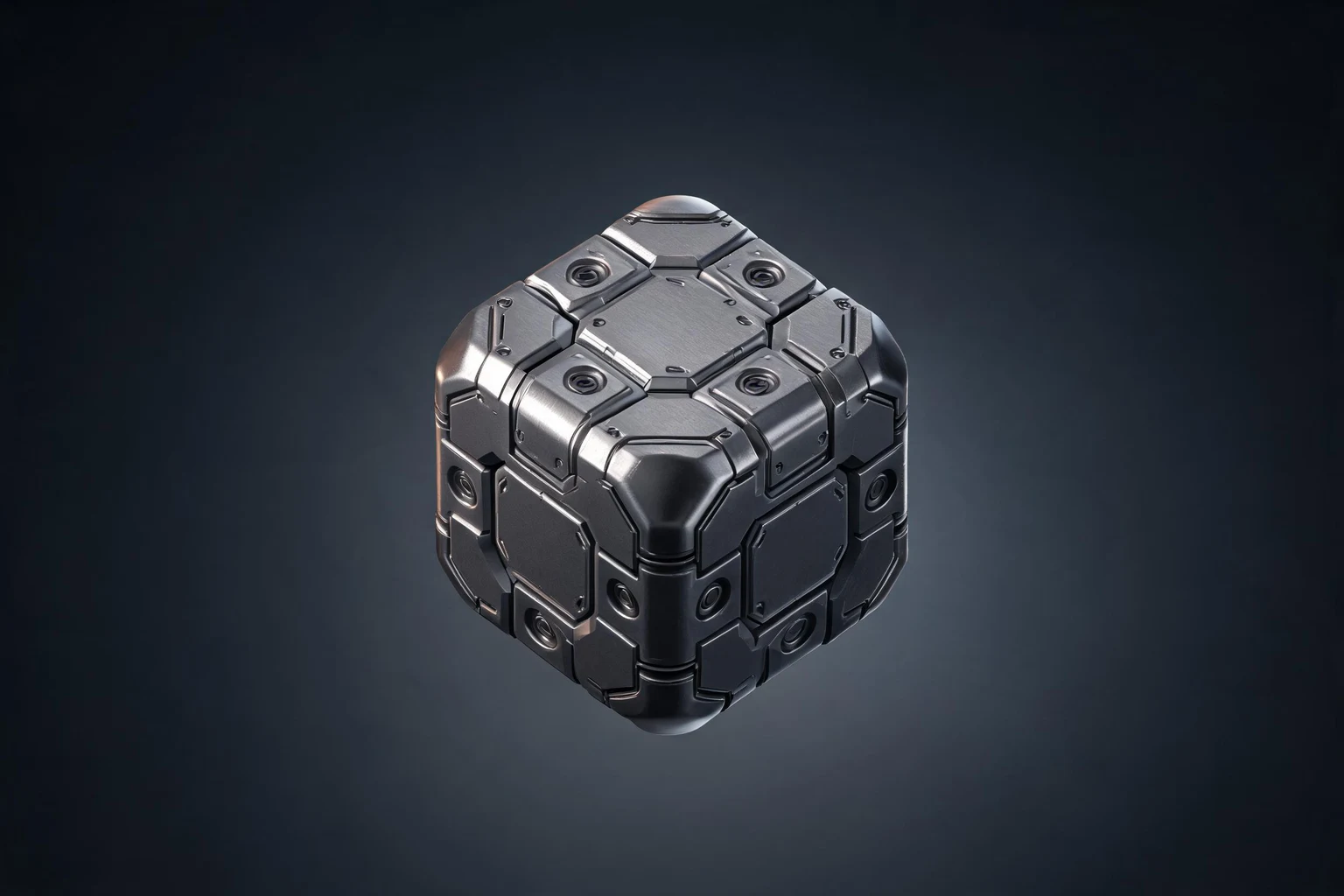
AI 3D Cube Model Generator for Modular Assets ↗
Turn a handoff into a checklist of the mesh and export requirements the pipeline needs.
AI Dinosaur 3D Model Generator by Species & Style ↗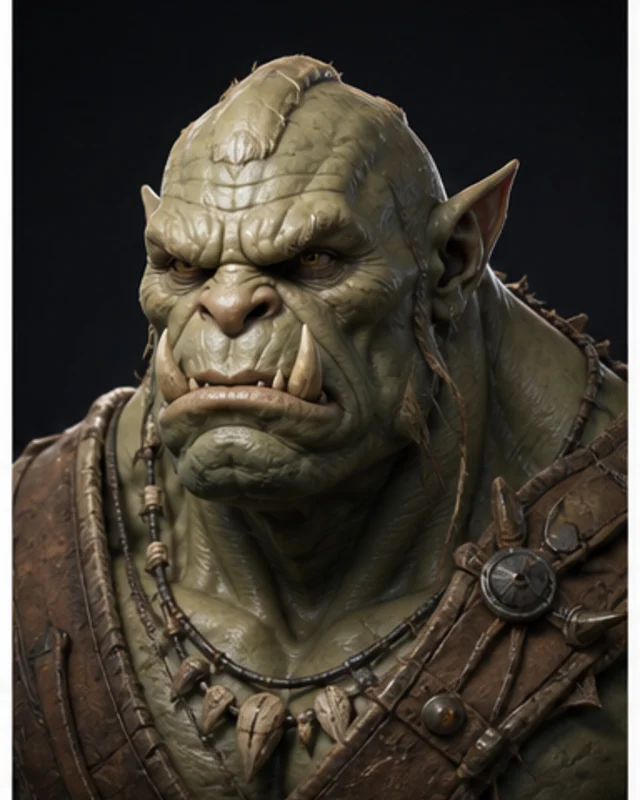
Check whether a model’s scale and silhouette fit the scene where players will see it.
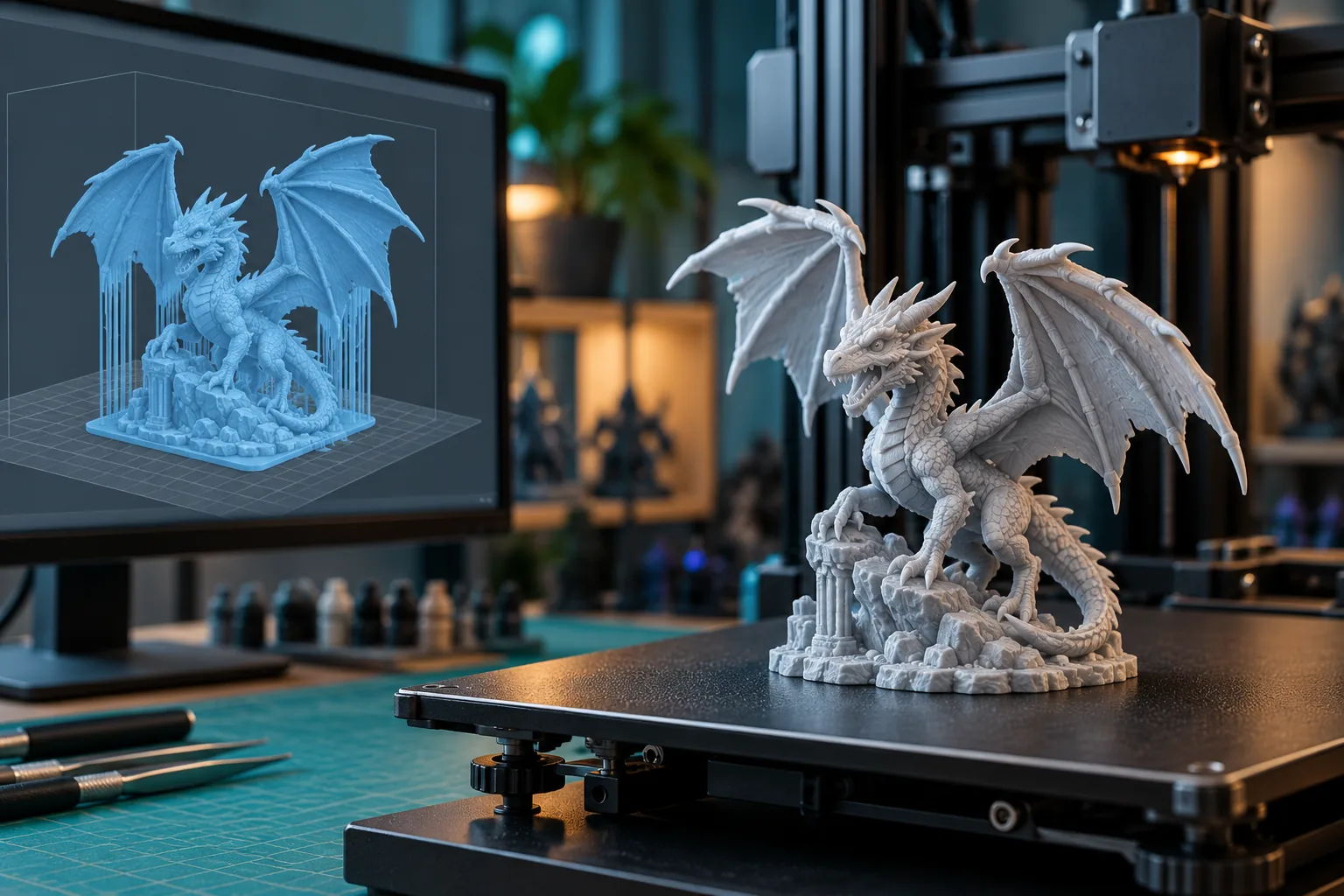
AI Skull 3D Model Generator for Games, Art & Print ↗Compare
Confirm the required operation in Workspace before relying on a particular editing or export capability.
| Feature | A goal-led model review | A tool-first editing pass |
|---|---|---|
| First question | Where will the model be used and what must be improved? | Which edit tools are available before the asset goal is defined? |
| Visual review | Check shape and surfaces at the target scale and lighting | Inspect a close-up render without scene context |
| Technical review | List mesh, UV, scale, and export checks separately | Assume visual polish confirms technical readiness |
| Tool fit | Confirm the current editor supports the needed operation | Assume remesh, UV editing, and export options are present |
| Handoff | Record the target application and required file format | Pass an asset along without confirming project requirements |
Reviews
Watch creator videos about SEELE AI and check current editor options before relying on a specific capability.
Explore related modeling pages, tools, and guides for preparing 3D assets.
FAQ
The page helps define a model review and cleanup task. Check the current Workspace tools to confirm whether direct editing of your file is supported.
Check the silhouette, proportions, surfaces, shading, scale, intended use, and any technical requirements for the target application.
Remeshing and UV editing depend on the tools available in the current workflow. Confirm those operations in Workspace and inspect the resulting mesh in your 3D application.
Review scale, normals, topology, UVs, materials, collision needs, origin, and performance in the target scene. Requirements vary with the asset and engine.
Small details may disappear or merge at gameplay distance. The intended camera reveals which shapes and materials players can actually distinguish.
Name the object, target use, reference scale, visible issue, and the change you want to assess. List technical checks separately from the requested visual adjustment.
Texture editing depends on the tools offered in the current Workspace. Verify which operations and file formats are available before planning a texture workflow.
Topology is the arrangement of vertices, edges, and faces that form a 3D mesh. The useful density and layout depend on the model’s purpose and whether it must deform.
First inspect normals, smoothing, and geometry in the target modeling tool. Identify the affected surfaces and test one correction before changing the whole mesh.
Confirm scale, origin, orientation, materials, UVs, and the file format required by the destination application. Import the exported file and inspect it in context.
Automatic optimization is not guaranteed by this page. Check the current editor options and compare the resulting geometry and appearance in your target project.
Identify the forms that matter at the final viewing distance and simplify less visible areas carefully. Compare the reduced version in the target scene before using it.
A preview shows how an asset appears in a viewer. An export is a file intended for another tool or project and must be checked for scale, materials, and compatibility.
Check the asset’s source and usage rights, technical compatibility, performance, and any required disclosures or platform rules for your project.
Describe the asset’s intended use and the visible or technical issue you need to check.
Start a model review →