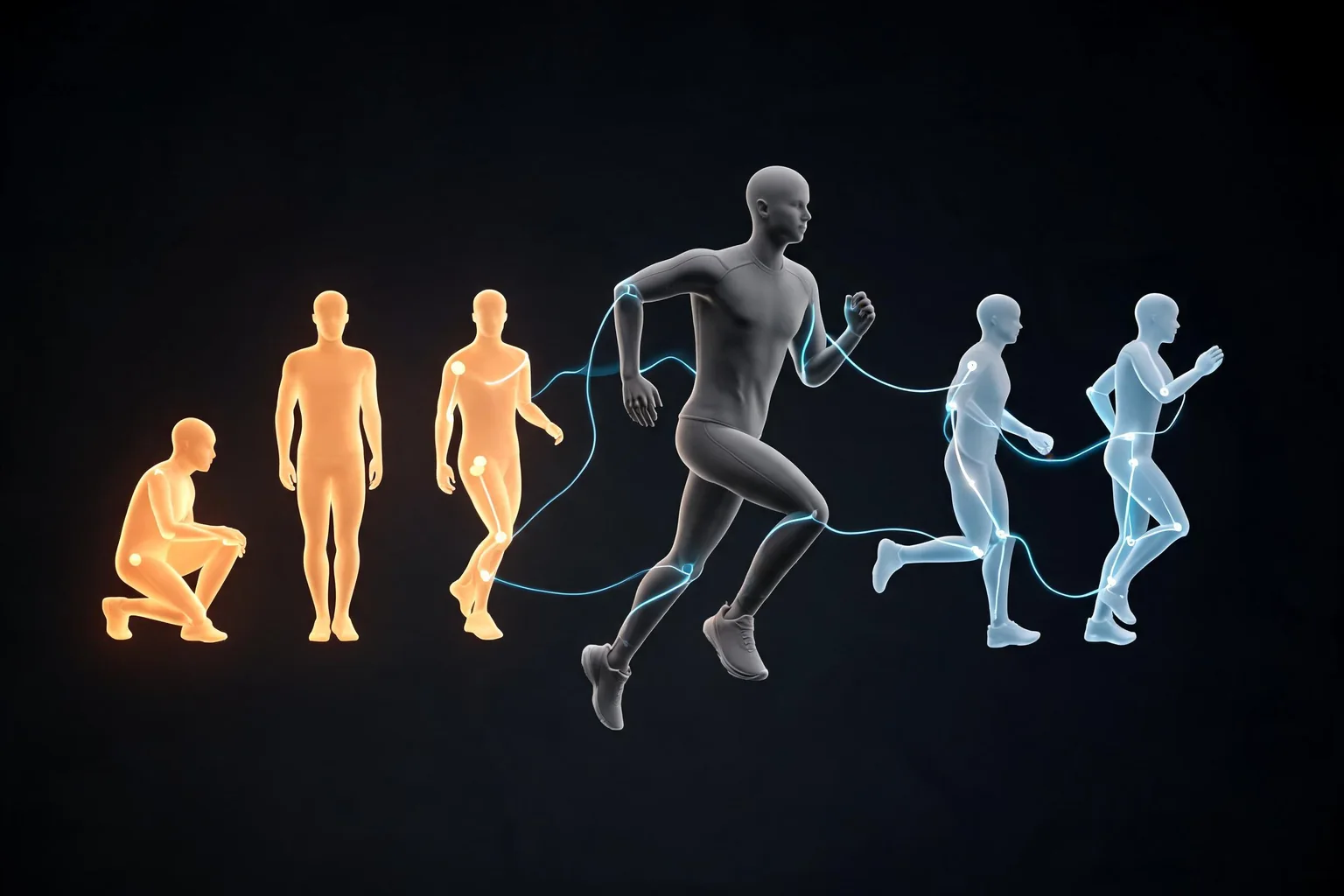
Describe motion separately
Say what moves and what remains fixed.

Plan a reference-led video prompt by describing what should move, what must stay recognizable, and how the camera frames the action. Check image rights and model limits before production use.
Pick a starting point
Motion has a clear start and end.
Use an original illustration of a paper boat on a puddle. Ask it to drift past a leaf while the rain continues; keep the boat’s red sail and the leaf in view.
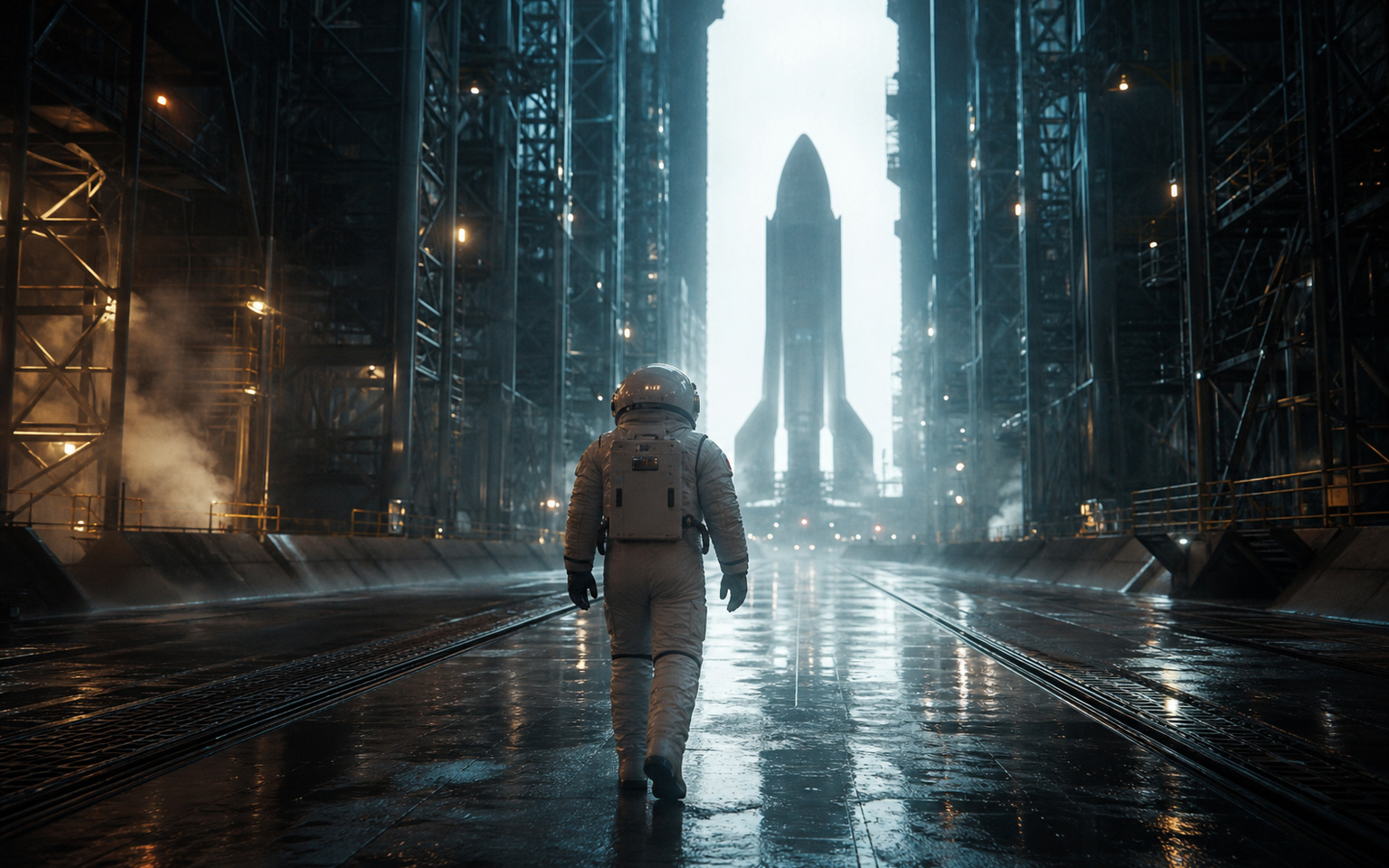 Subject and action ↗
Why SEELE
Say what moves and what remains fixed.

Choose framing, tracking, and whether cuts are allowed.

Name visual elements that must stay recognizable.

Confirm the image can be used for the intended work.

Check unexpected objects and continuity.

Verify aspect ratio and duration requirements in the chosen tool.
Who it’s for
Set the audience, message, and destination for an idea in the Reference Image Video Generator workflow. Check current model options, clip limits, exports, and cost before production.
Image to Game Generator ↗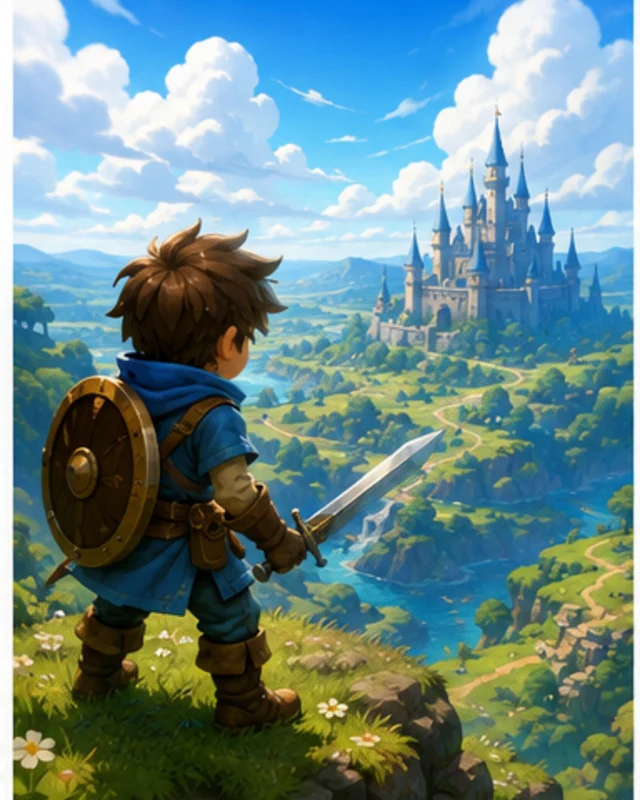
Write a short brief for the intended channel and viewer, then verify the current workflow and output limits before scheduling a release.
SEELE AI Video for Ecommerce Teams ↗
Compare a draft with the project brief and rights requirements; confirm available editing and delivery steps in the current product.
SEELE AI Video for Social Media Teams ↗Reviews
FAQ
SEELE lets creators attach reference images while briefing a cinematic video-generation workflow. The image can guide visual identity or style, while the written prompt still defines action, camera, environment, aspect ratio, and duration.
There is no fixed completion time for Reference Image Video Generator; scope, selected model, and requested assets affect the work. Start with subject and action and add complexity after reviewing the first pass.
This Reference Image Video Generator page does not verify the requested behavior: “Can I edit the result.” Check the current Workspace options and validate a small example against the target requirements.
Before a first Reference Image Video Generator project, define the task, intended audience, one visible outcome, and a constraint. Use Subject and action as a direction that fits the brief.
To get started with Reference Image Video Generator, use Describe the job as the first step. Set one goal, audience, and constraint; test a small version, then change one thing at a time.
For Reference Image Video Generator, name the intended user, one action, and a visible outcome. Use Subject and action as a starting direction and add one requirement from its example prompt.
Ask someone who matches the intended player or viewer for Reference Image Video Generator to test its main action. Note where the brief is unclear, then revise once before adding features.
For Reference Image Video Generator, try Subject and action first. Define the action, outcome, and one constraint, then compare another direction only if the first misses the brief.
Check the Reference Image Video Generator result against the brief, intended behavior, and first workflow step. Record one mismatch and test that change before expanding scope.
Scope a first Reference Image Video Generator prototype to Subject and action, one user action, and one visible outcome. Defer secondary features until that path works.
Compare Subject and action and Composition and framing for Reference Image Video Generator using the same user action and visible outcome. Choose the direction that fits the brief with fewer assumptions.
After reviewing Reference Image Video Generator, record one gap between the brief and result. Make one focused change, then test the same action against the original outcome.
Match a linked tool's input and output to one need in the Reference Image Video Generator brief. If it does not support that step, skip it and keep the test in the main project.