Describe the scene before the code
Name the camera view, focal object, and interaction in the brief. That gives the first 3D scene a clearer purpose than a list of visual effects.

Describe what visitors should see and do. Set the camera, key objects, and one interaction, then review the generated Three.js experience in a browser.
Pick a starting point
Put one product at the center of the scene. Decide which angle matters, what detail visitors should notice, and whether a hotspot adds useful context.
Create a browser-based 3D product showcase for a compact desk lamp. Place it on a clean dark plinth, use a slow turntable view, and add two clickable hotspots: one for the adjustable arm and one for the light settings. Keep the product large enough to inspect on a laptop screen.
 3D product showcase ↗
Why SEELE
Name the camera view, focal object, and interaction in the brief. That gives the first 3D scene a clearer purpose than a list of visual effects.

Choose the angle and details a visitor needs to inspect. Then check whether the object remains clear at the size and screen width you expect.

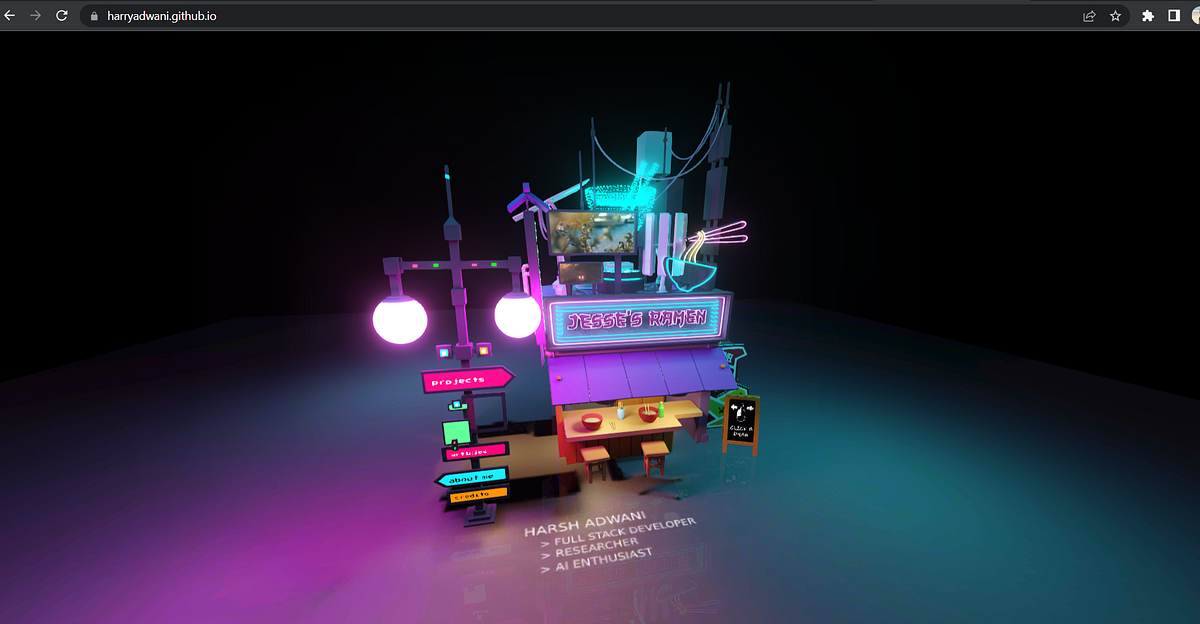
Arrange projects so visitors can scan names and open the work they want to see. Depth should help organize the page, not bury the navigation.

Start with a rotation, hotspot, or selection. Check that it responds as expected before adding more controls.

Try the scene with a mouse, keyboard, and the screen sizes your audience uses. Note where controls, text, or the main object become hard to find.

3D scenes can feel different across devices. Test the actual build, watch for slow rendering, and simplify geometry or effects when needed.
Who it’s for
Use a written brief to explore a Three.js scene, then inspect the generated code and adapt it to the site’s existing structure and constraints.
AI Game Maker with Code ↗
Try a spatial layout for project work while keeping headings, navigation, and case-study links easy to read.
AI Portfolio Generator ↗
Explore a browser-based product view and decide which angles, details, and interactions deserve a closer review.
3D AI Game Maker ↗Compare
How SEELE AI's Three.js editor compares to other 3D website builders.
| Feature | Start from a written scene brief | Build a Three.js scene manually |
|---|---|---|
| First input | Describe the visitor, focal object, and interaction | Set up the project and scene structure |
| Visual direction | Give the scene a camera, layout, and a few key details | Choose these details while building the scene |
| First review | Inspect whether the object and controls read clearly in a browser | Review the scene as its geometry and interactions take shape |
| Iteration | Ask for a focused change, then compare the updated result | Edit the relevant code or assets directly |
| Before publishing | Test performance, accessibility, and browser behavior on target devices | Run the same checks against the completed implementation |
Reviews
FAQ
A Three.js AI generator turns a written description into a starting point for an interactive 3D web experience. SEELE can generate Three.js code and 3D assets for scenes such as product showcases, portfolios, and browser games.
Yes. Describe the page, focal object, camera, and interaction you want to explore. Review the generated browser experience and adjust the brief when the layout or behavior needs work.
You can start with a plain-language description. If you plan to customize or publish the result, review the generated code and test it in the environment where it will run.
Try an interactive product view, a portfolio scene, a WebGL background, or a small browser game. Choose one clear visitor action so the first scene is easy to evaluate.
Describe the audience, camera view, focal objects, and the action visitors can take. Add a layout or device constraint when it affects how the scene should work.
Yes. A browser-based 3D showcase can help visitors inspect a product from different angles. Decide which details matter and test whether the controls remain easy to use.
Yes. A 3D scene can frame portfolio projects, but titles, navigation, and project links should remain easy to read and use. Test the layout with the scene enabled and on smaller screens.
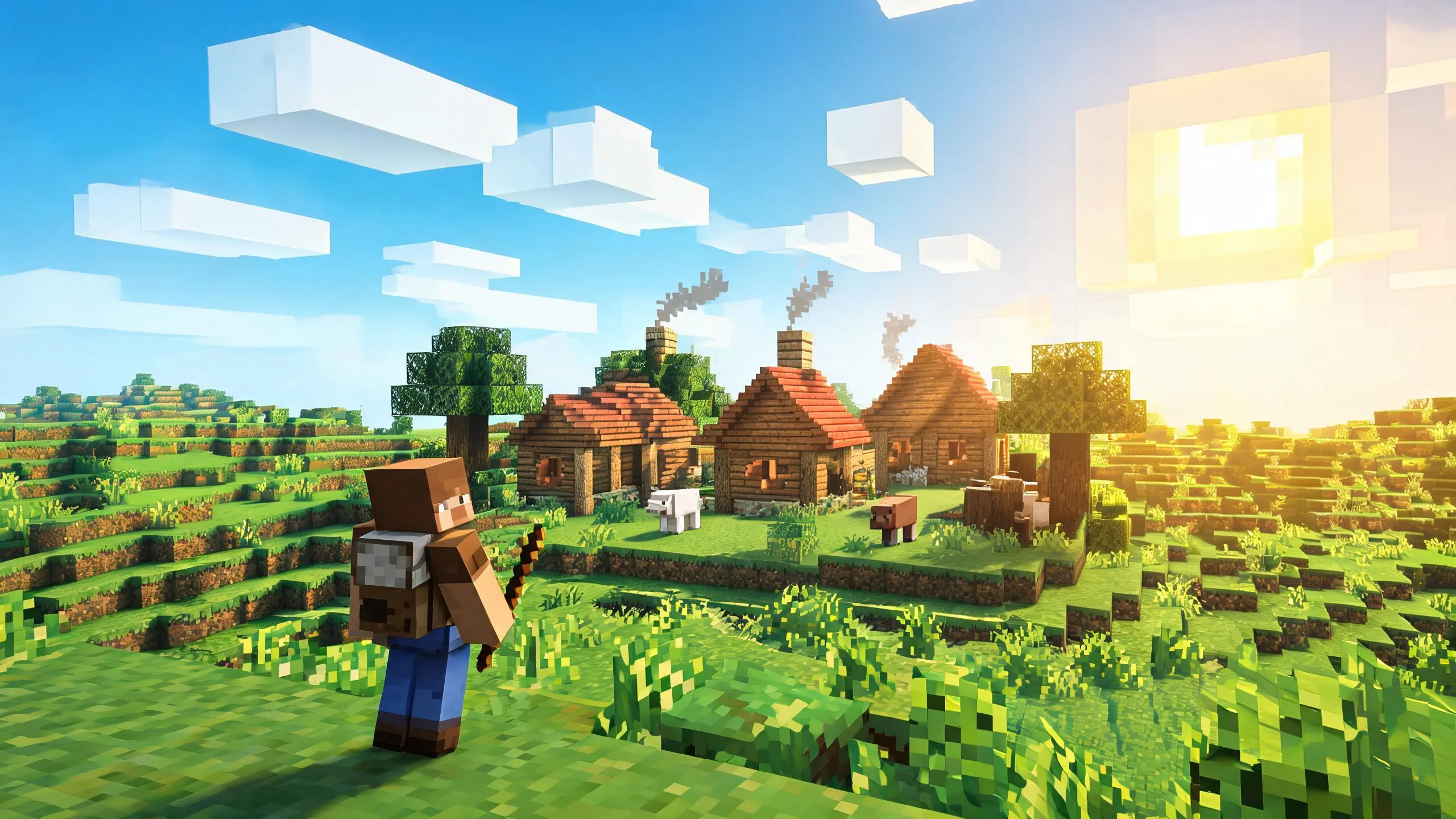
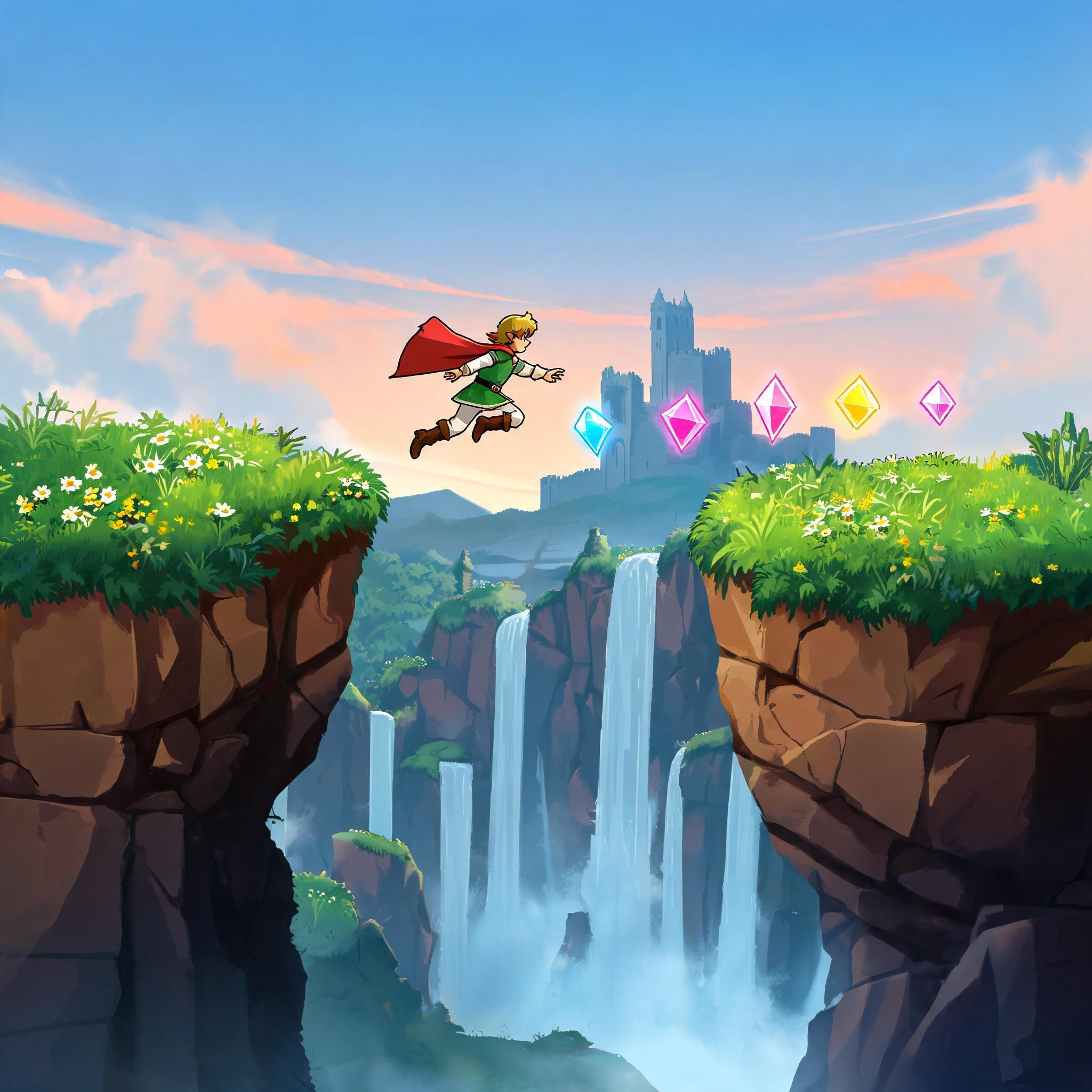
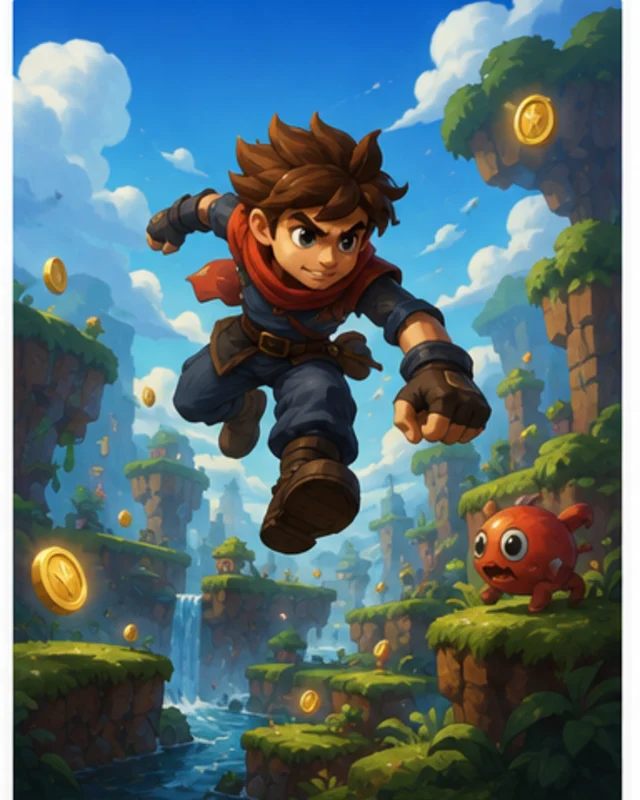
Three.js can render interactive 3D browser experiences, including game scenes. Define the player action and success condition, then test controls and feedback in the target browser.
Inspect the scene on the devices you support. Reduce unnecessary geometry, texture sizes, lighting, and effects, and measure the result in the browser rather than assuming an optimization helped.
It depends on the scene and the device. Test the actual build on representative phones, check touch controls and text sizing, and simplify the scene if performance or usability suffers.
SEELE’s Three.js page describes browser-ready project output. Check the current Workspace export options and inspect the project files before choosing a hosting or deployment workflow.
Check the current Workspace options for supported asset inputs. When using a custom model, review its file size, materials, scale, and rights before adding it to a public page.
Treat generated code as a starting point. Review dependencies, accessibility, security, browser behavior, and performance, then test the complete page before publishing.
WebGL is a browser API for rendering graphics; Three.js is a JavaScript library that provides a higher-level way to build 3D scenes using WebGL. The right choice depends on the project and the control you need.