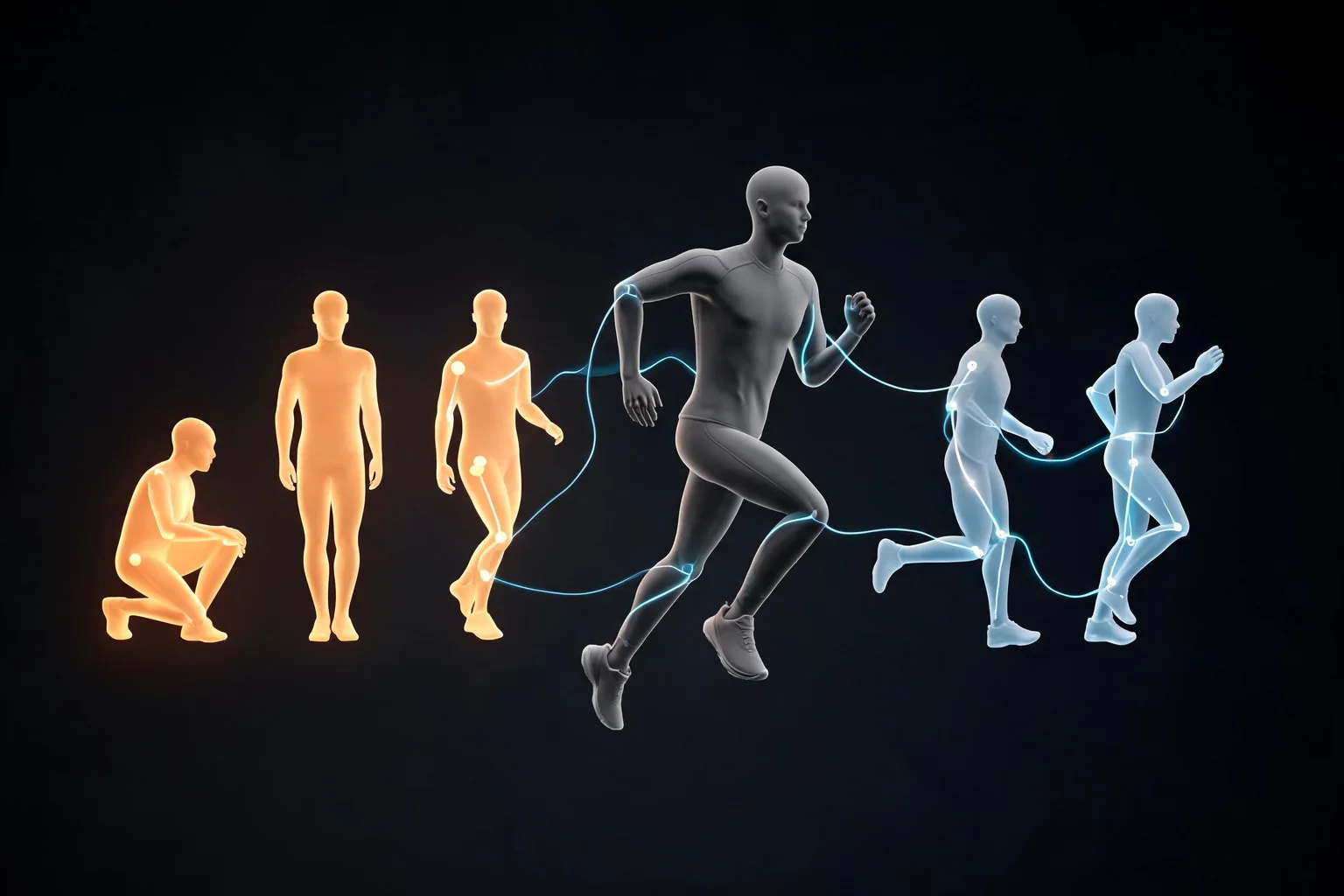
Tie motion to a state change
Give each animation a job.

Plan a short Unreal UI animation around a specific state change. Define what moves, how long it takes, reduced-motion behavior, and how players can still read or use the interface.
How it works
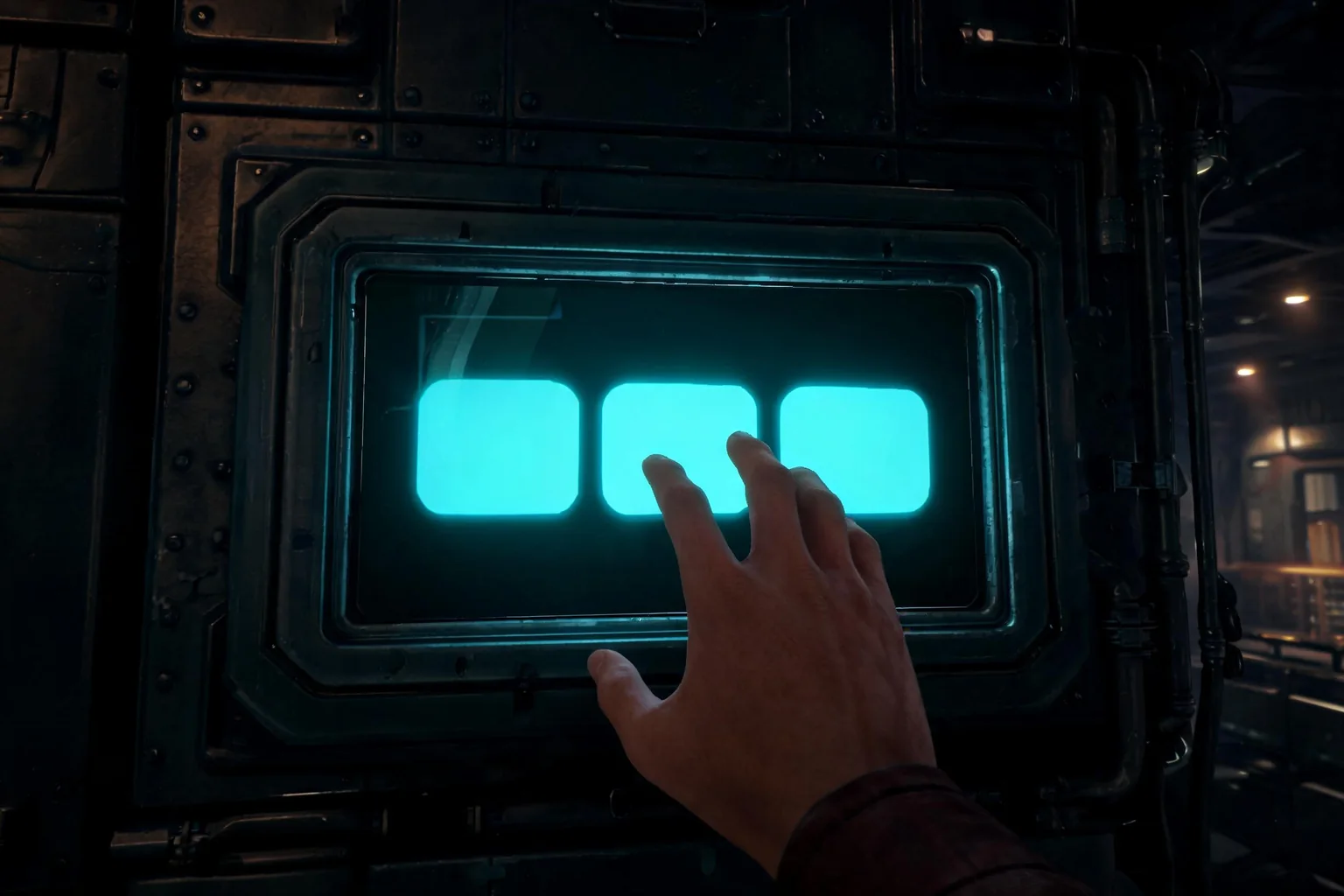
Select one user task such as start a run, understand an objective, survive damage, choose an item, inspect a clue, pause, fail, or restart. Define the information and action required at each state.

Use original visual language and placeholder-free hierarchy. Constrain copy, transition duration, camera or world relation, audio cue, and final state. Review every frame for drift, illegible text, false affordances, and unsafe flashing.
List widget states, entry trigger, required data, focus target, input actions, navigation edges, animation duration, cancel path, loading fallback, error state, persistence, localization, and accessibility requirements.
Pick a starting point
The motion communicates a state update.
When a key enters inventory, slide its icon into the key slot and update the count from zero to one. Keep the door objective visible during the animation.
State change ↗Why SEELE
Give each animation a job.

Use a short testable value.

Preserve correct state when menus open.

Keep information without the animation.

Review the interface in game context.

Keep controller navigation and pointer use clear.
Who it’s for
Define the player, one core mechanic, and one testable outcome for a first MiniMax H3 Game UI Motion for Unreal UMG brief. Keep the scope small enough to playtest.
MiniMax H3 for Unreal Engine ↗Compare MiniMax H3 Game UI Motion for Unreal UMG directions against the target player and engine workflow before the team commits to a larger build.
MiniMax H3 Motion Transfer for Unreal Character ↗Compare
| Feature | MiniMax H3 Game UI Motion for Unreal UMG | Starting from scratch |
|---|---|---|
| Starting point | Describe the audience, core loop, and first playable outcome for MiniMax H3 Game UI Motion for Unreal UMG. | Define the project, engine, and first milestone before implementation. |
| First review | Set review criteria for the controls, content, and visual direction of MiniMax H3 Game UI Motion for Unreal UMG. | Review the project setup, scene structure, and implementation plan before playtesting. |
| Scope | Begin with one audience, one core mechanic, and one playable outcome for MiniMax H3 Game UI Motion for Unreal UMG. | Set the engine, asset needs, and implementation scope before building. |
| Prompt detail | State the audience, desired result, format, and main constraint for MiniMax H3 Game UI Motion for Unreal UMG. | Decide those inputs separately before testing a focused direction. |
| Review boundary | A focused first pass for MiniMax H3 Game UI Motion for Unreal UMG. | Write the review checks separately before expanding the project. |
Reviews
FAQ
The official H3 sources describe multimodal video generation, not Widget Blueprints, CommonUI assets, Slate code, data bindings, focus graphs, localization resources, or input mappings. Use the clip as motion and hierarchy reference, then rebuild the approved states in the native Unreal UI system. Confirm the current provider documentation before you lock a production decision.
Use Minimax H3 Unreal Game UI Motion as a focused project brief: state the intended outcome, audience, and one constraint. Review the result against those details and decide what needs a follow-up pass.
For each state, record entry trigger, visible information, data owner, available actions, focus target, navigation edges, animation duration, completion, cancellation, loading, empty, error, persistence, audio, localization, accessibility, and the gameplay state that should result from the user’s action. Keep prompts, outputs, project versions, and review notes in the same decision log.
Before a first MiniMax H3 Game UI Motion for Unreal UMG project, define the task, intended audience, one visible outcome, and a constraint. Use Source moment as a direction that fits the brief.
To get started with MiniMax H3 Game UI Motion for Unreal UMG, use Choose one interface job as the first step. Set one goal, audience, and constraint; test a small version, then change one thing at a time.
For MiniMax H3 Game UI Motion for Unreal UMG, name the intended user, one action, and a visible outcome. Use Source moment as a starting direction and add one requirement from its example prompt.
Ask someone who matches the intended player or viewer for MiniMax H3 Game UI Motion for Unreal UMG to test its main action. Note where the brief is unclear, then revise once before adding features.
For MiniMax H3 Game UI Motion for Unreal UMG, try Source moment first. Define the action, outcome, and one constraint, then compare another direction only if the first misses the brief.
Check the MiniMax H3 Game UI Motion for Unreal UMG result against the brief, intended behavior, and first workflow step. Record one mismatch and test that change before expanding scope.
Scope a first MiniMax H3 Game UI Motion for Unreal UMG prototype to Source moment, one user action, and one visible outcome. Defer secondary features until that path works.
Compare Source moment and Pacing and sequence for MiniMax H3 Game UI Motion for Unreal UMG using the same user action and visible outcome. Choose the direction that fits the brief with fewer assumptions.
After reviewing MiniMax H3 Game UI Motion for Unreal UMG, record one gap between the brief and result. Make one focused change, then test the same action against the original outcome.
Match a linked tool's input and output to one need in the MiniMax H3 Game UI Motion for Unreal UMG brief. If it does not support that step, skip it and keep the test in the main project.