Menu

Seele AI · Tool

3D Model Prompt for Faster 3D Asset Planning

Use 3D model prompt to turn rough intent into a clearer 3D model brief before deeper production starts.

Try this in Seele AI

Start with one concrete 3D model prompt request, then launch the same direction into Workspace.

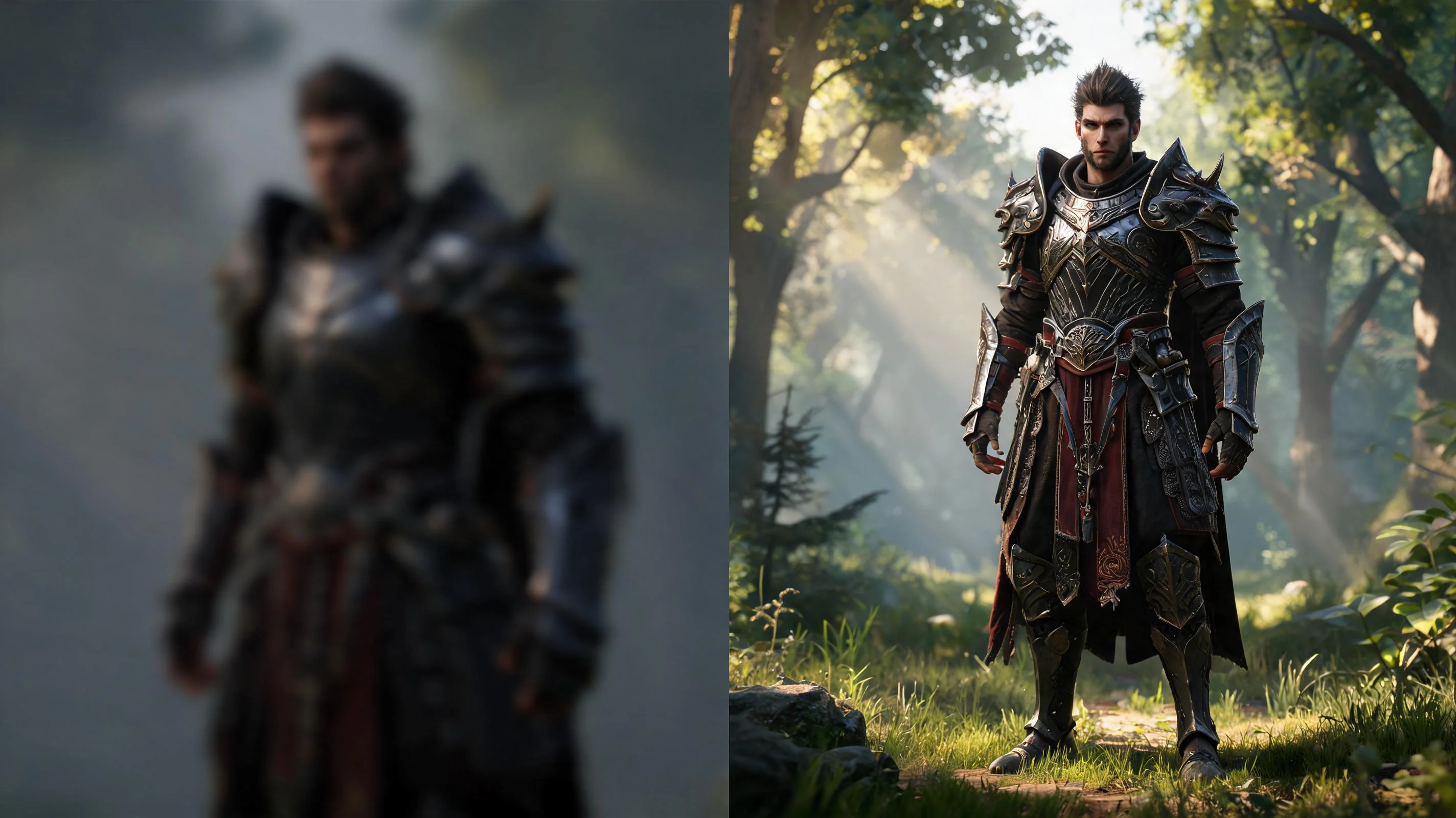
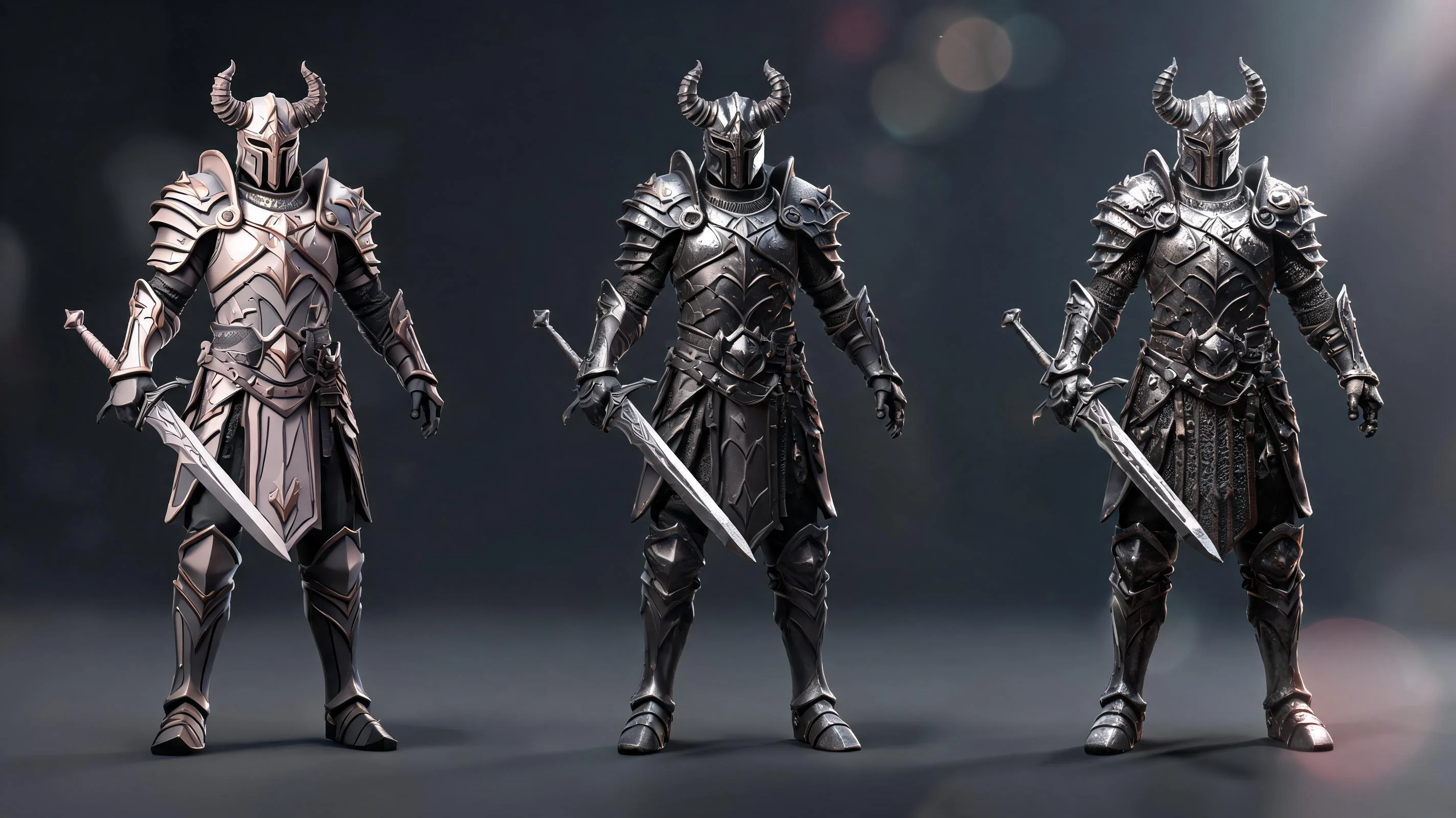
Quick Start Searches

Quick Start Searches

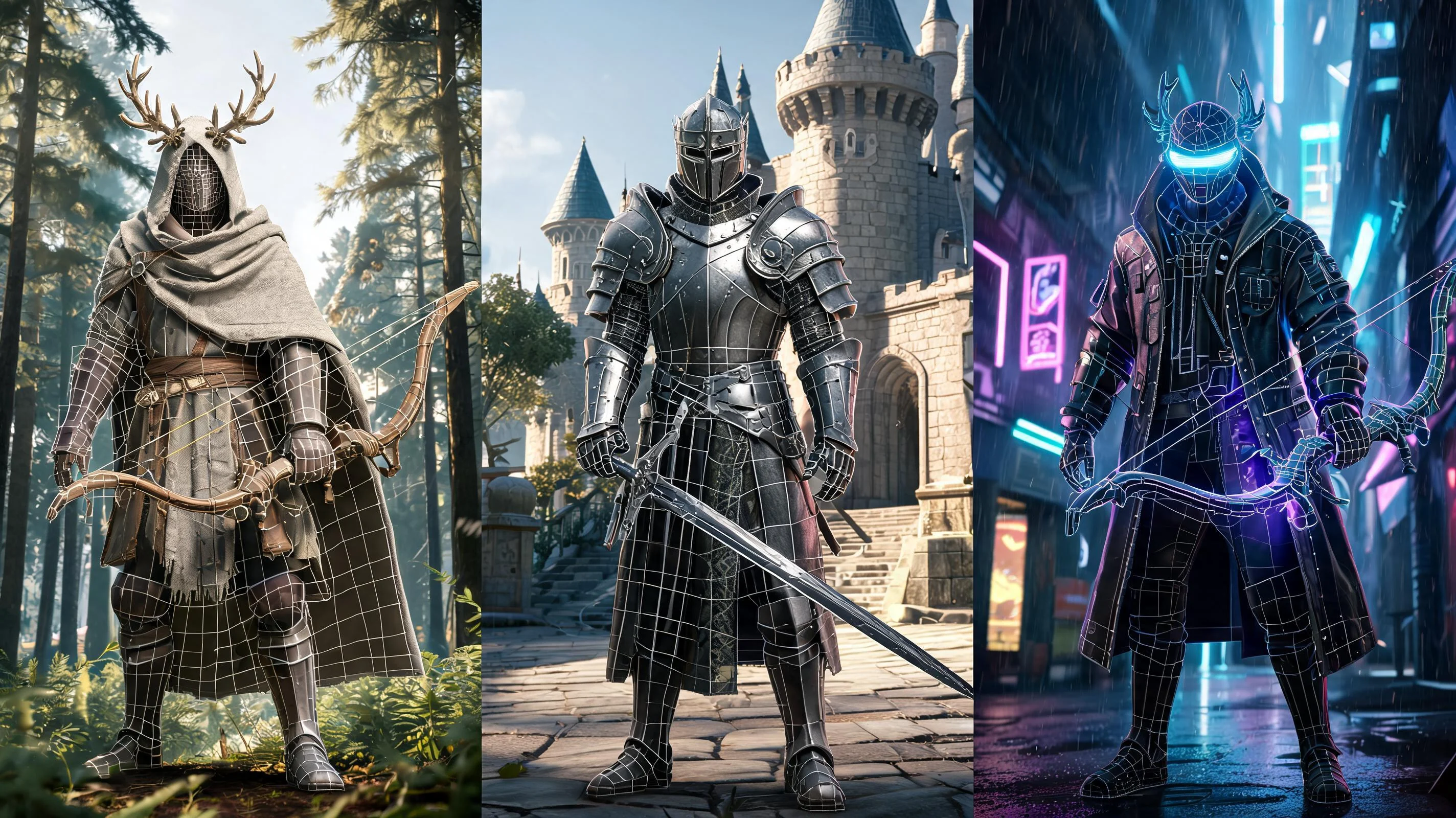
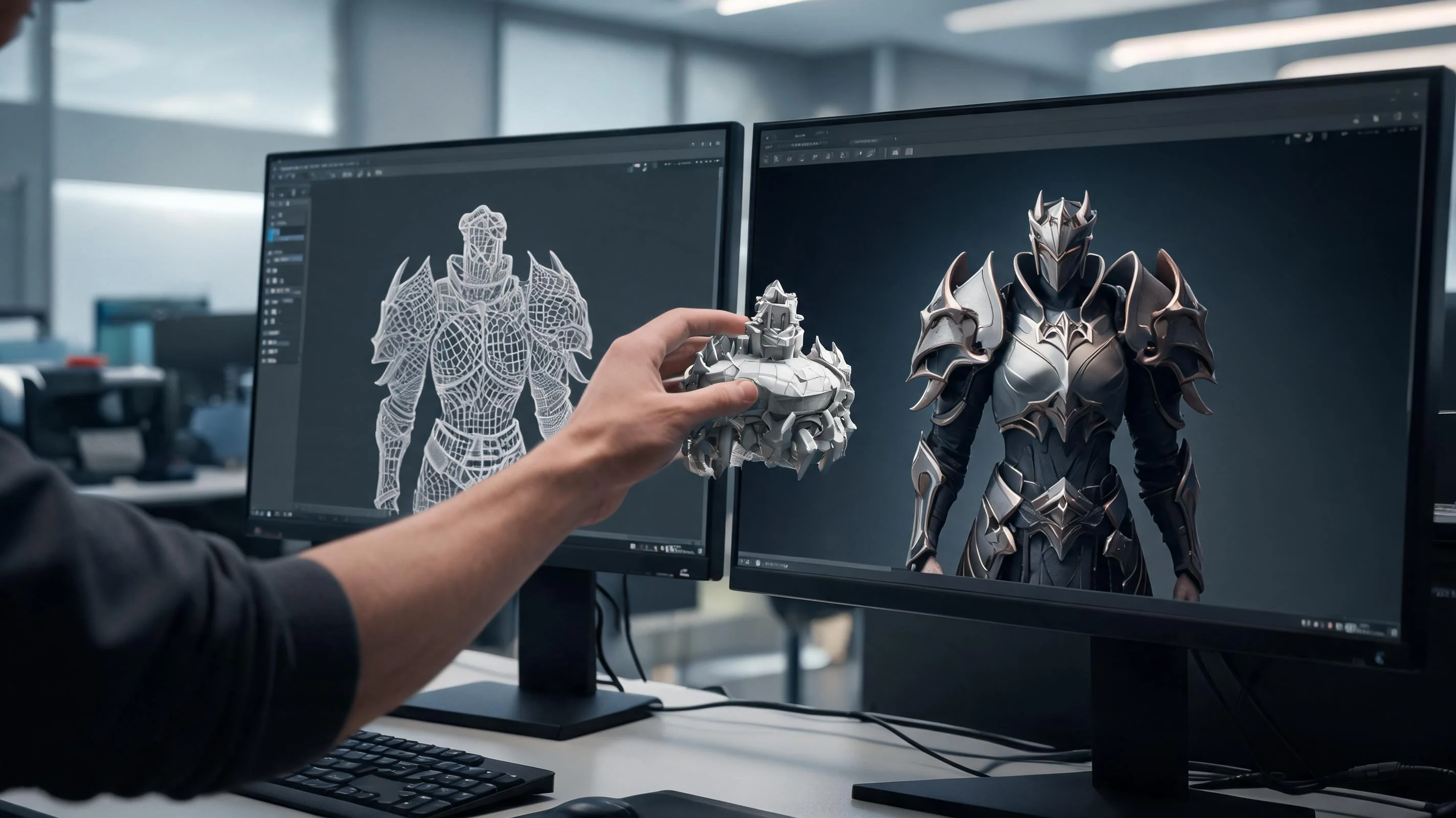
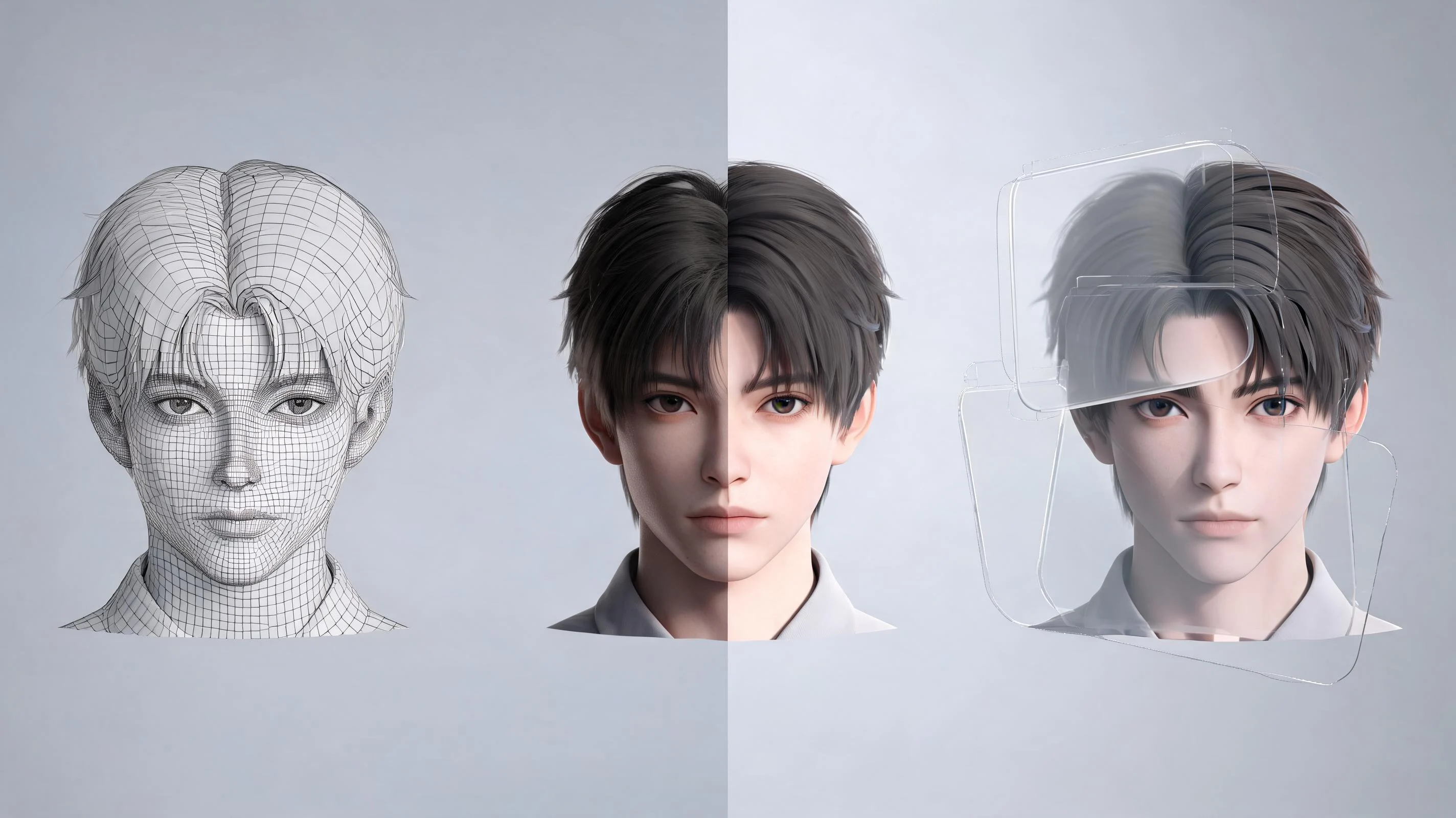
Three realistic ways teams start a 3D model prompt workflow.

Core Features

Core Features

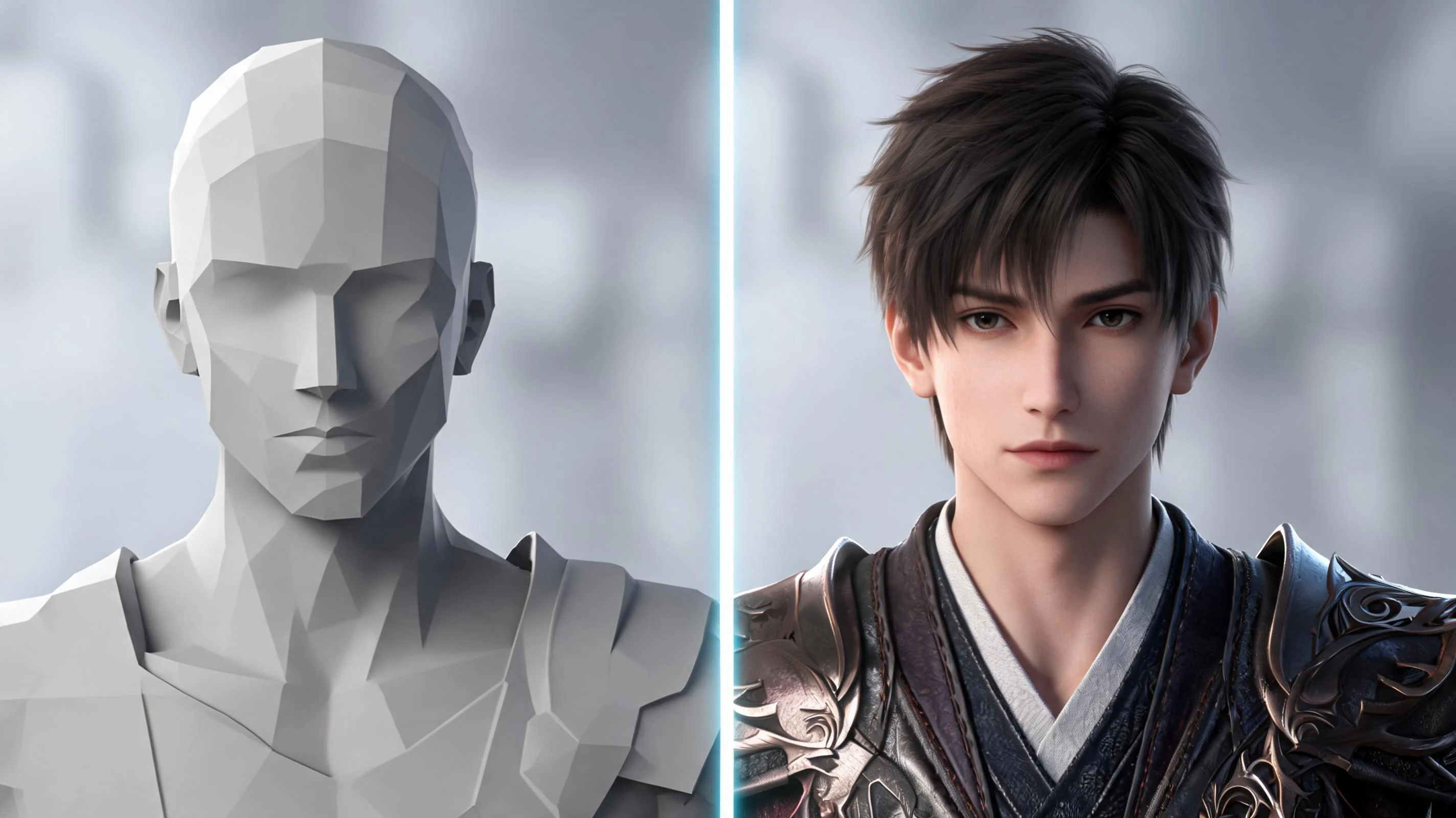
What this 3D model prompt page is designed to accelerate.

Comparison

Comparison

ApproachBest forStill needs review
Single-pass 3D model prompt draftFast first-pass 3D model brief generationmesh quality, optimization, and final engine import setup
Multi-route comparisonPicking the strongest direction for 3D asset ideation and model planningScope tradeoffs, downstream dependencies, and team alignment
Workspace continuationExpanding the chosen route without restartingFinal production execution and release-quality signoff

Who This Tool Page Is For

Who This Tool Page Is For

Teams that need a faster way to move from rough intent to a usable 3D model brief.

3D Model Prompt helps teams move faster from rough intent to a concrete 3D model brief. It is strongest when the job is to compare directions, clarify scope, and continue the best route in Workspace rather than pretending one pass finishes everything.

Why teams use it

Most teams do not need a perfect first answer. They need a faster way to shape 3D asset ideation and model planning, decide what belongs in the next iteration, and keep the capability boundary honest around mesh quality, optimization, and final engine import setup.

How It Works

How It Works

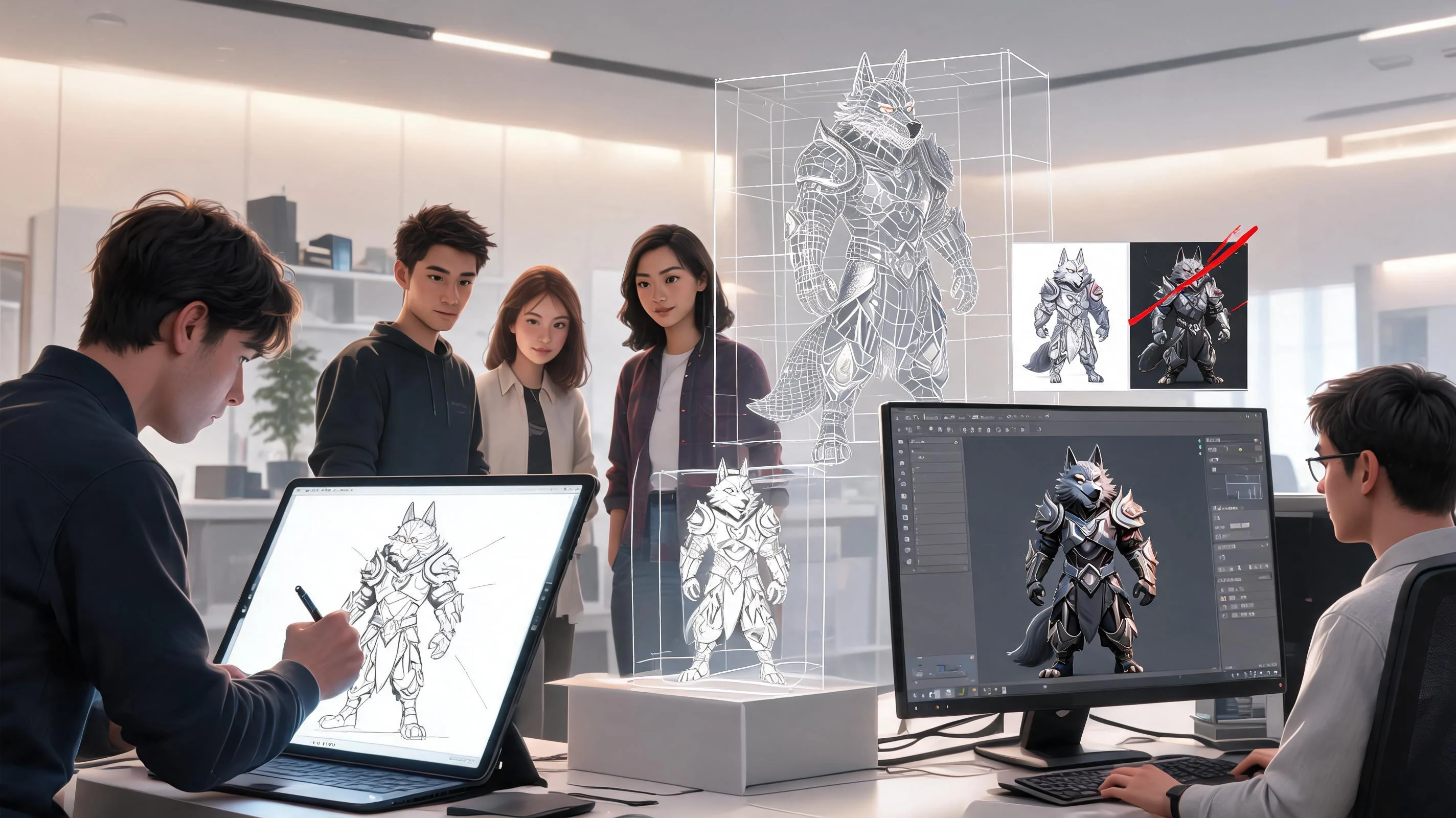
A simple flow for moving from rough intent to a stronger 3D model brief.

01

Frame The Request

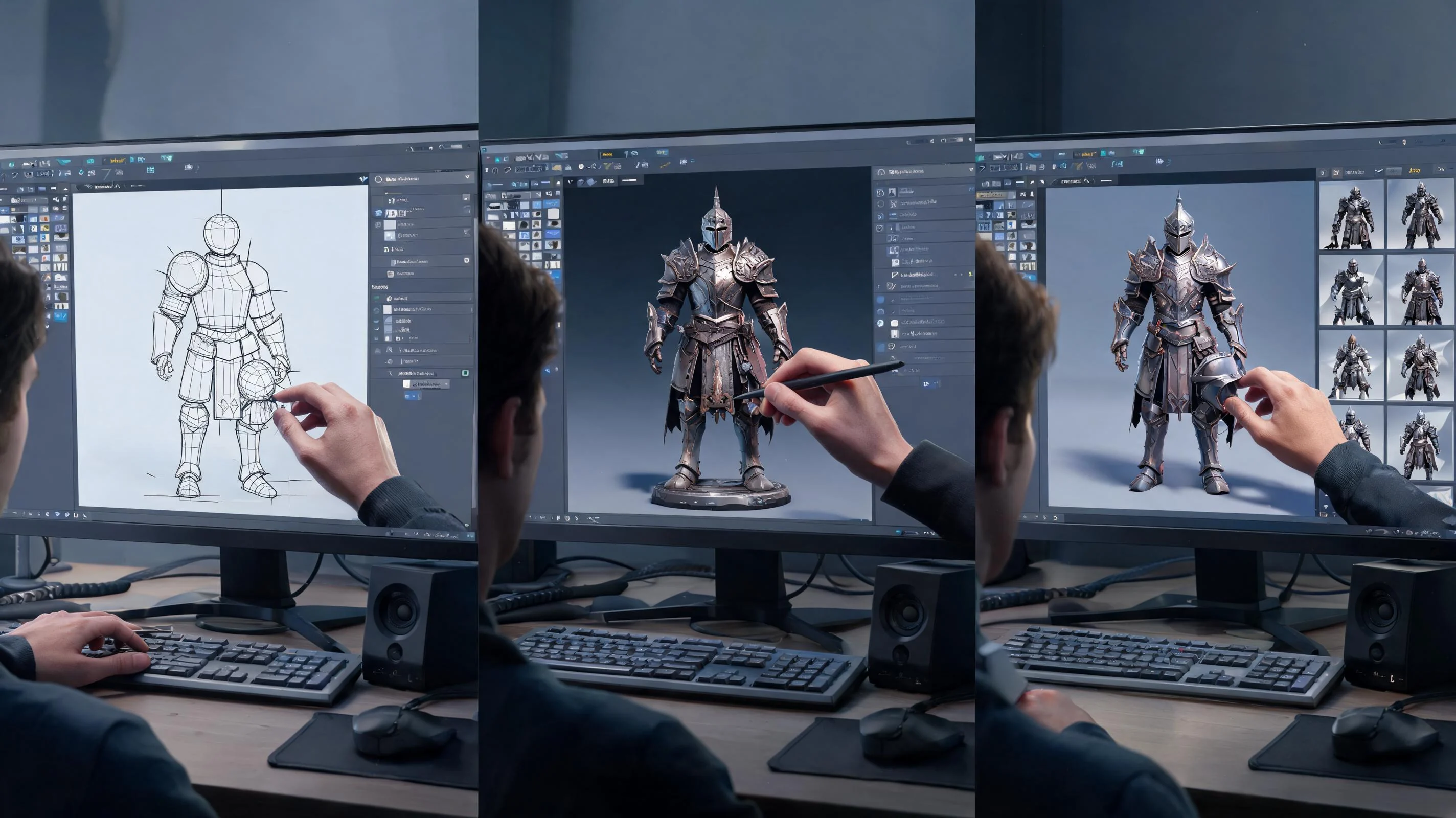
Describe the goal, audience, and constraints behind 3D model prompt. Seele AI turns that rough request into a more structured 3D model brief direction.

02

Generate Variants

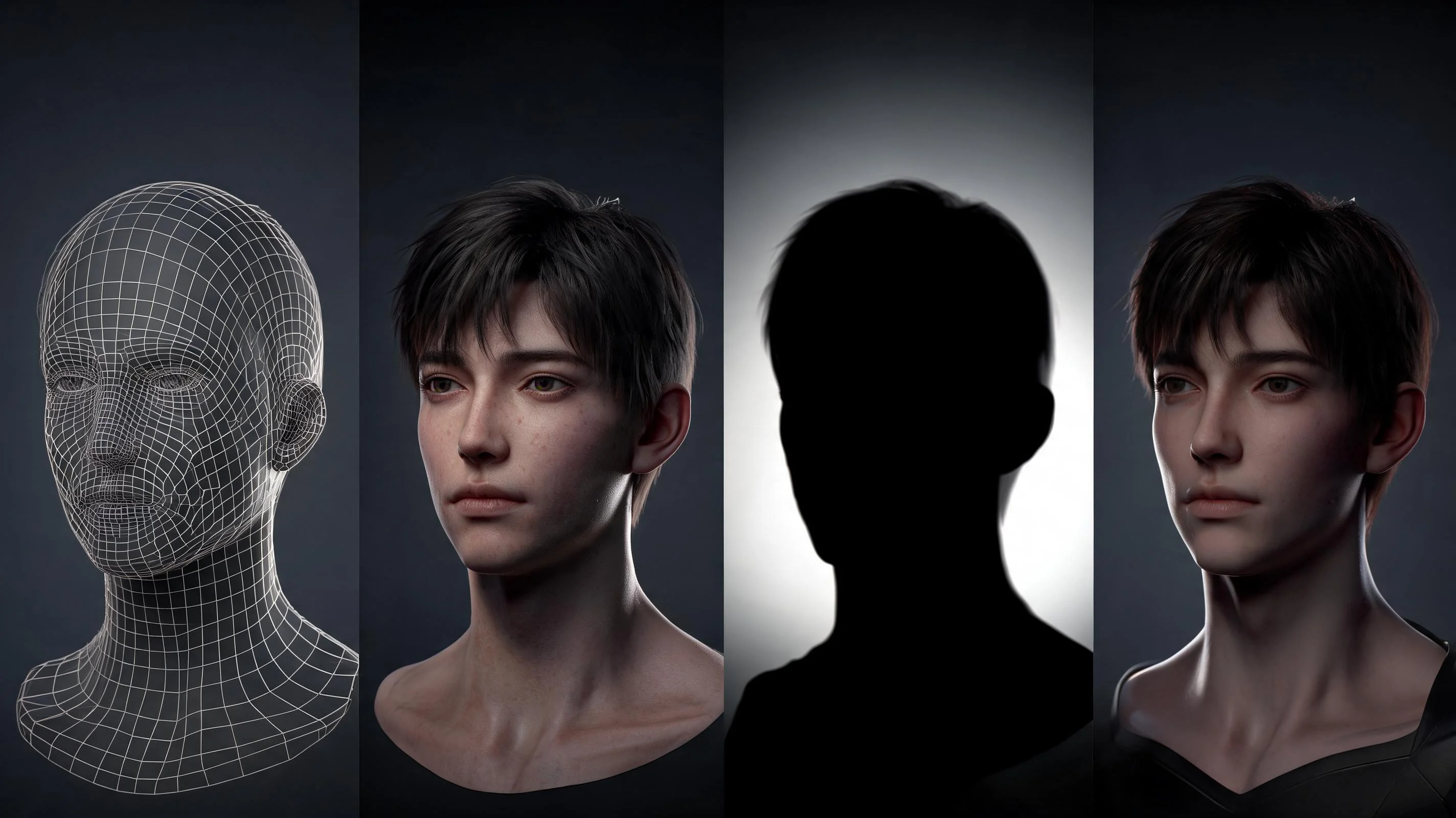
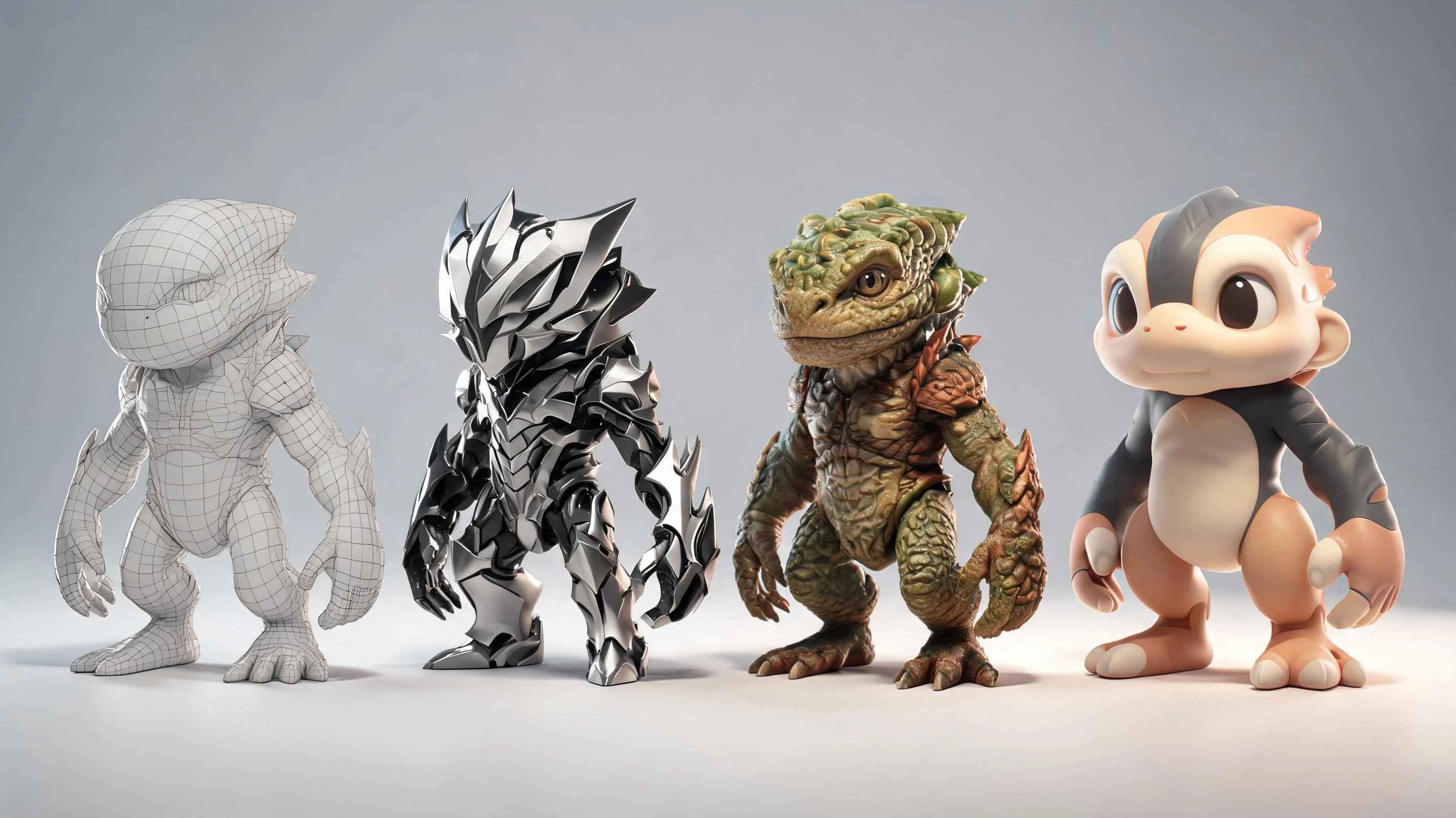
Ask for multiple directions, tradeoffs, or styles around 3D model prompt. The workflow expands the request into comparable routes for 3D asset ideation and model planning.

03

Choose And Continue

Pick the strongest route and keep refining it. Workspace carries the same direction forward so the team does not have to restart from zero.

What You Get

What You Get

Concrete outputs that help the team review and continue faster.

3D Model Brief

A clearer first-pass 3D model brief shaped around the exact 3D model prompt intent.

Direction Comparison

Multiple workable routes with clearer tradeoffs so teams can choose intentionally.

Workspace Handoff

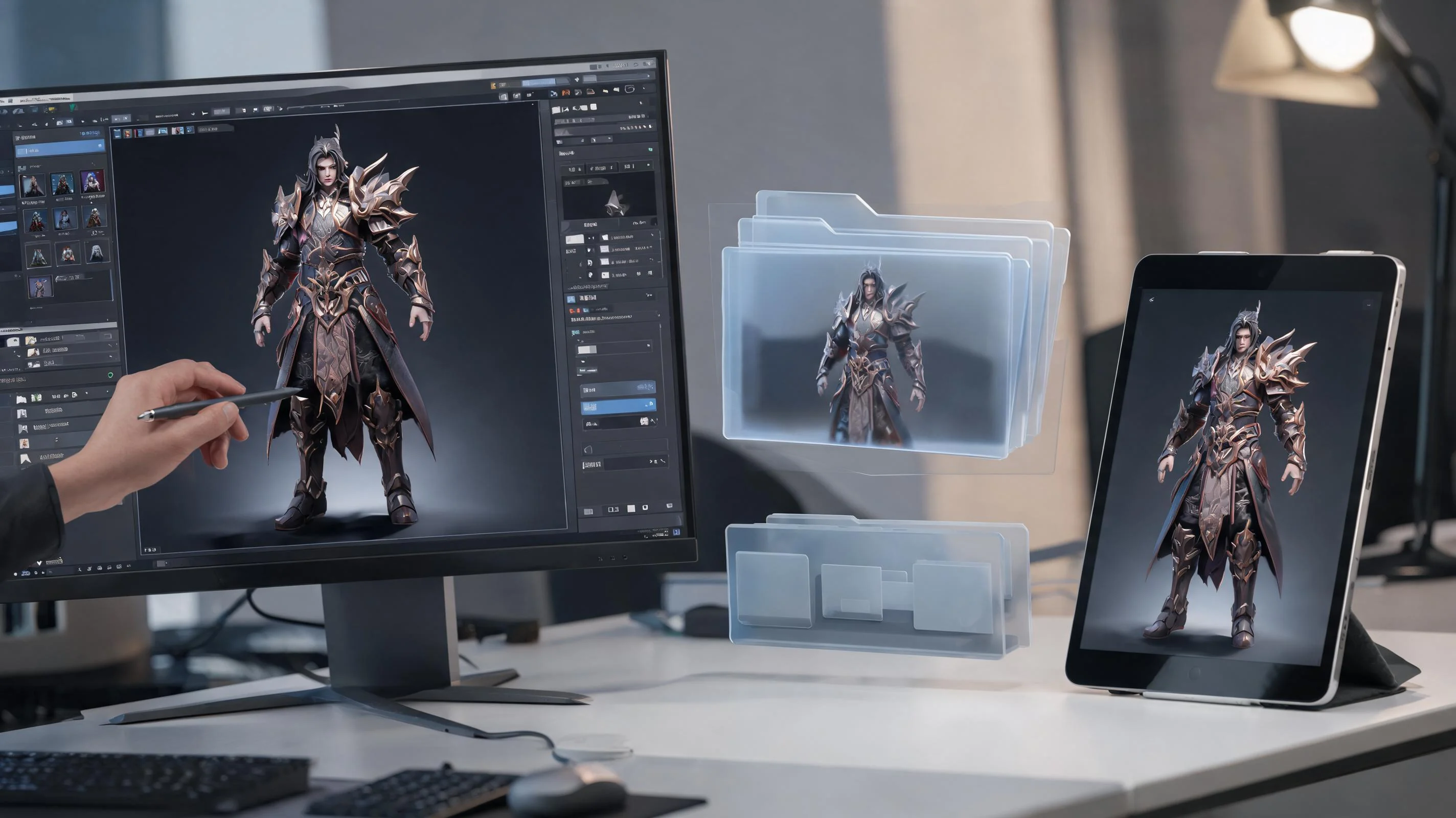
A selected route ready to continue in Seele AI Workspace instead of ending at the landing page.

Where This Works Best

Best For And What Still Needs Review

Where This Works Best

  • First-pass 3D asset ideation and model planning
  • Turning rough 3D model prompt requests into clearer 3D model briefs
  • Comparing directions before production deepens
  • mesh quality, optimization, and final engine import setup
  • Team-specific constraints and final production tradeoffs
  • Release-quality signoff before shipping

Related 3D workflows

For text to 3D AI, prompt to 3D model, or text to 3D model generator workflows, use the prompt as an editable brief before production review. Continue with the image-to-3D workflow or 3D model generator workflow .

FAQ

What is 3D Model Prompt?

3D Model Prompt is a workflow for turning a rough request into a clearer 3D model brief that a team can review, compare, and continue inside Seele AI.

Who should use 3D model prompt?

It is most useful for teams that need a faster first pass before deeper production work, especially when scope, direction, or output quality still needs discussion.

Can 3D model prompt replace final production work?

No. It is strongest for early-stage 3D asset ideation and model planning, while mesh quality, optimization, and final engine import setup still need human review before anything is treated as final.

What do you get from 3D model prompt in Seele AI?

You get a stronger first-pass 3D model brief, clearer comparison between directions, and a cleaner handoff into Workspace for the next round of iteration.

How do I continue after using 3D model prompt?

Use the handoff prompt to open Workspace with the same direction already carried forward, then keep iterating instead of restarting from zero.